
There are ways to block unwanted numbers from reaching your line, whether it’s on your iPhone or iPad. Basically, Apple offers up to four filters that could block these numbers from contacting you, and additionally, you could use third-party apps to scale the restriction higher. No matter what method you prefer, this post will walk you through the steps to block unknown numbers on iPhone and iPad devices.
How to Block Unknown Numbers on iPhone and iPad
There are two primary ways to do this: either you block the specific numbers that have been hitting you up, and you don’t know the people at the other end of the line, or you can generally silence “Spam” calls. Let’s start with the first.
Blocking Individual Numbers on iPhone or iPad
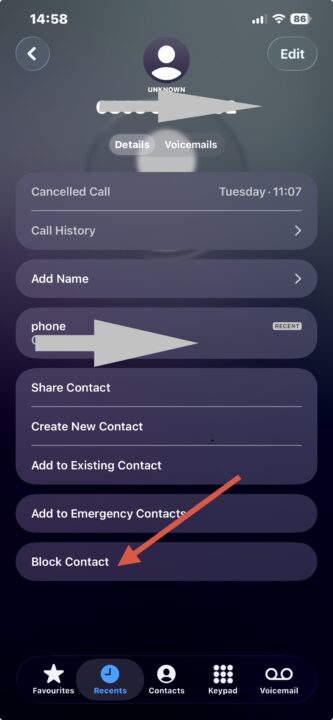
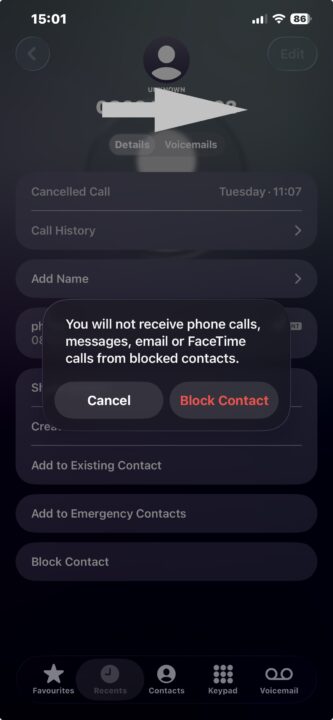
This one is straight up, from the Phone app, tap on the number to open the detailed profile, scroll down, and hit the “Block Contact” option. Yeah, this works, regardless of whether the number is saved as a contact on your device or not.
Filtering Spam Calls
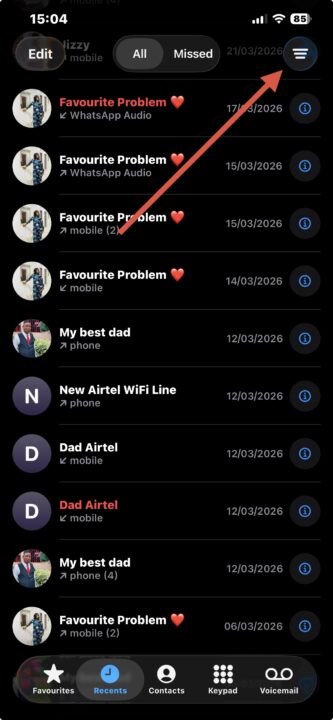
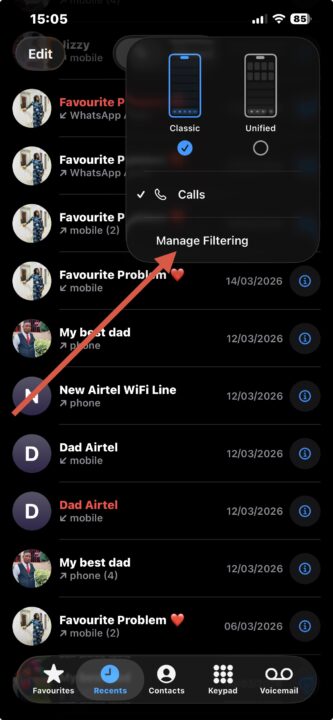
This one will automatically block known spam callers from reaching you. Also, in the iPhone/iPad call settings menu, you can set up call forwarding or call waiting to further restrict unwanted callers from reaching you.
However, there’s a caveat here; if you toggle on the “Silence Unknown Numbers” feature, it’d work only once. Yes, the feature would silence a suspected spam call but show the missed call notification on your Recents; if the same number calls again, this second time, it won’t be silenced.
So, this option works for scammers who use random numbers daily, but for repeated unwanted callers, you have to block them manually. This is where third-party solutions may be your best bet.
Note: If you want to see the Unknown Callers that tried reaching you, in the Phone app or FaceTime, tap the Filter button, then tap Unknown Callers. In the Phone app, this appears in the Recents tab in Classic view, and in the Calls tab in Unified view.
Third-Party Solution to Blocking Unwanted Numbers on iPhone and iPad
Now, there are many third-party applications to do this, but one of the most recommended options is TrueCaller, which can also serve as a reverse phone lookup tool. The free version of TrueCaller already has a lot of features to offer, including blocking spam callers, network providers, and sequential numbers; it is an effective call management app for both iOS and Android users.
Conclusion
You can silence known spam callers on iPhone or iPad from the default Phone app, but for more effective blocking and call management, you’d need a third-party app like TrueCaller to be able to achieve that.