
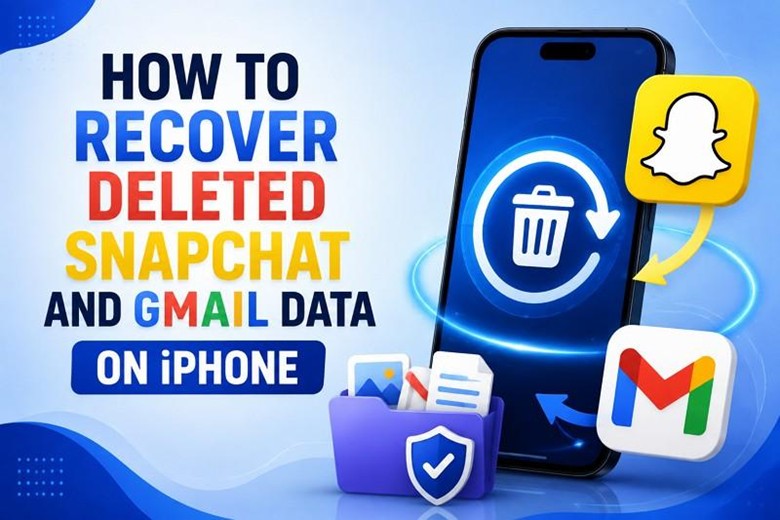
Snapchat is designed to automatically delete most content after it is viewed, while Gmail retains deleted emails longer, though it still has limits. When something vanishes from either app on your iPhone, the instinct is to open it again and look harder, which rarely helps.
What determines the outcome is whether recoverable traces are still stored on your phone’s storage. Hence, this guide explains how Dr.Fone iPhone data recovery software can recover data easily, unlike other methods.
Part 1. Can Deleted Snapchat and Gmail Data Be Recovered?
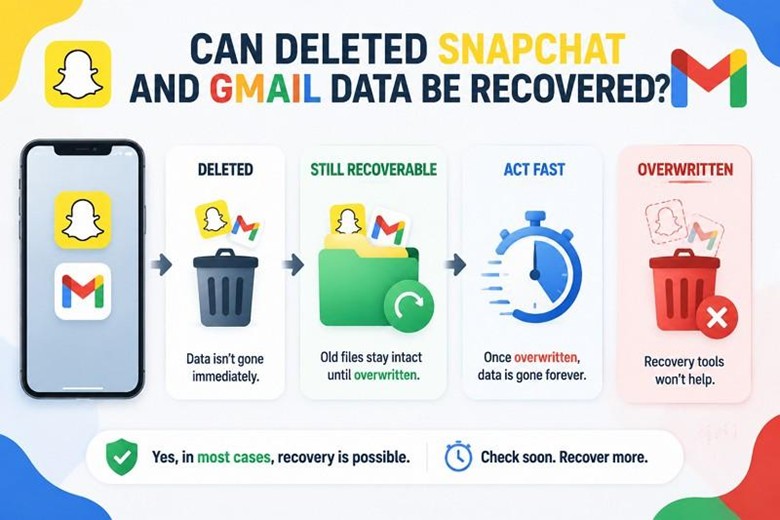
Yes, it is possible to recover the deleted Snapchat and Gmail data in most cases. Deleted iPhone data does not vanish immediately; the system simply marks that space for future use. Old files remain intact until new data overwrites them, which forms the basis for recovery attempts. Act fast, because once overwritten, the data is gone forever and an iPhone recovery program won’t help either.
Part 2. Dr.Fone’s New Snapchat and Gmail Recovery Feature
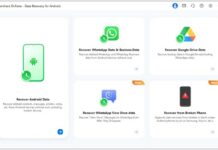
Standard recovery tools only scan central iOS data like photos, messages, and contacts. Snapchat and Gmail store data in private app containers, so their scans miss them. This is why Dr.Fone – Data Recovery (iOS) is the first iPhone recovery software to introduce support for Snapchat and Gmail data recovery on iPhone 16 and earlier. Beyond that, it can retrieve 35+ data types, and a read-only scan saves the existing data.
Most of all, the scan is free, and users can get 100% fully previewable thumbnails to verify the data. They can choose the Snapchat and Gmail data they want to recover from the device, and the filter option makes data navigation seamless. For other data types, it offers 8 recovery modes, including device, iCloud, iTunes, or local backups.
Key Features
- App-Level Coverage: Covers Snapchat and Gmail alongside standard iOS data categories in a single scan.
- Direct Device Access: Reads data directly from the iPhone, allowing recovery of supported items that were never backed up.
- Read-Only Process: Leaves the device unchanged during recovery, without modifying existing data.
- Two Recovery Destinations: Restores selected data directly to the iPhone or saves it to your computer.
Supported Devices and iOS Versions
The mentioned points explain the device and iOS version support for this feature of the Dr.Fone iPhone recovery tool:
- iPhone 16 and earlier. iPhone 17 models aren’t supported.
- iOS 17.0–18.7.1. Versions from iOS 18.7.2 onward aren’t supported.
- iOS 26.0–26.0.1. Support resumes for these versions as a separate compatibility range.
Part 3. How to Recover Snapchat and Gmail Data with Dr.Fone
If you have the supported iOS version and iPhone model, here is how you can recover Gmail and Snapchat data:
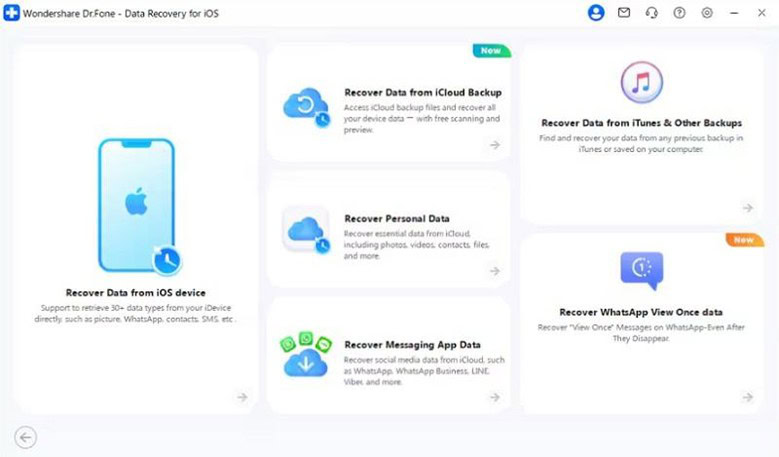
Step 1. Recover Data from an iOS device
From Dr.Fone’s Toolbox, access the Data Recovery tool for “iOS” and pick the “Recover Data from iOS Device” mode.
Step 2. Select Snapchat or Gmail to Scan
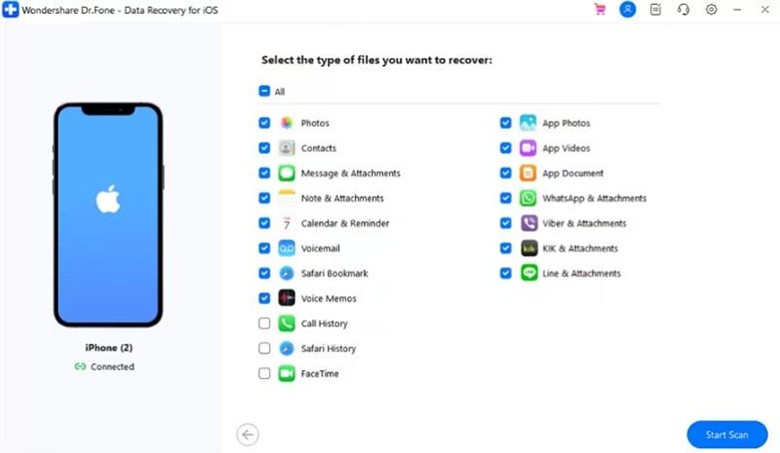
Connect the device when prompted, choose “Snapchat” and “Gmail,” and press “Start Scan.”
Step 3. Preview The Results and Recover
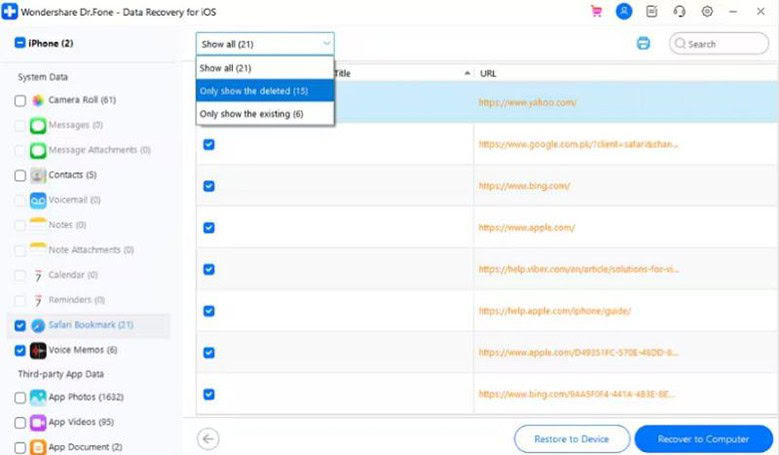
Filter the files from the “Show All” menu to select them and click the “Recover to Device” or “Recover to Computer” button to export.
Part 4. Other Ways to Retrieve Snapchat and Gmail Data
iPhone data recovery software is one way to recover Snapchat and Gmail data. However, if you’d like to explore other iOS data recovery options, this section covers the available alternatives.
Method 1. Request Data from Snapchat or Google
A request reaches material no scan can find, though it takes days rather than minutes. It won’t return Snaps that Snapchat has already cleared from its own systems. Nonetheless, here is how you can request the server-side data:
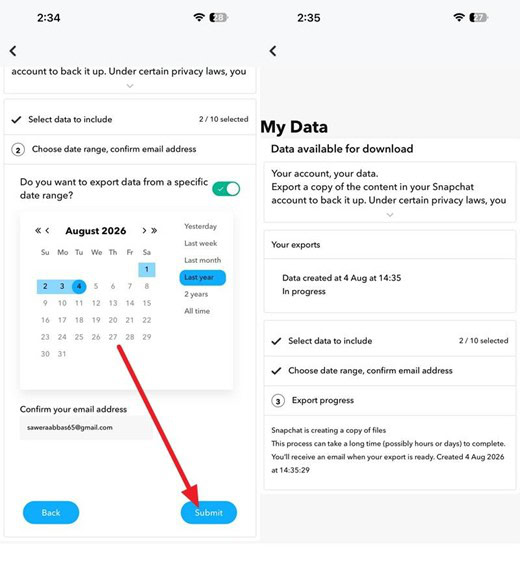
For Snapchat
Step 1. Go to Snapchat settings > Choose “My Data” > Select what to include > Tap “Next.”
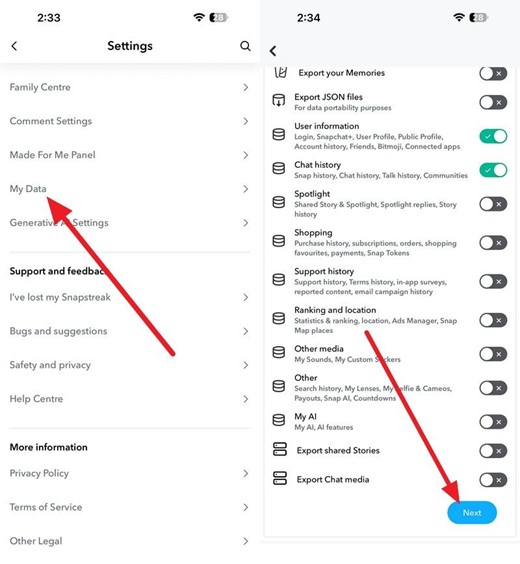
Step 2. Pick the date range and choose the “Submit” button, and wait until you get the email with the data to download.
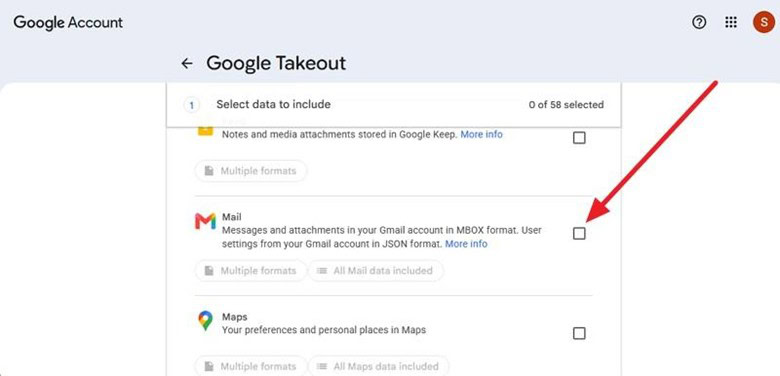
For Gmail
Step 1. Access the Google Takeout page > Sign in > Deselect All > Choose Gmail > Tap “Next.”
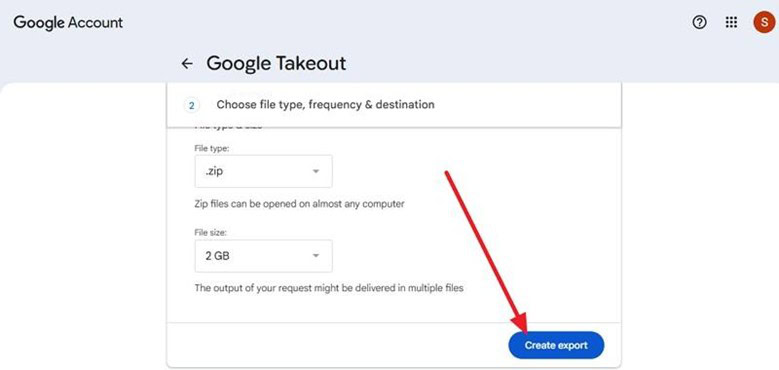
Step 2. Choose file type, frequency & destination > Select “Transfer To” option > Click on “Create Export.”
Method 2. Check Gmail Trash and Archived Emails
While you consider an iPhone recovery program, try this option as well because it costs nothing. As for the guide, you can follow these steps to recover the Gmail data:
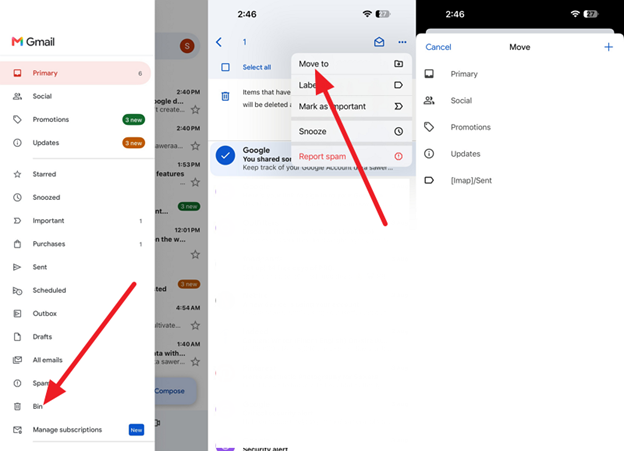
Instructions. On Gmail, press the “Hamburger” icon, select “Bin,” and the mail you want to recover. Tap the “Three Dots > Move To” option and choose where you want to recover the mail.
Note for Snapchat: Open Snapchat Memories by swiping up, then hold and download your saved media.
Part 5. Tips to Improve Snapchat Recovery Results
If you decide to use Dr.Fone iPhone recovery software, follow these tips to improve recovery success rate:
Action | Why It Works |
Stop Using the Phone | Turn on Airplane Mode. New activity can overwrite deleted data. |
Scan Immediately | Recovery chances decline as new data gradually replaces deleted files. |
Save Snaps to Memories | Stores content in Snapchat Memories for easier future access. |
Maintain Regular Backups | Provides a backup copy that recovery tools can restore when needed. |
Avoid Restoring Backups First | Restoring may replace current data before recovery is attempted. |
Conclusion
Move fast and stop using the phone so “the missing files” are not overwritten. Start with free options by checking Gmail Trash and requesting data from Snapchat and Google. Finally, run Dr.Fone iPhone recovery software for any remaining files that official routes missed.