
Data loss is not always something you can totally prevent; sometimes, it happens in the most unsuspecting manner. Common causes of data loss include mistaken deletion, human error, power surges causing device damage, and corruption due to a virus or malware attack on the storage device.
But in all these cases, the good thing is that, most of the time, if you act quickly and use the right tool, you can recover the lost data. Now, that’s what the CoolMuster Data Recovery software promises to help you achieve. The app is designed to help you recover lost files from various storage devices such as hard drives, flash drives, memory cards, etc.
Here, we’ll be reviewing this efficient tool for data recovery as well as showing you how to use this handy utility app to get back your lost or deleted files.
Coolmuster Data Recovery Software Overview
The Coolmuster Data Recovery software helps to fully recover documents, photos, emails, videos, audio files, and other useful file formats from internal and external storage drives. It works more efficiently if you act fast from the time you experienced or noticed the data loss. Using this software, you can attempt to recover lost files from formatted drives, RAW storage, and even lost partitions; it’s quite a full-featured data recovery tool.
Quick Specs
- Operating System Support: Windows OS (Windows 11/10/8/7) and macOS (Mac OS X 10.7 – 10.15)
- Required RAM: At least 4GB RAM
- Required Storage: At least 200MB of free space for installation
- Recovery Drive Support: HDD, SSD, Memory Card, SD Cards, Flash/Thumb Drives
- File Recovery Support: Recover 550+ file formats, including photos, videos, music, docs, emails, .zip, etc.
Features of Coolmuster Data Recovery
1. Multiple Recovery Modes
One of the standout features of this recovery software is its multiple data recovery modes, which are designed for different purposes: Deleted Recovery, Format Recovery, Raw Recovery, and Partition Recovery.
The Deleted Recovery works for getting back files that were mistakenly deleted from a storage; the Format Recovery works the same, but on formatted drives; the RAW Recovery comes in handy for deep scanning, usually when the other two recovery modes won’t get your lost files back; and then the Partition Recovery is a much advanced recovery mode to retrieve and recover corrupted or deleted partitions on a storage drive.
2. More than 500 Formats Supported
The Coolmuster Data Recovery software boasts of supporting over 500 file formats, which means it can recover literally any file you’ve lost on the scanned drive or storage media, whether they are photos, videos, music, docs, emails, .zip, or other file formats.
3. File Preview
Well, this is typical of data recovery solutions – file preview – and it’s a good thing the CoolMuster app also supports it. So, after the software scans and retrieves your lost or deleted files, it allows you to preview them to confirm they were the lost data before you can proceed to recover the file back to a different drive; yes, you cannot save recovered files back on the same drive they were lost from; you need a different drive to save them.
How to Recover Lost Files Using CoolMuster Data Recovery
Interestingly, running data recovery with this software follows quite a straightforward process.
Step One: Install and Launch the Program
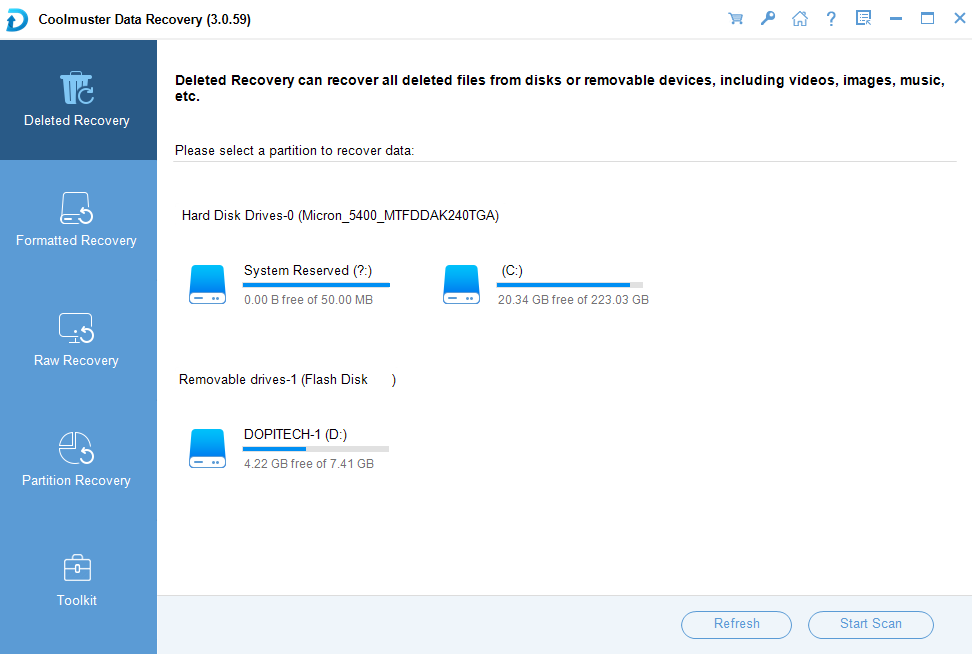
Apparently, this is where it starts; you have to install CoolMuster Data Recovery on your PC or Mac by visiting their official download page here. Then launch the program and insert the drive where you lost the files from. The drive should appear on the program’s home screen, so if it’s not showing there, you should refresh the view or remove and reinsert the drive/disk.
Step Two: Select the Drive and Run a Recovery Scan
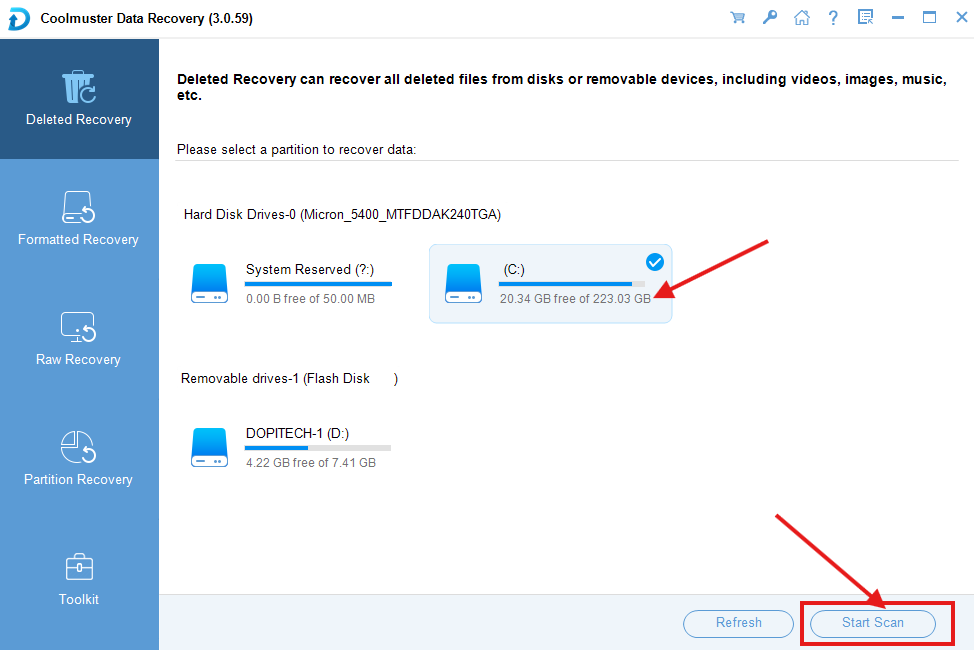
First, look at the side panel of the software and make sure you have selected the best recovery mode: Deleted Recovery, Formatted Recovery, Raw Recovery, or Partition Recovery. When you have selected the actual recovery mode, click on the drive you lost the files from, and then click on “Start Scan” to start the data recovery process.
Step Three: Wait for the Scan Results
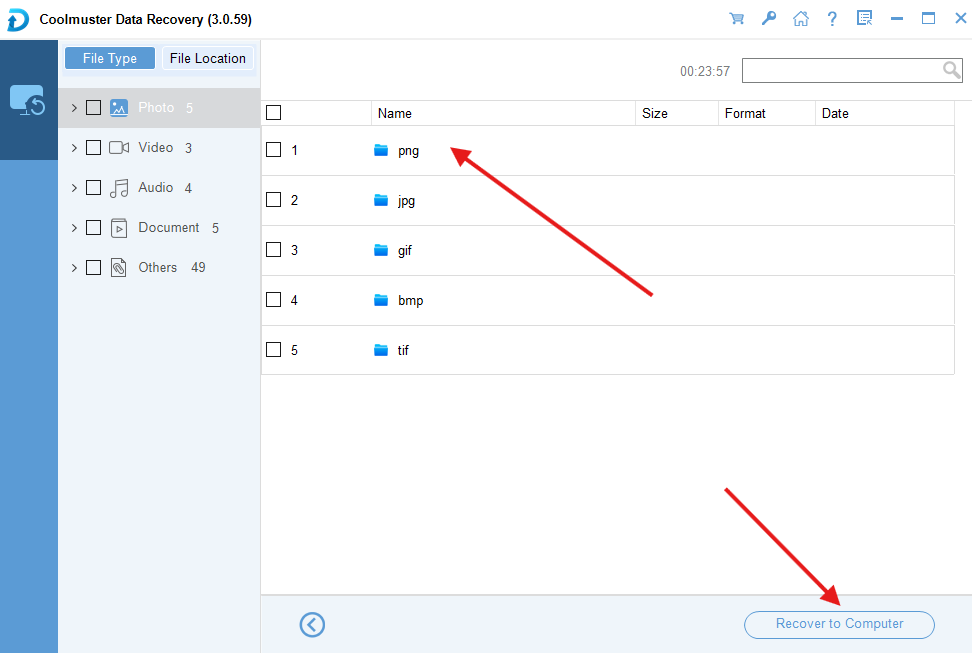
Now, this one may take a long while depending on the amount of lost data to be recovered, and especially if you chose “RAW Recovery,” which launches a deep scan on the selected drive. You can stop the scan at any time, but that’s not advisable. When the scan is done, you will see all your lost files that Coolmuster Data Recovery was able to retrieve; then you can start previewing.
Step Four: Preview and Save
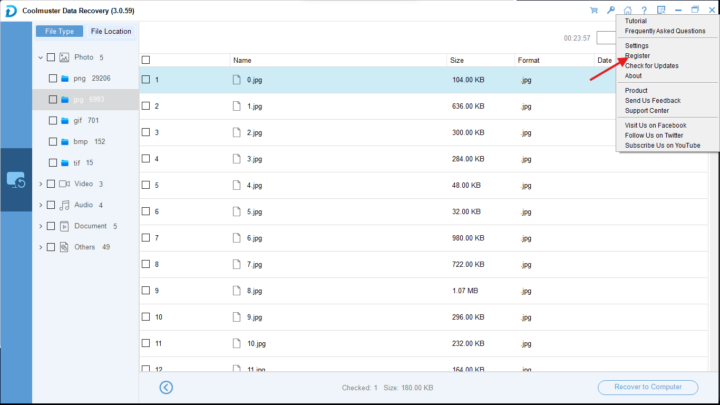
Actually, not all file types can be effectively previewed, but image files are widely previewable, as well as document files. So, preview as many as you can to confirm the files you lost were truly recovered, then you can proceed to save the files. Also, it is important to note that before you can save the recovered files, you must first get a PRO license; without upgrading from the free trial version to the PRO version, you cannot save the recovered data.
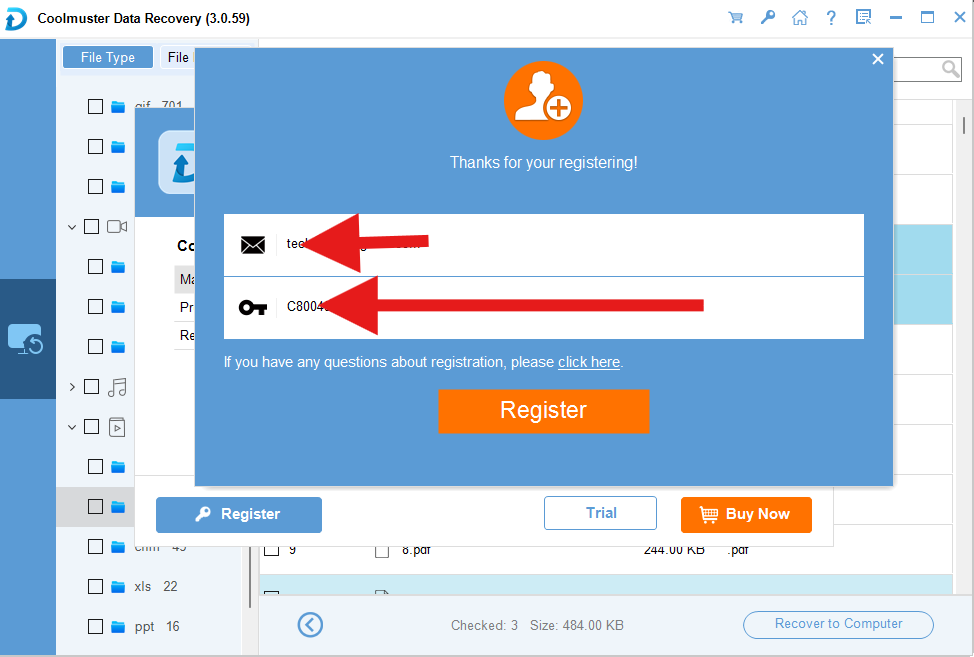
Interestingly, we are currently running a free CoolMuster data recovery software giveaway. With this, you can get a free license for your PC or Mac. Visit our CoolMuster Data Recovery Software Giveaway link to get a pro license for free.
Honest Review and Verdict
Just like the other data recovery tools we’ve reviewed in the past, the CoolMuster Data Recovery software has several recovery modes that seem to work perfectly. However, after the recovery scan, I was unable to preview the recovered files as the program features claim. I had to activate the premium license I got from an earlier giveaway campaign to save the files, then preview them after I had saved them locally.
But I must say, the data recovery speed is faster than most other data recovery software I have used in the past. The simplicity and clear-cut interface are what I love the most about CoolMuster Data Recovery software, but the fact that its “preview” doesn’t work (as claimed) is a big CON.
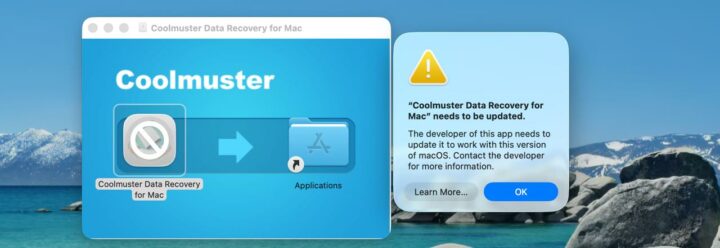
Also, the software worked on an older Mac but not on my latest MacBook running macOS Tahoe (version 26.6.2). Trying to test this software here brought up a prompt to contact the developer.
Overall, it’s a handy Windows/Mac utility software to recover lost files and photos from corrupted flash drives, hard disk drives, and other external storage media.