
For years, Microsoft’s Inbox Repair Tool (ScanPST) has been the mainstream tool for Outlook users to fix corrupted PST files, but the free utility is limited and doesn’t process large PST files. For big corporations and enterprise businesses, the SCANPST utility can’t do much, which is where professional solutions like the Stellar Repair for Outlook come into play.
With Stellar Repair for Outlook, you can fix or recover mailbox items from large, corrupted, or damaged PST files simultaneously. There is the online version of the utility and a standalone suite that can be installed on your laptop or desktop computers.
Stellar Free PST Repair Service – Workthrough
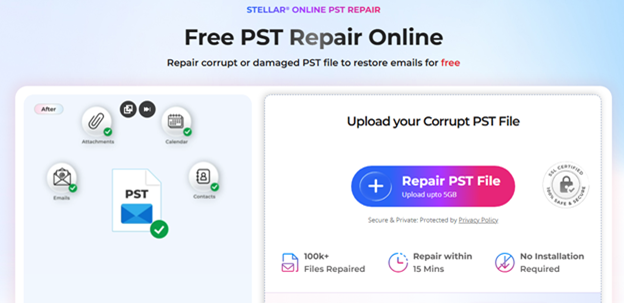
The Online PST Repair by Stellar is a simpler, browser-based version of the desktop edition; it doesn’t require any native software installation, and also doesn’t require you to have Outlook installed. To use this Service, simply open the web page on your browser, sign up using your custom domain email or Google account, and proceed. This makes it easy to access Stellar’s professional Online PST repair Service even on mobile and tablet devices.
But you only get to upload one PST file at a time; it doesn’t support batch uploads, and can only process files that are less than 5GB in size. However, like the desktop version, it allows you to preview recoverable emails, attachments, contacts, calendars, and other mailbox items before saving them.
The free version allows you to save up to 500MB of repaired data; if the recovered data exceeds this limit, you’ll need to upgrade to a paid license to save the remaining mailbox items.
Limitations:
- Batch uploads are not supported
- The maximum supported PST file upload is 5GB
Core Functions of the Stellar Online PST Repair Service
Here are the core functions of the Stellar online PST repair service:
1. Repair Corrupt and Damaged PST Files Faster
Stellar Online PST Repair Service can repair severely damaged PST files and restore the mailbox hierarchy. It works perfectly in cases where ScanPST fails and offers a smoother, easier-to-follow interface.
2. Restore Lost Outlook Mailbox Items
This web-based Service can recover lost Outlook mailbox items from PST files if they’ve not been overwritten. It can recover emails, contacts, calendars, notes, and journals, even from inaccessible PST files, and maintain the folder structure.
3. Preview Repaired and Recovered Data
As with the desktop version, Stellar Online PST Repair Service allows you to preview the repaired and recovered mailbox folder items only to confirm that they’re not broken before saving them.
4. Export and Save in PST Format
Unlike the desktop version, this online version only allows you to save the repaired and recovered data in PST format. You will be able to save all recovered and repaired mailbox items if they’re within 500MB in size, and you’ll also receive an email with the download link. If the files are above 500MB, you need to purchase the premium package.
Pricing
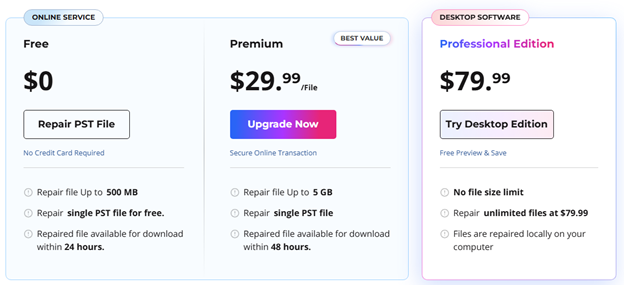
Stellar Online PST Repair Service is completely free, provided your mailbox content is below 500MB. For large PST files, the Premium plan goes for $29.99/file (up to 5GB PST files), and if your PST file is still above 5GB, then you need to install the desktop version.
How to Use Online PST Repair Service
Stellar Online PST Repair Service is easy and fast, as well as accessible from any web browser. You don’t need to install any software, and it doesn’t require any minimum system specs. Simply visit the official website to get started with it:
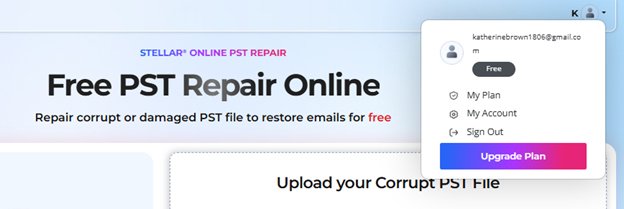
- Step One: When you open the website, sign up using your email address or Google account.

- Step Two: Upload your corrupt or damaged PST file (make sure it’s not above 5GB).
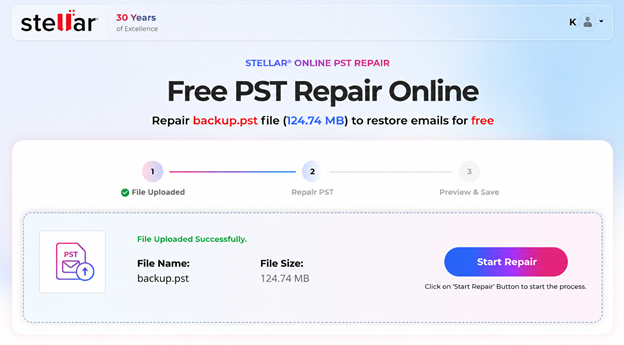
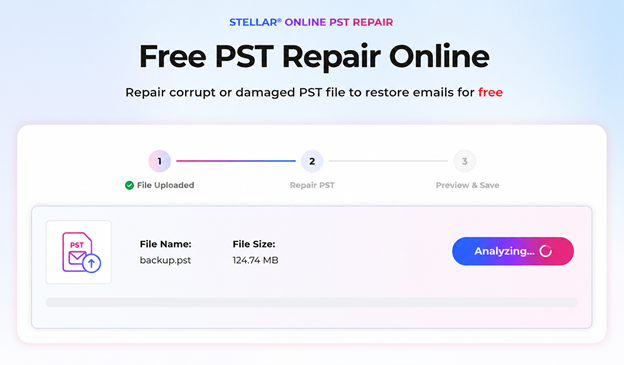
- Step Three: This service will automatically start scanning the uploaded PST file and, afterwards, prompt you to “Repair” the file.
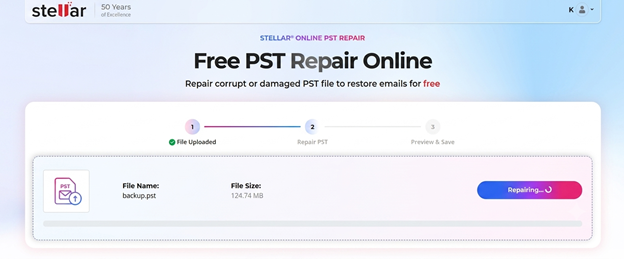
- Step Four: During the repair process, the Stellar Online PST Repair Service recovers all data that it can trace in the uploaded PST file.
- Step Five: Depending on the size of the PST file, the repair and recovery process may take a long time. In this case, the PST file was only 124MB, and it took roughly 3 minutes to upload and repair the file.
- Step Six: Once the PST file is repaired, you will be prompted to preview the content or download the new, repaired PST file, which you can re-upload to Outlook. The preview function downloads the repaired PST as an HTML file, so you can preview it right on the same web browser you’re using this service.
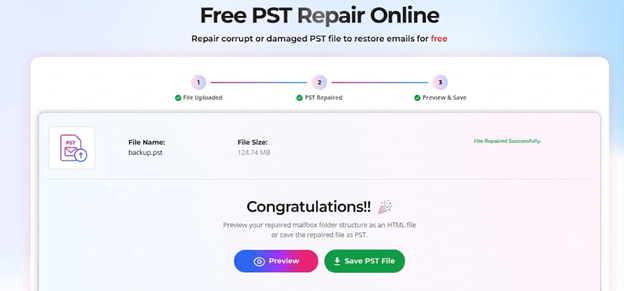
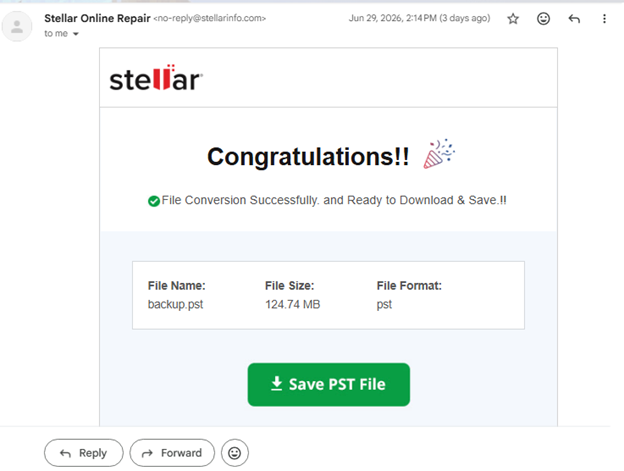
A download link will also be sent to your email to save the rejuvenated PST file.
Stellar Repair for Outlook Overview (Desktop App)
Stellar Repair for Outlook Software is a Windows desktop version that allows users to scan, fix, and recover Outlook mailbox items from corrupted or damaged PST files. It can process literally any PST file regardless of the file size, and even if they are inaccessible in Outlook.
The software also lets you preview the fixed and recovered Outlook mailbox items after a free scan and maintains the files’ hierarchy; recovered items are marked with a red asterisk for quick recognition. While preview is free, saving or exporting the fixed/recovered mailbox items requires a Professional license.
Features and Functionalities
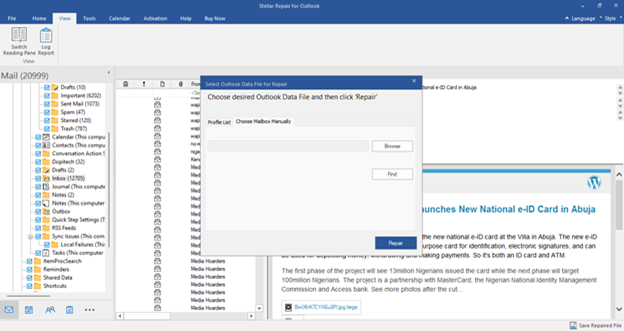
Outlook PST Repair tool is a dedicated PST repair and recovery utility for Windows that helps restore inaccessible or corrupted Outlook data files. The software supports all major Outlook versions and offers an intuitive interface that makes the repair process easy for both home users and IT professionals.
In addition to repairing damaged PST files, it can recover emails, attachments, contacts, calendars, tasks, notes, and other mailbox items while preserving the original folder structure. This desktop version can handle large PST files over 5GB seamlessly and supports batch uploads: You can upload multiple PST files at once.
Limitations:
- It’s only available for PCs running Windows OS
- In the demo version, you only have a preview of your mailbox item
The Core Functions
1. Repair Severely Corrupt or Damaged PST Files
Stellar Repair for Outlook can repair corrupt, damaged, or inaccessible PST files and restore mailbox items to a healthy PST file that can be imported back into Microsoft Outlook. It supports large PST files and preserves the original folder hierarchy during the repair process. Also, it can repair encrypted or password-protected PST files, provided the necessary access credentials are available.
2. Recover Deleted Outlook Mailbox Items
This software can recover deleted Outlook mailbox items, including emails, contacts, calendars, tasks, notes, journals, and RSS feeds, if they are still recoverable from the PST file. The recovered deleted mailbox items are marked with a red asterisk after the scan, so you can easily differentiate them.
3. Preview Recoverable Mailbox Items
Before saving the repaired or recovered data, Stellar Repair for Outlook allows you to preview it; so, you preview the repaired emails, attachments, contacts, calendars, tasks, notes, journals, and embedded links as they’d appear in Outlook, to confirm that the actual data you need recovered was, in fact, recovered successfully, before you proceed to export.
4. Export in Multiple Formats
Stellar Repair for Outlook supports up to six export formats: PST, MSG, EML, RTF, HTML, and PDF. You get to choose the perfect format for where you want to view and access the recovered data.
5. Export to Microsoft 365 and Live Exchange Server
Available in the Technician edition, Stellar Repair for Outlook can export repaired mailbox data directly to Microsoft 365 or Live Exchange Server. It also includes options to split or compact large PST files based on criteria such as file size, date, or email ID, making mailbox management more convenient.
Stellar Repair for Outlook Software Pricing
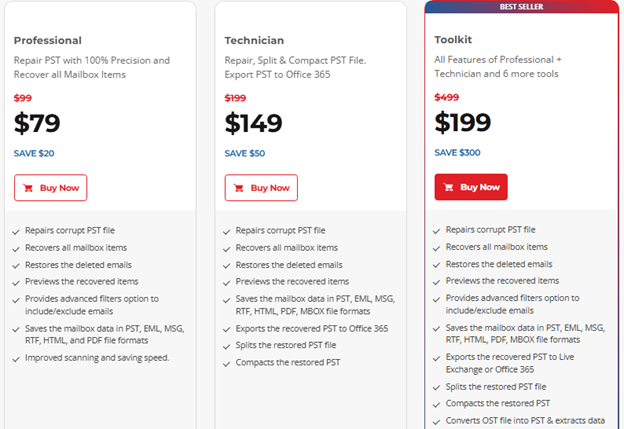
Stellar Outlook PST Repair Software premium plan starts at $79/yr for the Professional plan, $149/yr for the Technician plan, and $199/yr for the Toolkit plan.
How to Use Stellar Repair for Outlook (Desktop Version)
The software is quite intuitive to use, thanks to the simple interface. The installation procedure is as straightforward as installing any other software on your PC. For this test, my PC specs were:
- OS: Windows 11 Pro
- RAM: 8GB
- Storage: 256GB SSD (50GB free space)
- Outlook Version: Outlook Classic 2019
- PST File Size: 128MB
Note: You’d need to install the Outlook client on your Windows PC to successfully save the mailbox items you’d like to repair or recover with this software. Without Outlook installed, you can only repair/recover and preview, but you can’t export the repaired data.
Step One: Launch the Program after Installation
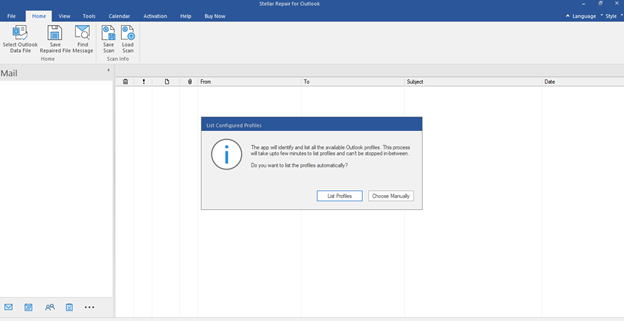
Run the Stellar Repair for Outlook program after installation and import your PST file. If you have the Outlook client app installed on your Windows PC, this software will automatically detect the profiles in Outlook and prompt you to choose the one you want to repair its PST file. Of course, you can still upload PST files manually, and you can upload/repair multiple files simultaneously.
Step Two: Wait for the Scan
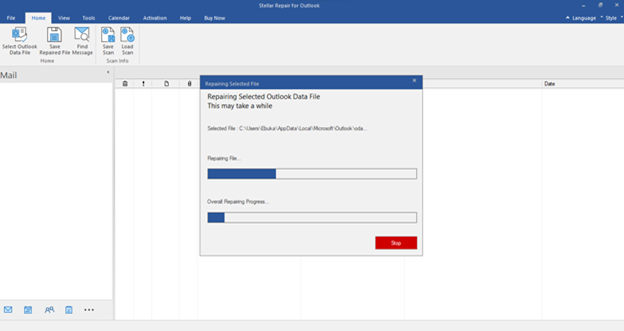
After you have uploaded your PST files or selected the Outlook profiles on your PC to repair, you have to wait for the scan to run completely; this may take a few minutes or longer, depending on the size of the mailbox. When the scan is complete, you’ll be presented with all mailbox items from the PST file(s) scanned; deleted items will be marked with a red asterisk.
Step Three: Preview and Confirm
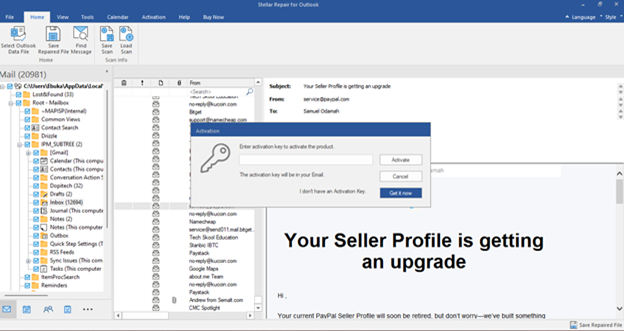
Stellar Repair for Outlook lets you preview the repaired/recovered mailbox items to confirm they’re what you actually wanted to recover and that they’re accessible. Previews are entirely free; up to this step, you’re not required to pay anything yet. However, after previewing the items, to save, export, or download them, you need to purchase a Pro plan.
Step Four: Export to Any Format
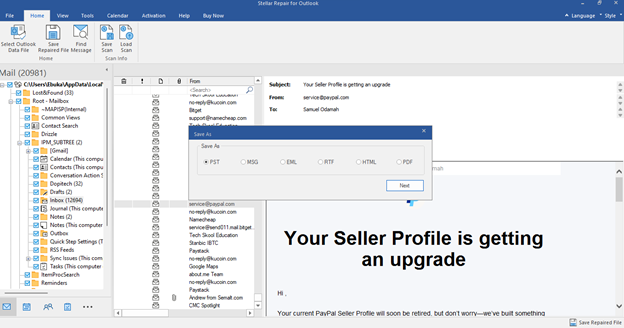
After activating a Pro license, you can save and export the repaired PST in up to 5 different formats: PST, MSG, EML, RTF, HTML, and PDF. You can also save the scanned result in case you need to come back to it. Remember, you need to have the Outlook client app installed on your PC to save the repaired mailbox files.
Stellar Repair for Outlook Software vs Stellar Online PST Repair
Although both tools are designed to repair Outlook PST files, they are intended for different use cases.
Feature | Desktop Version | Online Version |
Native Installation | Required | Not required |
Maximum PST Size | No Limits | Up to 5 GB |
Outlook Installation | Required | Not required |
Free Preview | Yes | Yes |
Free Save Limit | Preview only | Save up to 500 MB |
Best For | Large or severely corrupted PST files | Small to medium PST files and quick online repairs |
My Stellar Repair for Outlook Review and Verdict
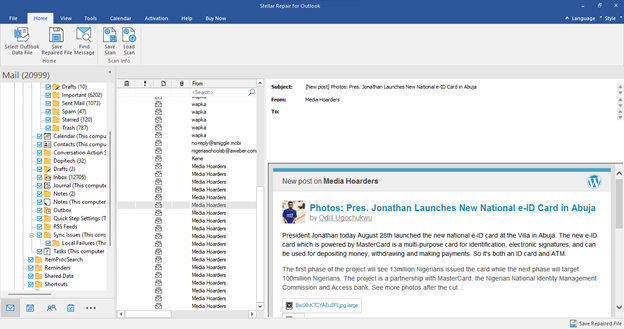
The Stellar Repair for Outlook is truly useful for the need, and it has the simplest interface for Outlook mailbox recovery and repair. It was able to recover lost emails and fix corrupt mailbox items, especially the attachments.
One thing to love about the software is its fast yet efficient scanning engine; for my 120MB PST file, it took roughly 3 minutes to scan and repair the document, and I was able to preview it.
On the web version, everything went on successfully without me paying a dime. But then, to export and save the repaired file on the desktop version, I needed to install Outlook, and I also used a valid license.
So, I’d recommend using the online version for small mailboxes like mine, which are below 500MB, and then the desktop version for large mailboxes. Also, the desktop version gives you more export formats, unlike the web version, which leaves you with only the PST format for download (and HTML for the preview on web browsers).
There’s an option to compact or split very large PST files into smaller bits without losing any structure, based on different criteria like email ID, date, and size. Good stuff! But that’s only available on the Technician paid version.
While I wasn’t actually in panic mode (as the recovered emails were deleted for the sake of testing this software), the overall process was seamless and required no lengthy learning curves.
Conclusion
Stellar Repair for Outlook is a superior alternative to Microsoft’s free ScanPST utility, with more flexibility and functions. It is easy to use and processes PST files quickly; ideal for both institutional and personal use. For small mailboxes, the online version is best, with no installation friction, but for enterprise and large business mailboxes, the desktop version is certainly what you need.