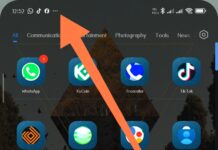

White Dot on Mobile Screen isn’t something that’s spotted from the point of purchase, as It doesn’t appear on every phone from the word “go”. But if you have spotted it on yours, there’s really nothing to worry about, as in most cases, it’s merely an indicator that you’ve got overflowing notification icons that can’t entirely fit in the dedicated space allotted on your phone’s display top menu.
Previously, on older Android devices, when notifications overflowed in the status bar, you’d see an ellipse, which indicated you had more notification icons that couldn’t all fit on the status bar. This article explains everything you should know about white dots appearing on your phone’s screen and how to get rid of them.
Why Is There A White Dot On My Phone’s Display?
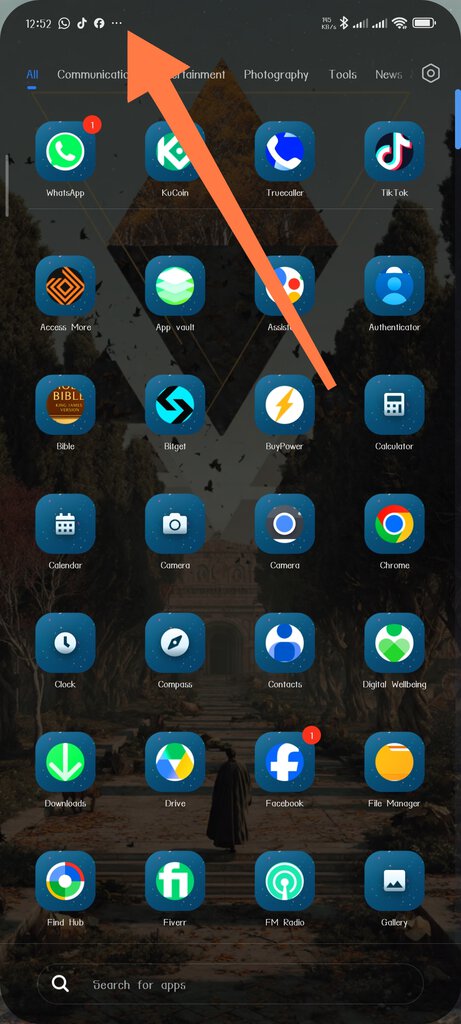
Put simply, the white dot in the status bar is a notification overflow indicator. On some Android devices, it’s a green dot, and on some others, it could appear as a black dot; some other manufacturers may choose a different color than these. Whatever color the dot appears as, if it shows on the Android phone’s status bar, it indicates that your phone’s notification icon bar is filled with unread notifications.
Basically, every smartphone’s notification icon bar has a limited number of icons it can contain before it runs out of horizontal space, especially on phones with a notch, punch-hole camera, or a lot of active system icons (Wi-Fi, signal, battery, Bluetooth, alarm, Do Not Disturb, etc.). When the queue of pending notification icons exceeds what the bar can display, the extra ones are collapsed into that single dot.
Pulling down your notification shade and clearing or reading through your alerts is usually enough to make the dot disappear, at least until new notifications pile up again. It’s worth noting that the dot is not a malware indicator or a bad sign. However, if you open an app on your smartphone and suddenly see a green dot beside the phone’s battery bar, it means the app just read your location.
White Dot vs. Green Dot vs. a Black Dot (Potential Dead Pixel)

You may see different dots pop up and disappear on your phone’s screen status bar, except if it’s the notifications overflow dot; that one would remain until you manually clean up your unread notifications. Now, we’ve ascertained that the white dot is the notifications overflow indicator, while a green dot means an app pinged your location. But what about a black dot?
An obvious black dot on your phone’s screen is most likely a dead pixel, and this is not good stuff; it could mean your phone’s display is damaged. A dead or stuck pixel is a hardware issue, and the black dot it creates would remain in the exact same physical spot on the screen no matter what app is open, whether the status bar is showing or not, and it doesn’t react to clearing notifications.
To confirm if a black dot on your device’s screen is signifying a stuck/dead pixel, put out a full white or full black image; the stuck pixel will still be visible as a tiny colored or dark speck in that same location. Similarly, if it’s a white dot that is stuck in one position on your screen, it is equally a sign of a failing pixel.
Smartphone screens feature pixel display technology, so when a pixel dies, it appears on the display as a black dot, and nothing will clear it off, well, unless you find a way to revive it, which is almost impossible, or you replace the phone’s screen.
Why Does the White Dot Keep Coming Back?
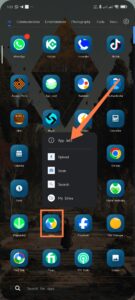
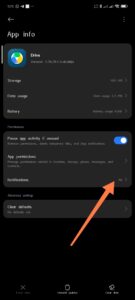
It’s simple: you’re getting more notifications from different apps. If you don’t wish to see the white dot anymore, or maybe less frequently, then you can manually turn off notifications for apps you deem irrelevant. You can do this by tapping and holding the app icon when you open the apps drawer (apps menu), then tap the “App Info” settings and get into Notifications, where you can turn them off or on.
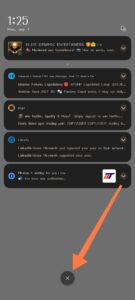
You can manually clear the white dot or ellipse by sliding down the notification center to clear your pending notifications.
Conclusion
The white or green dot on the top of your phone’s display status bar is nothing serious; it’d clear on its own, or you can manually clear it. However, if it’s a black dot, that’s where you may have a problem because such usually signifies a dead display pixel.