
At first, the Samsung Camera Assist App was only available on Samsung’s top-of-the-shelf flagships, the S22 series and newer models, but with regular One UI updates, the app can now be installed on even older Galaxy Tables, and models. This article will list all Galaxy models that can run the app.
If you’re a picture freak or a professional photographer who also uses your Samsung mobile phone to capture photos, you’d definitely be interested in learning about all that’s included in Samsung’s standard camera interface. Trust me, all those icons you see there have a function, and if tuned correctly, your pictures would come out as though they were captured using a pro-grade DSLR camera.
The Samsung Camera Assistant app is not new; it was first released in October 2022 for the Galaxy S22 series. What is new is who gets to use it. With the One UI 8.5 rollout, Samsung pushed Camera Assistant well beyond flagships to cover mid-range Galaxy A and M models plus a long line of Galaxy Tab S tablets, and One UI 9 is adding more.
What Is Samsung Camera Assistant, Exactly?
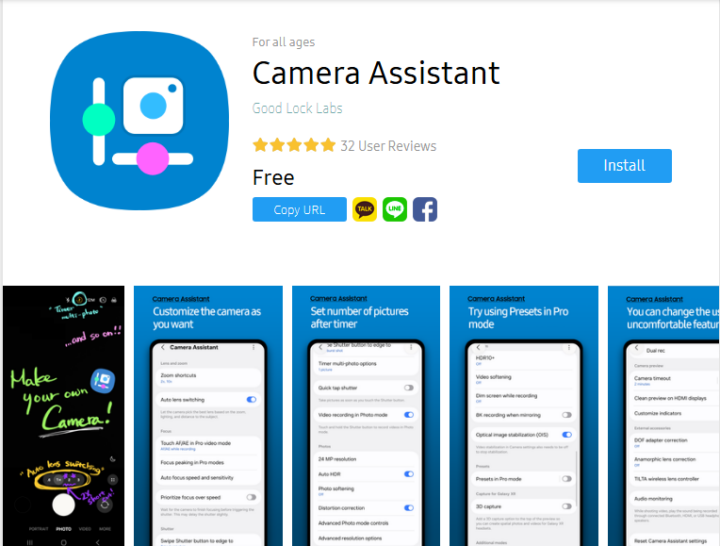
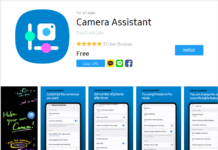
Camera Assistant is not a replacement camera app. It does not have its own viewfinder, and you will not find it sitting in your app drawer like Instagram. It only changes how the Samsung Camera you already use behaves, bringing more settings and personalization experiences to your Samsung camera app. You can download the app from the Galaxy Store or Good Lock if your phone model is among the latest supported ones.
Full List of Devices Getting The New Camera Assistant App
Here is every Galaxy phone and tablet that supports Samsung’s Camera Assistant, with a detailed explanation of what the app lets you change and how to get it running.
| One UI Version | Supported Devices (as listed by Samsung) |
| One UI 9.0 or higher | Galaxy S26 FE, Galaxy Z Flip8, Galaxy Z Fold8, Galaxy Tab S12 |
| One UI 8.5 or higher | Galaxy A57, A37, A36, A35, A34; Galaxy M36, M35, M34; Galaxy Tab S11, Tab S10, Tab S10 FE, Tab S9, Tab S9 FE |
| One UI 8.0 or higher | Galaxy S26, Galaxy Z Flip7, Galaxy Z Fold7, Galaxy S25 FE |
| One UI 7.0 or higher | Galaxy S25, Galaxy A56, Galaxy M56, Galaxy F56 |
| One UI 6.1 or higher | Galaxy S24 FE, S21 FE, A55, M53, Quantum 5, Galaxy Z Fold6, Galaxy Z Flip6 |
| One UI 6.0 or higher | Galaxy S24, A73, A72, A54, A53, A52s, A52 5G, A52, M54, F54, Quantum 2 |
| One UI 5.1 or higher | Galaxy S23, S23 FE, S22, S21, S20, Note20, Z Fold5, Z Flip5, Z Fold4, Z Flip4, Z Fold3, Z Flip3, Z Fold2, Z Flip |
Note: Samsung notes that not every supported device can run this feature; the main eligibility requirement is your device’s camera hardware. So, although your device model may be supported, if your camera has been previously replaced due to an issue, or the hardware doesn’t meet the minimum requirements to run Camera Assistant, you won’t get the feature.
What Can You Do With the Camera Assistant App?
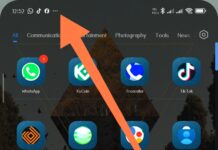
Now, that’s a very much needed question. First thing is that you can only access the Camera Assistant app from your Samsung device’s main camera settings menu. So, you launch the default camera app on your Galaxy device, go to its settings menu, and scroll down until you see the Camera Assistant option.
1. Lens and focus controls
- Turn auto lens switching on or off so the phone stops hopping between camera modes on its own
- Prioritize focus accuracy over capture speed
- Adjust autofocus speed and sensitivity for photo and video
- Enable focus peaking in Pro modes
- Use touch AF/AE in Pro video mode
2. Image processing controls
- Adjust picture softening and video softening
- Turn Auto HDR on or off
- Enable HDR10+ video recording
- Choose a 24 MP resolution option on supported devices
- Disable optical image stabilization (OIS) if you want a less processed look in action footage
3. Shooting convenience
- Add extra zoom shortcuts
- Change the number of shots taken when you use the timer
- Set a minimum shutter speed for photos
- Save presets in Pro mode and customize on-screen indicators
- Control how long the camera stays open before it auto-closes (a toggle arrives with One UI 9)
4. Pro and accessory support
- Audio monitoring while recording
- Support for the TILTA wireless lens controller
- 8K recording when mirroring (listed in the store feature history)
- 3D capture on the Galaxy Z Flip7, Z Fold7 and S25 (as listed by Samsung)
How to Download and Use Camera Assistant on Your Galaxy
You can get the app from the Galaxy Store on your phone or tablet or from the Good Lock app’s Life Up tab if you use Good Lock. Once installed, update your device’s One UI version (if an update is available), then open the Camera app, tap the settings icon, and scroll to the bottom; you should see a Camera Assistant option.
What if my device isn’t on the List?
Well, it simply means your phone model is not supported, and I’d advise against looking for APK versions of the app. You can simply trade in your phone for a higher model that supports the app by default. Regardless, Samsung devices have great cameras; the Camera Assistant is merely the icing on an already sweetened cake.
But you can still check the Galaxy Store and see if the “Install” button would appear beside the app when you look it up; if it does, voila! Go ahead and install it then.
What Else?
Is the Camera Assistant worth installing? Yeah, sure it is. It helps you get the most out of your Samsung Galaxy’s cameras, and it’s completely free. However, it won’t suddenly make your pictures look as though they were captured using the latest Galaxy S26 Ultra.
This post is to help you find out if your Samsung Galaxy phone or tablet made the cut, what exclusive camera controls unlock are available for your model, and how to install it today.
Technically, your device’s camera sensor, processor, and lenses are still what they are; the Camera Assistant is just going to help you adjust certain settings you couldn’t access before, and by doing that, your subsequent photos could look better than they used to, but you’re not getting more than what your device’s camera lenses can produce.
Finally, the Camera Assistant is not a standalone app, so don’t expect to see it when you open your phone’s App Drawer; it is only accessible from inside the main camera app’s settings menu.