
Computer systems can wake up any day and show an error prompt that locks you out for a while. As annoying as it is, there’s no guarantee you won’t get another error prompt another day; you have to accept how the system works, whether it’s a Chromebook, laptop, desktop, or MacBook.
Interestingly, a simple reboot can possibly fix most computer errors, and when that doesn’t work, there are other non-technical workarounds. If your Chromebook shows a “Your system is repairing itself, please wait” error and seems stuck there, this article offers practical tips to help.
Why Does My Chromebook Show “Your System Is Repairing Itself, Please Wait”?
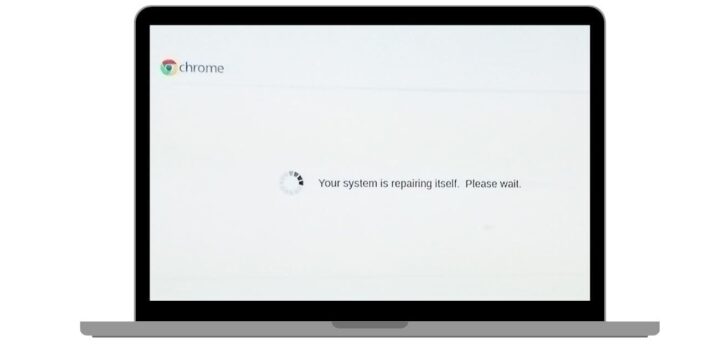
This error usually appears when ChromeOS attempts to rebuild a corrupt partition on its primary drive where the OS lives. The error points to a storage or filesystem problem, and when it appears, any document or data stored on the Chromebook’s local storage, especially the Downloads folder, is at risk; if you synced your files to Google Drive, you can access them again after you sign in. In most cases, this error keeps your Chromebook in a boot loop without actually booting up the system properly.
Common Causes of “Your System Is Repairing Itself, Please Wait” on Chromebooks
There could be many possible reasons for this to happen, but these are the most common reported by Chromebook users on forums.
- An interrupted update or sudden power loss: having your Chromebook experience a forced to shut down or a dead battery mid-write can lead to this issue.
- A failing or flaky internal storage blocks the system from reading the OS files.
- A botched recovery or an advanced DIY configuration gone wrong.
- A corrupted or badly written recovery image; unsynced USB writes can cause repair loops when booting ChromiumOS builds from a flash drive.
How To Fix “Your System Is Repairing Itself, Please Wait” Prompts on Chromebooks
The first advisable fix is to do a power refresh on the Chromebook, but before you do that, wait for at least 30 minutes. Don’t rush past the “your system is repairing itself” error screen; it’s like Windows updates on Windows PCs, which can sometimes take a long time to complete. So, wait it out first, then if nothing changes after about 30 minutes, go ahead with these fix suggestions.
1. Plug In and Give It Time
It sounds too simple, but it’s the correct first move. Connect the original charger, disconnect all accessories, and leave the Chromebook alone for 20 to 30 minutes. If the error screen was triggered by an OS rebuild interruption, it may finish within the 30 minutes and take you to the sign-in screen with no further effort.
2. Run a Hardware Reset
Forcefully shut down the system by pressing down the power button; once the system is off, hold down the “Refresh” button on your Chromebook’s keyboard and press the power button; when the system starts booting, release the Refresh button.
Your Chromebook should restart, and this type of restart resets the EC chip, which controls most of the system’s hardware functions. Try the procedure with the charger plugged in, and then with it unplugged.
Note: For tablets and detachable Chromebooks, the buttons to press are a bit different. You have to press and hold Volume Up + Power for at least 10 seconds, then release, while some older models and Chromeboxes use a physical reset button, a power-cable pull, or a battery removal instead.
3. Repair the Chromebook using a USB Media
When the simple methods above won’t work, you should try this one; it’s just like reinstalling Windows OS on a PC using installation media. For this, you need:
- Another working Chromebook, or a Windows/Mac computer with the Chrome browser installed
- A USB flash drive (or SD card) of at least 8GB storage capacity
So, you start by creating recovery media:
On the working computer:
- Open Chrome and install the Chromebook Recovery Utility extension from the Chrome Web Store.
- Launch the extension after installation and click Get started.
- Click Select a model from a list, or type in the model number of your faulty Chromebook. The model number of your Chromebook can be found at the bottom of the error message on the Chromebook’s screen.
- Insert your USB drive and select it from the dropdown.
- Click Continue, then Create now.
- Wait until you see a message that confirms your recovery media is ready, then remove the drive.
How to Run the Recovery
- Boot the faulty Chromebook into recovery mode. To enter Recovery Mode on a Chromebook, first of all, remove anything connected to the Chromebook (mouse, external drive, USB stick); press and hold Esc + Refresh, then press Power and let go of Power. Release the other keys when a message appears on the screen. For some models, the key combination is Esc + Maximize + Power, while for tablet Chromebooks it’s Volume Up + Volume Down + Power pressed down for at least 10 seconds, then release.
- With your Chromebook now in Recovery Mode, insert the USB drive recovery media and select Recover using external disk, then follow the prompts. When it’s done, remove the drive and set the Chromebook up as new.
If you get an error response such as “An unexpected error has occurred,” format/erase the USB drive and try again, or use a different drive. Some drives don’t work well with recovery. If the error shown is “The security module on this device isn’t working,” then you should contact your administrator if it’s a work or school device.
Conclusion
These are the three surefire ways to fix “Your System Is Repairing Itself, Please Wait” on Chromebooks. If none of these work, then you need to take the Chromebook to a professional repair shop to have it physically checked and repaired. However, if any of these worked for you, kindly let us know in the comments.