
Accidentally deleted essential photos, messages, or other files? Don’t worry just yet. While Android data loss could happen in a matter of seconds, what you do next will change everything. The rule is to cut unnecessary use and instead find out whether your lost data is still somewhere else.
In this article, you will learn how to respond immediately after data loss, recover data from your handset, Google Drive, or an unresponsive phone, and restore your WhatsApp deleted messages via Android data recovery software.
Part 1. What to Do Immediately After Android Data Loss
Deleted something important? Don’t start downloading random recovery apps just yet.
What you do during the initial few minutes can significantly impact your prospects of retrieving the lost data. Here are the basic measures to take:
- Immediately stop using the device: Refrain from shooting photos, downloading applications, or creating new files. New files overwrite the deleted ones.
- Verify the Trash or Recently Deleted section: These sections keep deleted items temporarily, such as photos, files, and other apps.
- Browse your backups: Locate your files within Google Drive, Google Photos, or other types of backup services.
- Do not restore the phone: Performing a factory reset renders recovery almost impossible.
- Select a recovery method you can rely on: If the data is neither in the backup nor in the Trash folder, then the data recovery program should be capable of searching for recoverable files.
Part 2. Recovery Sources: Device, Google Drive, and Broken Phone
Where did your deleted data go? It depends on what happened to your phone and whether a backup exists.
Recovering data from Android
When a file deletion was carried out directly from the phone, a data recovery solution should be able to check that device for any recoverable content. Normally, before deciding which files to restore, you could have the chance to look through the available files on the phone, etc…
Recovering from Google Drive
If your data has been stored on Google Drive, you may be allowed to get it back without even opening your phone. Imagine it is extremely handy if, for example, your device is reset, lost, or you cannot reach it.
Recovering data from a broken Android phone
One may think that a broken or damaged phone is a lost cause, but it is not necessarily so. If that model is supported by recovery software, you may be able to not only access it but also recover files from it, even in cases where the phone is not working normally anymore. The real choices you have also vary according to the device’s situation and the way you decide to use it.
Part 3. How Scan, Preview, and Selective Recovery Work
Found a long list of files? You probably don’t want to recover everything.
Almost all Android data recovery software has the same workflow: scanning → previewing → recovering.
First, the software examines the chosen source, looking for lost and recoverable data. When scanning is done, the files found by the scanner can be previewed and verified to see if the target ones are recoverable.
Once verified, the selective recovery function allows you to recover individual files such as pictures, videos, SMS, etc., while other data left behind remains. Such partial recovery makes your work much easier since you don’t need to get rid of unwanted files.
Part 4. Retrieving Deleted WhatsApp Messages on Android
Lost an important WhatsApp chat or attachment? Wondering how do you retrieve deleted WhatsApp messages on Android?
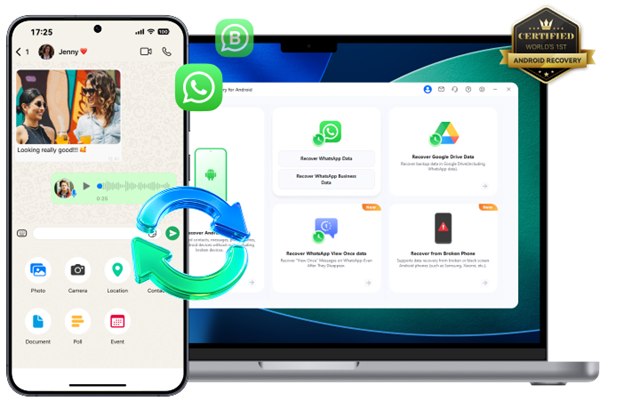
Using Wondershare Dr.Fone you may restore your WhatsApp and WhatsApp Business chats and other data if you have an Android phone, a Google Drive backup, your Dr.Fone backup files, or if the phone is broken yet in a working condition.
Wondershare Dr.Fone can also see the media that was viewed once, like pictures, videos, and voice messages, in their open state and recover them. WhatsApp users can recover chats in formats such as HTML and CSV.
The software supports Android 16, 6,000+ Android models, and 14+ file types, with feature availability depending on the device, Android version, and recovery method.
How to Recover Deleted WhatsApp Data with Dr.Fone
Step 1. Connect Your Android Device
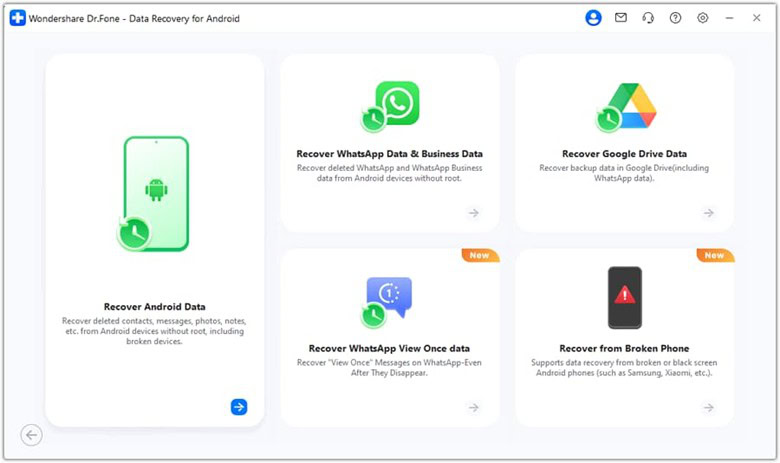
Launch Wondershare Dr.Fone on your computer and go to Toolbox > Data Recovery. Select Android and choose Recover Android Data, then connect your phone using a USB cable.
Step 2. Choose What to Recover
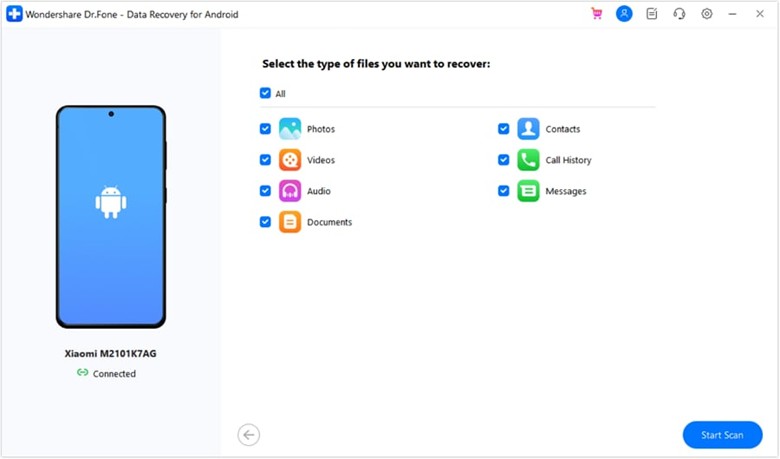
Once Dr.Fone detects your device, select the file types you want to recover and click Start Scan.
Step 3. Scan and Preview the Data
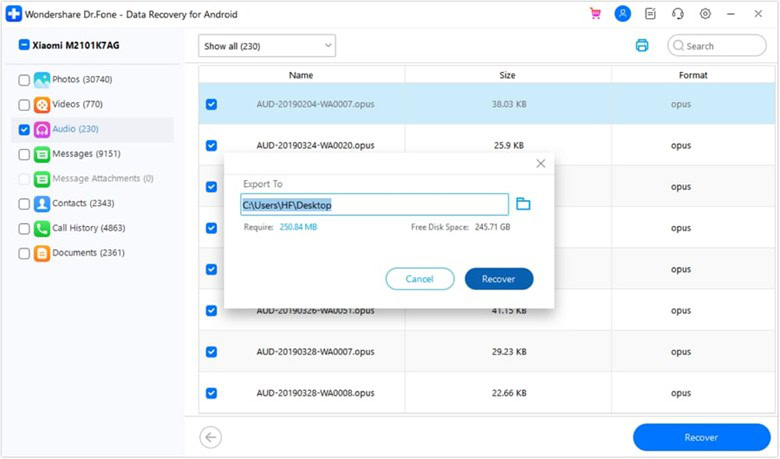
Let Dr.Fone complete the scan, then browse and filter the available results. Preview the recovered data to find the WhatsApp messages and attachments you need.
Step 4. Select and Recover
Select the required files and click Recover. Choose a location on your computer and confirm to save the data recovered.
Part 5. Recovery Limits and Prevention Tips
- Act quickly: It is worth noting that continuing to use the phone can overwrite deleted data and, consequently, the chances of a successful phone recovery will be much lower.
- Recovery is not guaranteed: Your device, Android version, data type, and recovery source will dictate the recovery outcome.
- Look up available backups: Check Google Drive and other available backups first before going into an even deeper recovery.
- Do not introduce fresh data: After accidental deletion, avoid downloading apps, taking photos, or saving files.
- Back up files often: Make it a habit to back up your important photos, messages, WhatsApp data, and your documents so that you won’t lose them in the future.
Closing Words
Even if you lose data from your Android phone, you don’t have to lose hope. Being quick, checking your existing backups, and selecting the appropriate recovery source could help greatly and possibly even retrieve those valuable files for you from Android. If you are lucky, the right tools are available; take, for example, Dr.Fone, which can be used to check, preview, and recover only your desired information without being intrusive to other data.