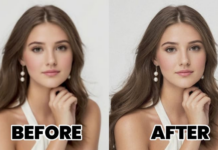

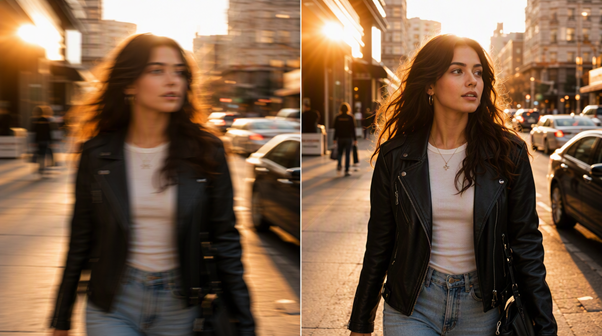
 We have all experienced such a moment: it was hard to take a perfect photo, but we found that the camera was focused on the background, causing the subject to become blurred; or a colleague sent a screenshot that was highly compressed by chat software, and the key PPT text on it was so blurred that it was unrecognizable. Although the software cannot change the light that has not entered the photosensitive element of the camera out of thin air, modern repair algorithms can instantly improve the clarity of the unblur image in an extremely efficient and practical way.
However, there are various forms of blur, including lens out-of-focus, camera shake, and JPEG compression defects. It seems that no single tool can perfectly handle all the scenes. Next, let’s evaluate the 6 most reliable solutions at present and see which one best suits your specific needs:
Technical Overview of the Featured Tools
| Tool | Platform | Best Suited For | Primary Method |
| BeautyPlus | Web, iOS, Android | Portrait photos & casual snaps | AI face & texture reconstruction |
| Picsart | Web, iOS, Android, Windows | Creative edits & text overlays | AI upscaling & sharpening |
| Canva | Web, iOS, Android, Windows, macOS | Quick visual design assets | Manual slider adjustments & auto-enhance |
| Evoto | Windows, macOS | Professional batch retouching | Precise local portrait deblurring |
| Pixelbin | Web | High-volume retail cataloging | Enterprise-level edge crisping |
| NoteGPT | Web | Student notes, screenshots & books | High-contrast text extraction |
Detailed Review of the Top 6 Online Tools to Unblur Image Files
Here’s our quick review of these handy image unblur tools that work on PC and mobile devices:
1. BeautyPlus
When sorting through daily visual content, combining a quick standalone watermark remover online to clear stray background elements with a dedicated program to unblur image files is a highly practical solution. BeautyPlus offers a streamlined, browser-based workspace that bypasses complex manual values such as radius or threshold numbers.
The web-based platform divides its correction engine into two distinct parameter zones. The resolution controls allow for scaling images up to high-definition configurations, while the scenario-based presets leverage fine-tuned machine learning models designed specifically for portraits, commercial products, scanned text, and degraded vintage photographs. The platform automatically balances sharpness and smoothing, preserving natural skin textures and hair fibers without creating harsh contrast lines around subject silhouettes.
Pros:
- Extremely prompt browser processing with realistic texture preservation.
- Fine-tuned scenario pre-selections handle specific focus issues accurately.
- Generous upscale options for crisp larger crops.
Cons:
- The streamlined workflow prioritizes automated speed over manual layer masking.
2. Picsart
Picsart integrates its photo clarification function (Unblurring tool) into an all-round graphic design space to help creators repair blurry photos. The platform works by combining resolution amplification with edge-tightening algorithms. With the expansion of the canvas, the program will identify adjacent pixel coordinates to bring the contrast lines closer, thus effectively reducing the blurring of low-resolution files.
Since the tool is embedded in the creative workspace, users can seamlessly switch from repairing photos to adding text layers, templates, or aesthetic vector graphics. For social media managers and marketers who need to clean up low-contrast brand images and convert them into promotional graphics, this makes it a consistent and efficient choice to get the job done under a unified interface window.
Pros:
- Integrates unblurring and upscaling in one fluid action.
- Features a smooth, immediate transition to general graphic design tools.
- Handles high-grain vintage photos with a balanced noise filter.
Cons:
- The multi-step dashboard can feel cluttered for a quick, single-photo edit.
3. Canva
Canva approaches blur reduction with a focus on layout integrity and publication material prep. Instead of synthesizing entirely new facial structures using generative AI, Canva relies on manual sliders (clarity and sharpness) alongside an auto-enhance tool. It resolves fuzzy lines by balancing local lighting gradients, preserving photographic realism for enterprise slide presentations and corporate designs.
This focus on structural preservation makes Canva a reliable choice for commercial projects where strict copyright boundaries exist. It sharpens existing borders rather than generating new facial pixels. Creative professionals can easily fine-tune contrast lines manually to ensure that text blocks and foreground logo graphics remain crisp, clear, and perfectly separated from soft backgrounds.
Pros:
- Works safely on copyrighted and commercial materials without AI distortion.
- Manual slider control minimizes the risk of harsh edge halos.
- Directly integrated into a comprehensive design workspace for rapid layout updates.
Cons:
- Cannot reconstruct details on deeply out-of-focus portrait captures.
4. Evoto
Evoto is designed as a desktop-only system tailored specifically for photography studios and professional batch-processing. Its specialized focus-rescue model maps three-dimensional depth, locating face coordinates, eyelashes, and skin pores to sharpen them selectively. By prioritizing the main subject, it ensures background bokeh remains beautifully soft rather than crunchy.
This localized sharpening method is highly valued by commercial photographers who need to correct minor focus errors across thousands of portrait frames. Because it runs locally on your computer’s processor, Evoto handles large file sizes without internet lag. It allows you to synchronize sharpness settings across whole catalogs, ensuring that skin textures remain clear while maintaining natural depth-of-field transitions.
Pros:
- Maintains micro-pores and realistic skin details without artificial smoothing.
- Efficient batch syncing saves massive turnaround time for photographers.
- Restores deep focus issues specifically on human subjects.
Cons:
- The focus on desktop bulk-importing makes it too heavy for casual mobile quick-fixes.
5. Pixelbin
Pixelbin provides an online tool tailored for product cataloging and commercial imagery challenges. Its uncluttered browser layout focuses purely on visual comparison, displaying a side-by-side workspace to check improvements against the original file. The control panel is intentionally minimal, offering targeted processing models and standard aspect ratio grids to help web merchants analyze edge sharpness effortlessly before exporting as clean design assets.
This geometric focus makes it highly effective at clearing lens haze from solid objects like glass, metallic hardware, and packaged inventory. Rather than smoothing skin features, the algorithm tightens hard silhouettes, helping online catalog items look distinct and professional when displayed on flat, white backdrops for digital marketplaces.
Pros:
- Produces exceptionally clean, rigid lines on glass and metallic surfaces.
- The simplified layout allows you to analyze comparative details prior to download.
- Great cloud infrastructure for organizing multiple visual assets back-to-back.
Cons:
- Designed primarily for hard shapes and merchandise; facial skin edits can occasionally look harsh.
6. NoteGPT
NoteGPT offers an image-clarification processor built directly into its wider AI productivity dashboard. Accessible within a clean, web-based workspace, the interface is designed around document cleanup, providing a straightforward upload area that supports standard image file formats. Users can quickly configure their restoration using simple upscaling multipliers to clarify low-resolution files, making it highly effective at salvaging illegible whiteboard snapshots or soft text scans.
By targeting monochrome boundaries, NoteGPT isolates character strokes from paper background noise. It shifts dark handwriting ink and light paper backgrounds to extreme opposite ends of the color spectrum. This direct, high-contrast sharpening makes fuzzy, low-resolution classroom notes and document screenshots immediately readable for academic study or transcription.
Pros:
- Excellent at making soft scholastic documents and text-based images highly readable.
- No complex configuration required, ensuring a minimal learning curve.
- Clean layout displays distinct processing previews alongside direct scaling selections.
Cons:
- Aggressive black-and-white scale enhancement can occasionally feel too high-contrast for soft scenery shots.
Final Thoughts
When evaluating an image restoration tool, you can’t just look at the first impression brought by the overall clarity. What really reflects the clarity of the structure is often in those tiny details: the eyelashes are distinct from each other instead of sticking together, the edges of the text are clean and there is no gray halo, and the skin texture is natural rather than showing a plastic feeling.
Online tools can provide practical and quick fixes for daily casual or blurry files, but their function is to remediate enhancements, not to perfectly restore physical data. If you want to get the best results without excessive processing, you need to choose the appropriate tool according to the specific blur type, keep the unmodified copy of the original file, and give priority to the balance of the photography itself, rather than blindly pursuing extreme contrast.