

Thank goodness for the current time and age we’re in; there are so many free tools online, you only need an active internet connection to access them without paying a dime. Today, we’re reviewing some of the best online tools that allow you to freely edit PDF documents online without needing to install any client app on your PC or mobile devices.
The 10 Free Tools To Edit PDF DOC Online
Here are the 10 free tools to edit PDF documents online. They work 100%, as I have personally used most of them in editing PDFs in work and personal settings. All the screenshots included in this article are actual captures I took while using these online free PDF editors. Also, it is important to note that this list is provided in no particular hierarchy.
1. ILovePDF (Try Out)
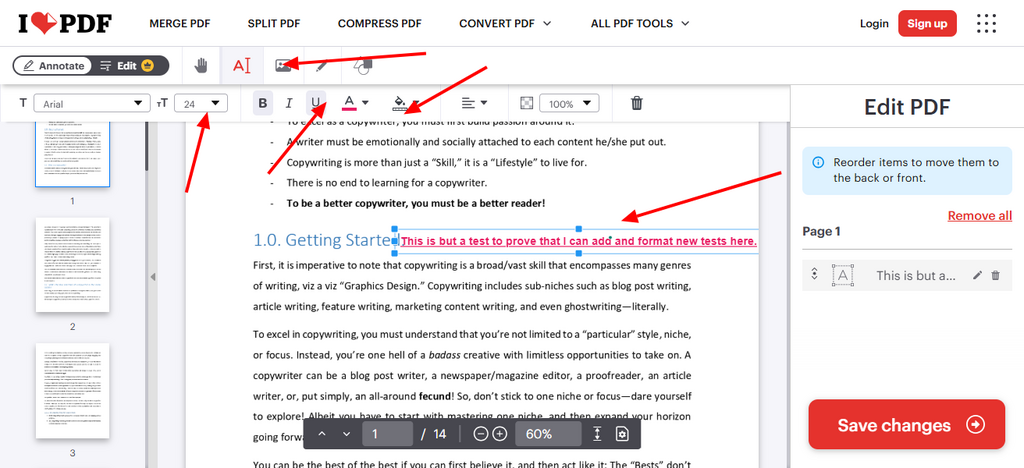
Recently, there has been a lot of buzz about the ILovePDF tool on X (formerly Twitter); a couple of X users, who just discovered the tool, were overwhelmed by the plethora of features it offers for free, while still maintaining a super-clean, user-friendly interface. ILovePDF offers a suite of truly useful PDF tools that allow you to tweak PDFs in many ways.
The PDF Edit tool of ILovePDF lets you add new text, images, and shapes to a PDF document. You can also add font color, select font size, and choose from a limited number of font faces. Well, the only issue is that you might not find the matching font size or font face as used in the PDF you’re editing; to get that, you have to pay for the premium plan.
2. Canva PDF Editor (Try Out)
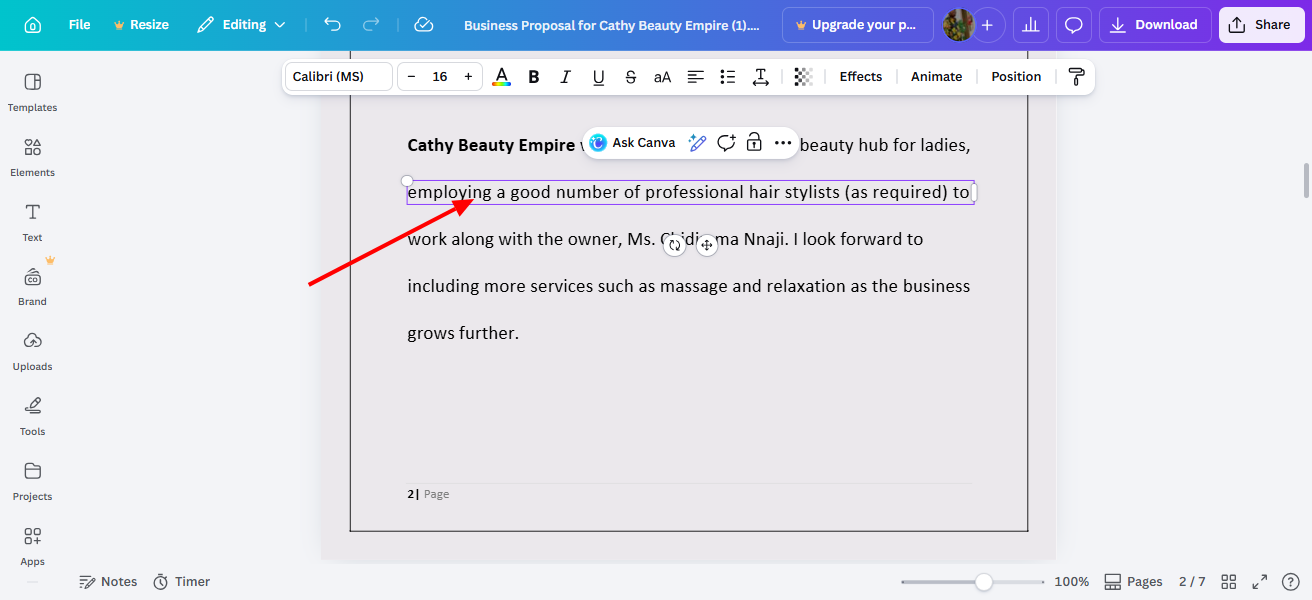
Here’s another one I find to be very interesting and well-equipped. Canva already provides a vast collection of free tools for graphics design, video editing, photo editing, and even vibe coding. So, yeah, seeing it has a PDF editing tool isn’t really that surprising. The Canva PDF editor is packed with pretty useful tools that really come in handy.
Surprisingly, unlike the others, you can write into paragraphs directly, change the font of the actual document, and edit literally every aspect of the PDF. This is one of the most advanced, yet free PDF editors out there, with more to offer. You can also utilize Canva design elements while editing PDFs; add effects, and even animate, all for free.
3. PDF Gear (Try Out)
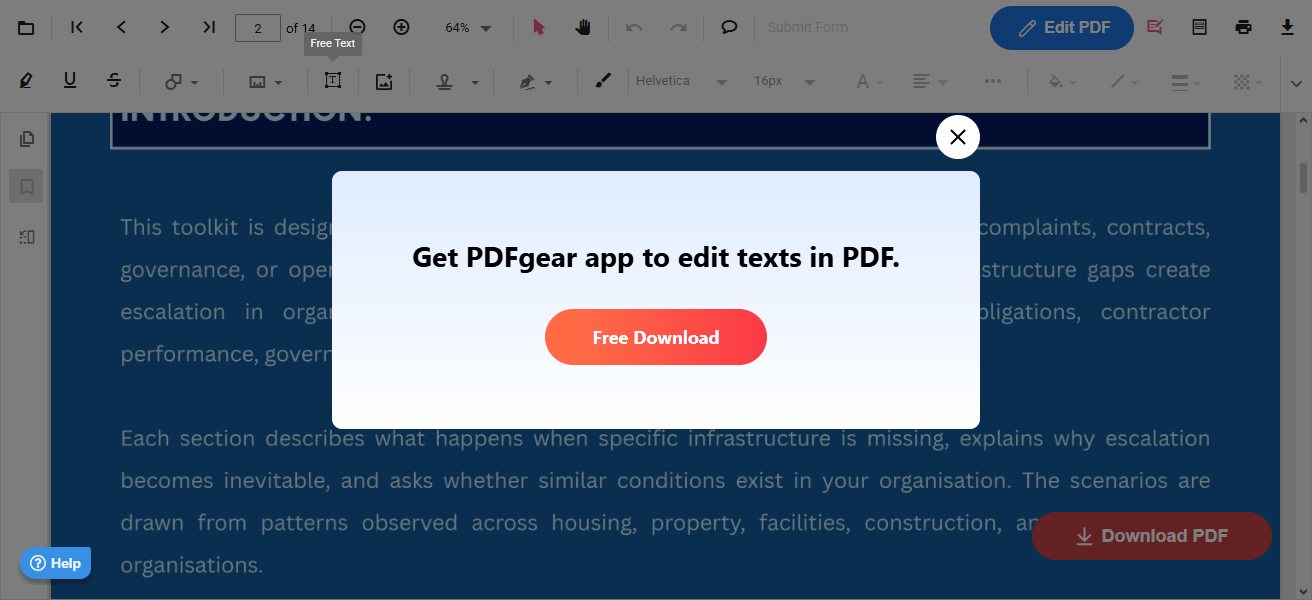
PDF Gear works pretty well, but actually, the full-featured PDF editor is only available when you install the client app. The online editor lets you attach texts to PDF files via a text box, and you can add other elements too, such as images, highlights, and ink drawings (perfect for annotations).
The font size options, font faces, and other editing features of PDF Gear are more flexible than those in ILovePDF, plus, the interface is super-intuitive and clean, allowing you to focus properly when working on a file. There are other useful tools available in the PDF Gear suite, which are all equally offered for free.
4. Sejda PDF Editor (Try Out)
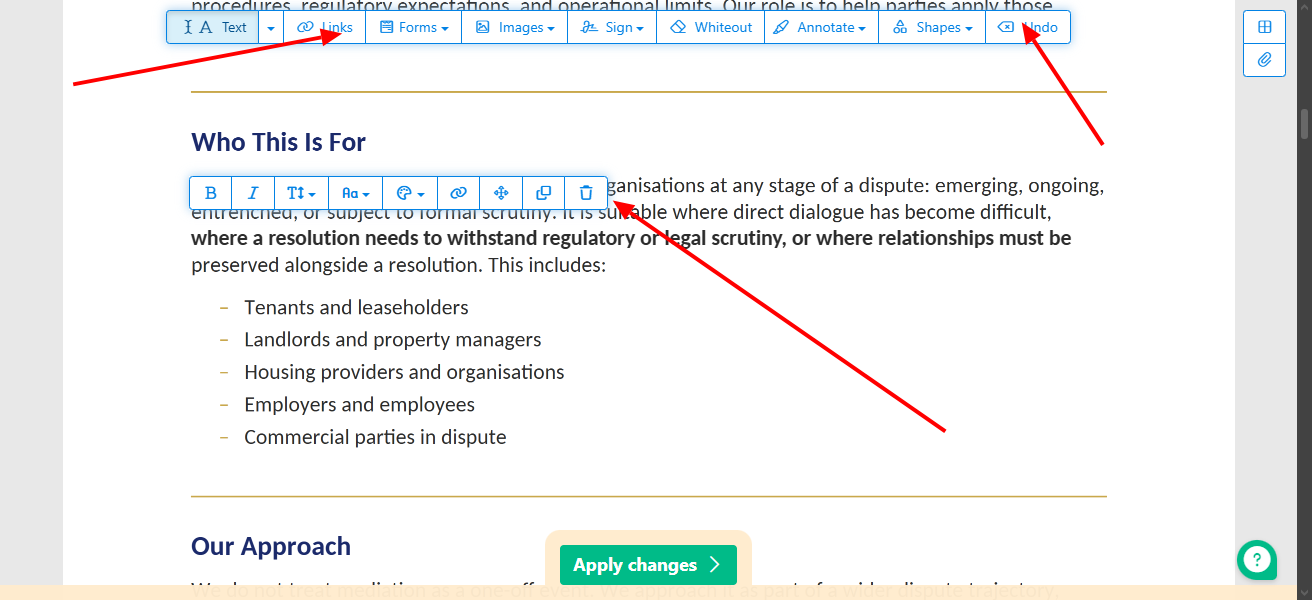
Similar to Canva’s PDF Editor is this one, Sejda PDF Editor, an online PDF editor that lets you edit the actual texts in your PDF document for free. You can add links, icons, shapes, text, colors, and lots more to your PDF documents, all for free. Even so, you can bolden the existing texts or lighten there are just too many things you can do to a PDF file with the Sejda tool; you can even add new pages to the document.
Talk about the best free PDF editor that works across devices and systems, and I’d mention the Sejda PDF Editor. The app does have a desktop client edition, but you might just never need it, since the online tool is full-featured. When you’re done editing your PDF file, you have to click on the “Apply Changes” button to effect all your edits and then save the file locally.
5. PDF Candy (Try Out)
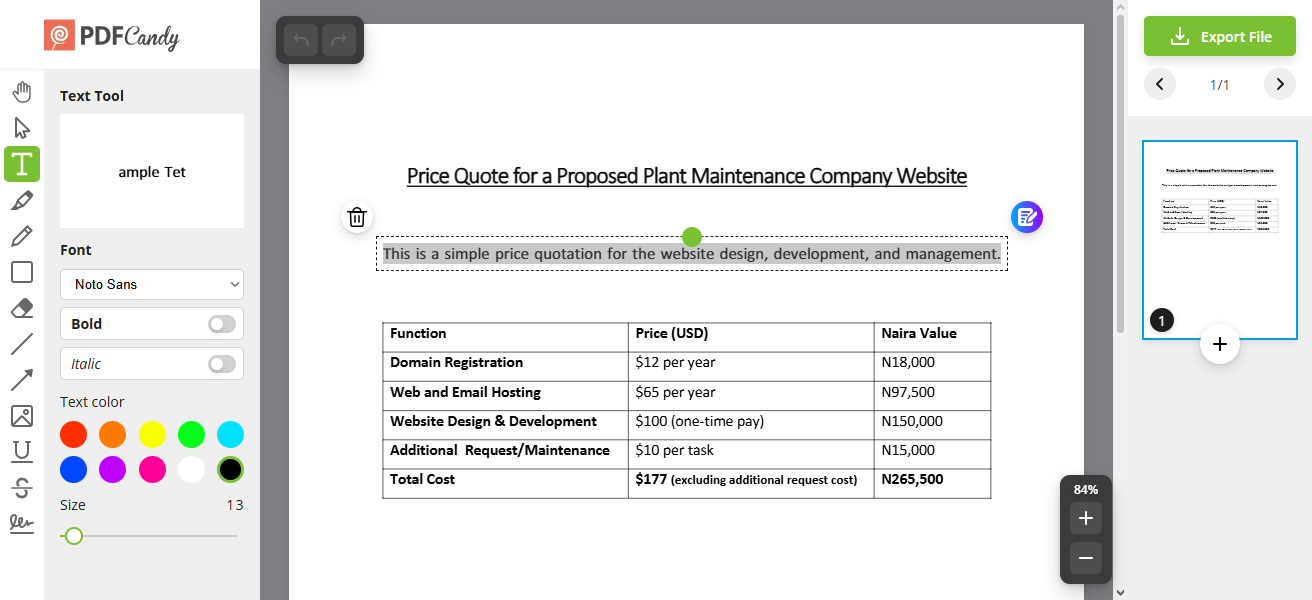
Quite a chic name for a pretty useful suite. PDF Candy is a suite offering over 90 tools to edit, manage, convert, or secure PDF files online. Its interface is superb and the fast with document processing. The PDF Candy app also lets you edit the real text in your PDF file, so you can delete, add text, input punctuations, and perform other direct tasks on the file.
Also, with PDF Candy, you can select and drag texts around the PDF page; just hold and drag the green button. However, for the editing aspect, PDF Candy doesn’t have many font characters, so it may be difficult to get the exact font face on the actual document you’re editing; although it tries to pick the document’s default font, that doesn’t work all the time.
6. PDF Simpli (Try Out)
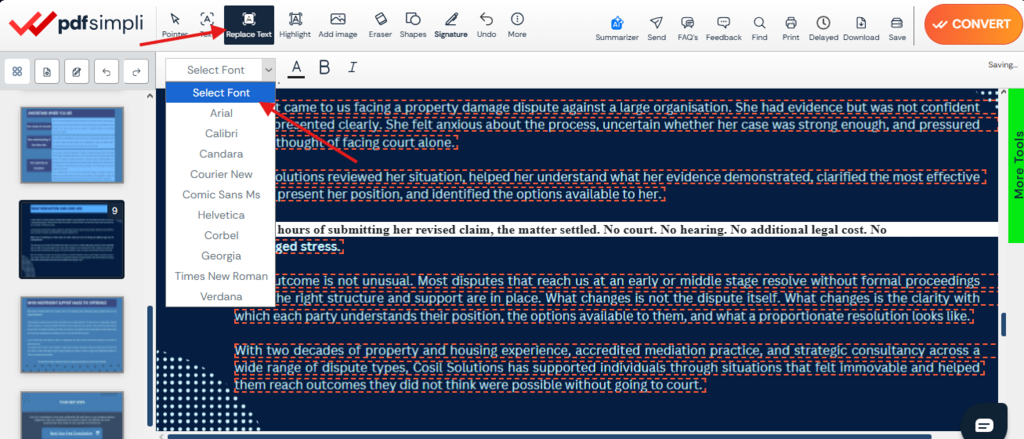
PDF Simpli is a truly useful PDF editor with unique features. It has a “Replace Text” feature that highlights all the text in your uploaded PDF and allows you to edit it directly, adding more words, spacing, paragraphs, and all of that. You can also annotate and add shapes or icons to the PDFs.
With PDF Simpli, you can attach e-signatures to PDFs or erase any part of the document that’s not needed. It has every other feature you will find in a standard online PDF editor app, and yes, it doesn’t have a paid version; every feature it offers is available to you for free.
7. PDF Aid (Try Out)
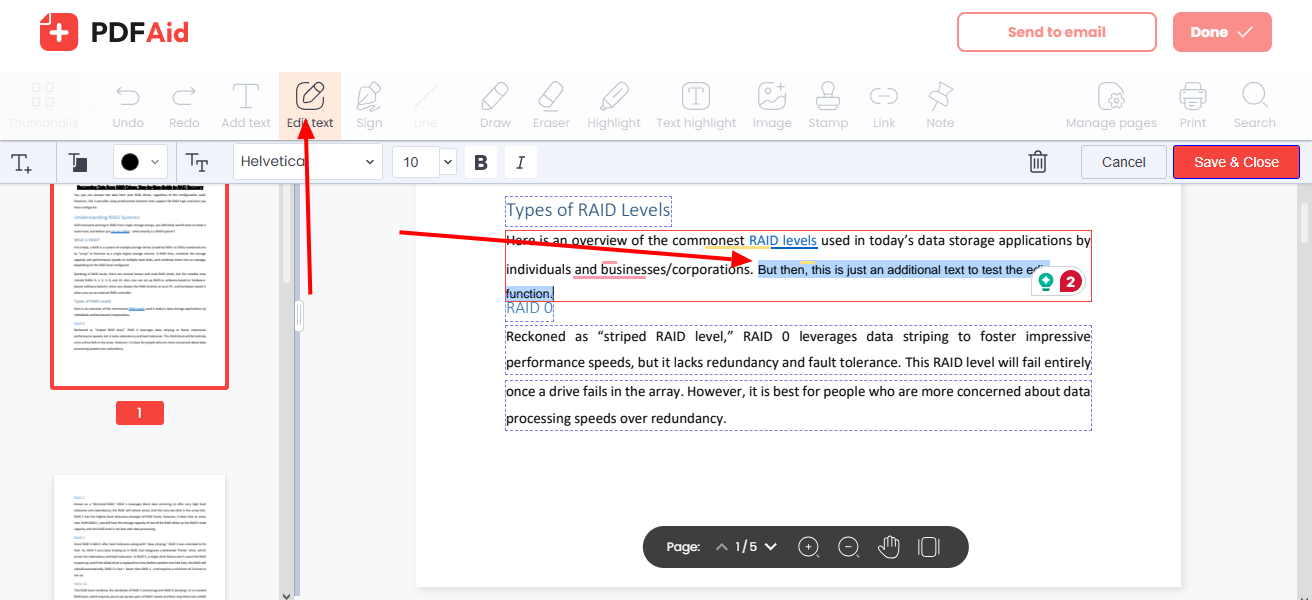
Here’s another interesting tool for working on PDFs online without downloading any software. PDF Aid is a pro-level PDF editing tool with decent features you really need. Yes, like most of the others on this list, it lets you edit the actual text in your document; for that, you have to select the “Edit Text” feature; otherwise, you’ll only be annotating.
Also, this tool lets you convert PDF to multiple other formats, including image formats like PNG and JPEG, or document formats like DOC, PPTX, and Excel. It is a truly handy suite for the daily corporate worker and teachers. No, you’re not paying anything, and you don’t even need to create an account to get started.
8. TheBestPDF (Try Out)
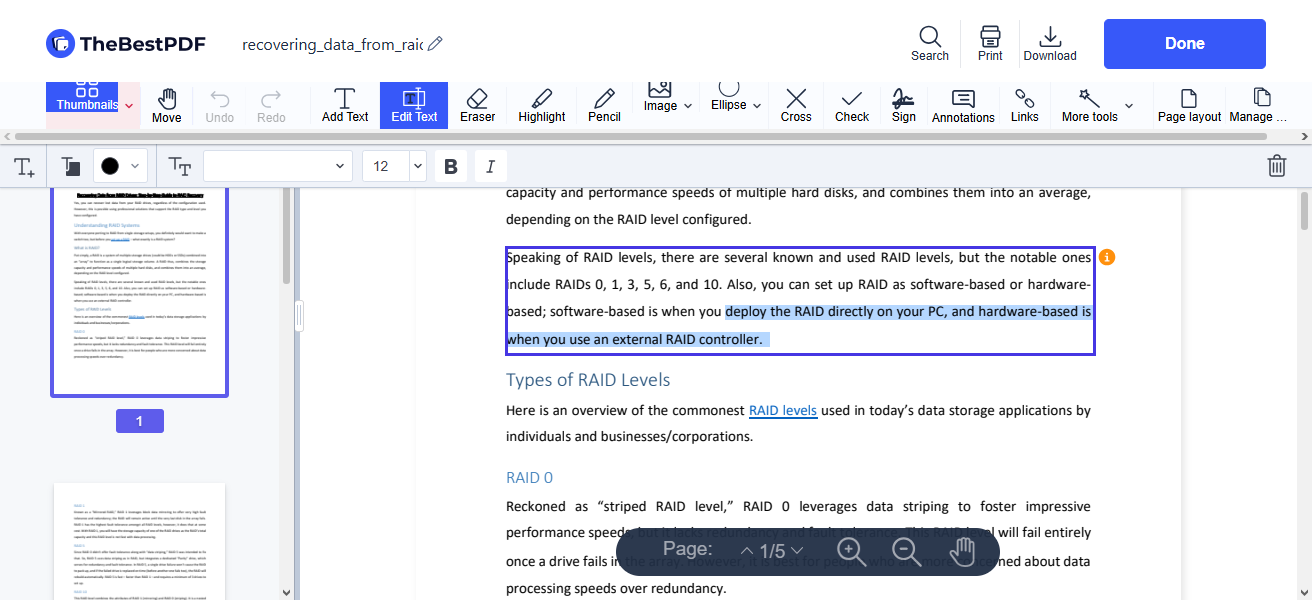
Even the name already gives an impression, and yeah, this is one of the best online PDF editors you can ever use on any device, whether it’s a MacBook computer, a Windows PC, or even your smartphone. There are lots of tools available in the editor workspace for you to use within your PDF file.
TheBestPDF allows for annotation, signing, direct text editing, pencil drawings, highlights, and hyperlinks. All these are available for free; you don’t need a premium plan. With this tool, you can highlight any text in your PDF document and edit it directly as you wish.
9. PDF House (Try Out)
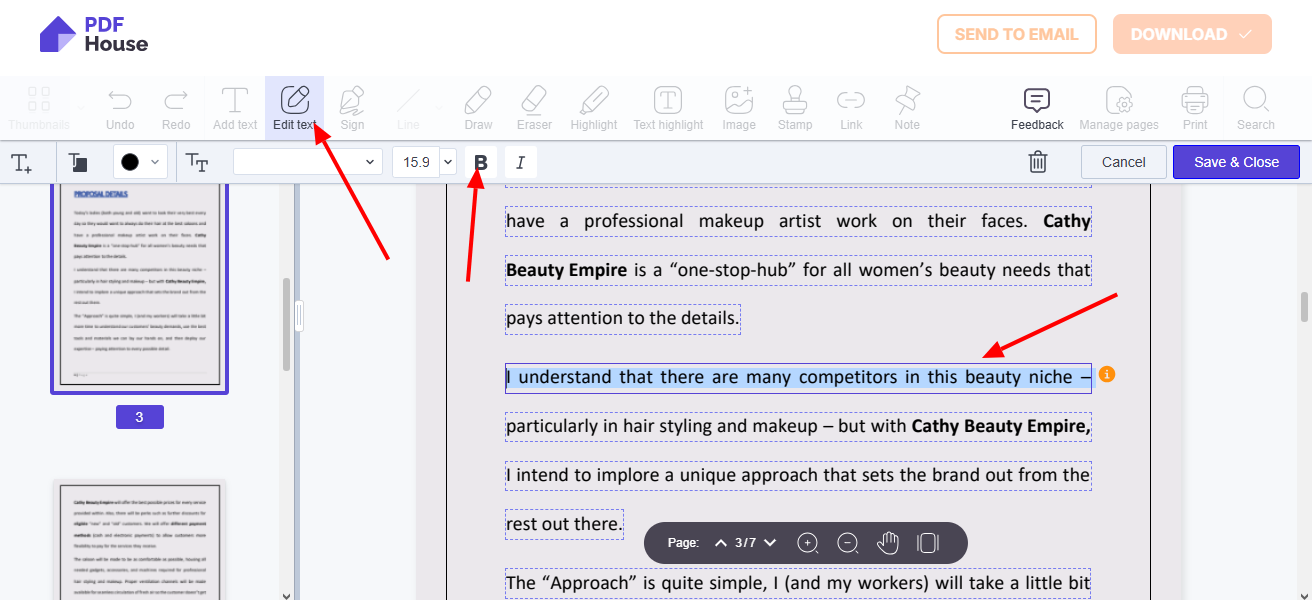
PDF House follows the same template as many other on this list; to edit the texts in your PDF, you have to select the “Edit Text” feature, and then you can start writing directly into the PDF document. This is the most important and sought-after feature people look for in PDF editors. Also, the interface is easy to understand and navigate, even for a noob. The app is completely free for everyone.
10. PDF Escape (Try Out)
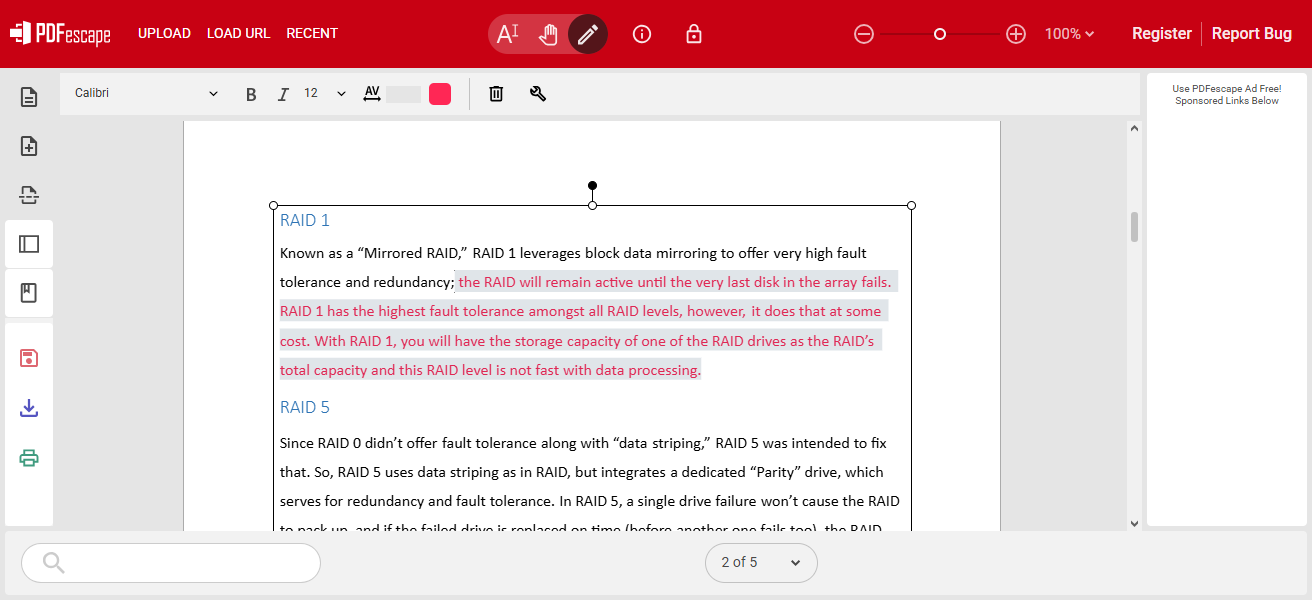
Lastly on my list today is PDF Escape, a full-featured tool for handling and managing PDF documents on the go, on any device. It does have a desktop app that has all the features, while the online, web-based version is limited. However, the online version still offers basic PDF editing and lets you adjust the actual texts in the document.
PDF Escape offers a clean and simple UI that fosters concentration, with all the tools you need arranged properly. However, you can’t add icons and shapes to a PDF file using this web version; you’ll need the desktop app. For everyday PDF management and tweaking, the PDF Escape online editor is an ideal pick.
Summary
In summary, these are the best online PDF editors to choose from right now. They are free, accessible from any device with a web browser and internet service enabled, and work for all kinds of PDF documents.
You can readily use these tools to edit PDF DOC online via your PC, iPad, tablets, and mobile devices. Did we miss your favorite one? You can mention it below in the comments.











It’s great to have free online PDF editors that offer features like text editing and annotation. These tools can be very handy for quick document modifications without needing software installations.