
If you’re using the default Gboard keyboard (which is Google’s official Keyboard app) on your smartphone, you can enable the clipboard function to save multiple copied items (including screenshots) for a length of time, until you refresh the phone or clear the cache. This keyboard feature is handy, and personally, I use it a lot.
The good thing about this clipboard feature is that it stores copied images and lets you “pin” items. The pinned items will never be deleted from the clipboard; they’d stay there forever, even if you turn off the phone and turn it back on, until you unpin them or clear the Gboard’s app data via the phone’s Storage Settings menu.
What is the Clipboard on Android Gboard?
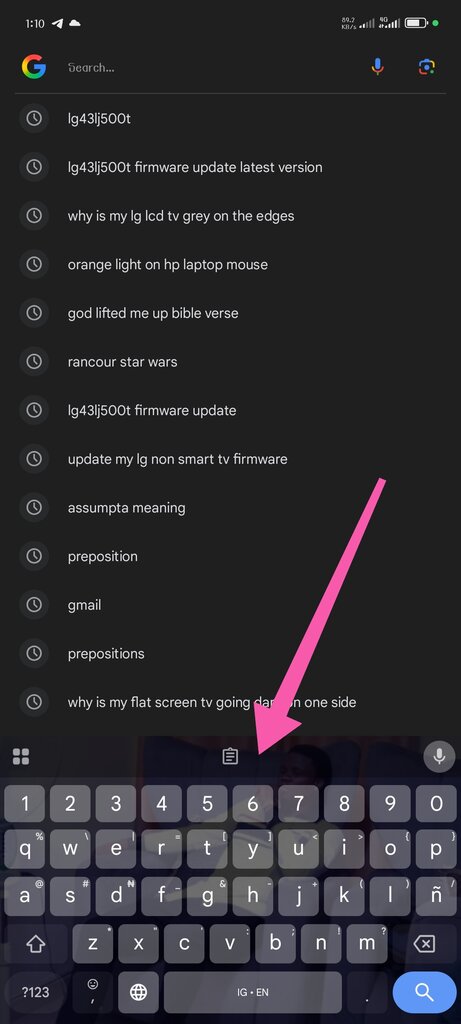
Clipboard is a built-in feature on Gboard that allows you to have multiple copied items saved over a period of time, where you can easily access them. Although this feature is available on all Android phone keyboards by default (which has Gboard as the default keyboard), you must manually enable it to start using it.
How to Enable Clipboard on Android Gboard
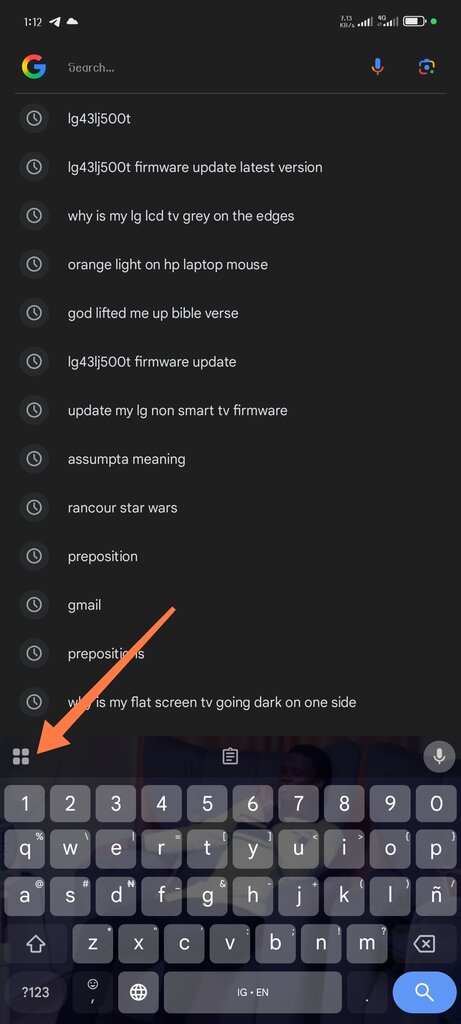
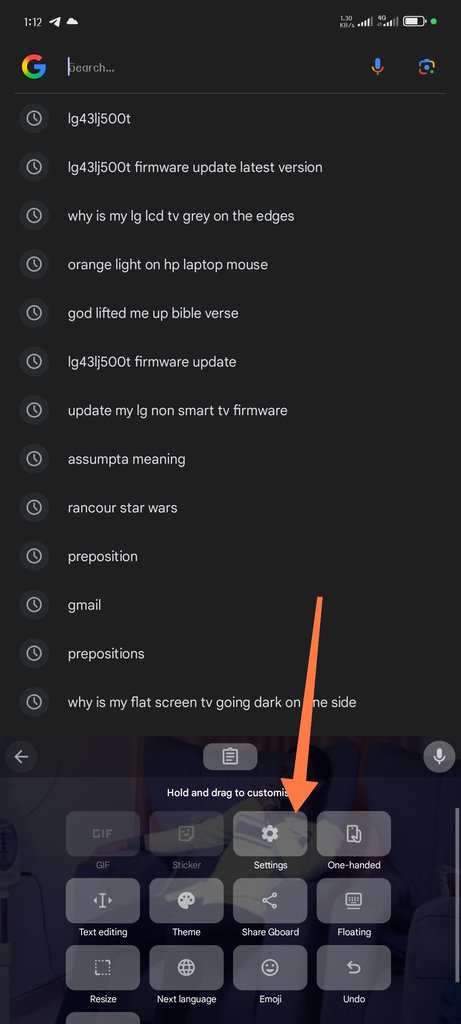
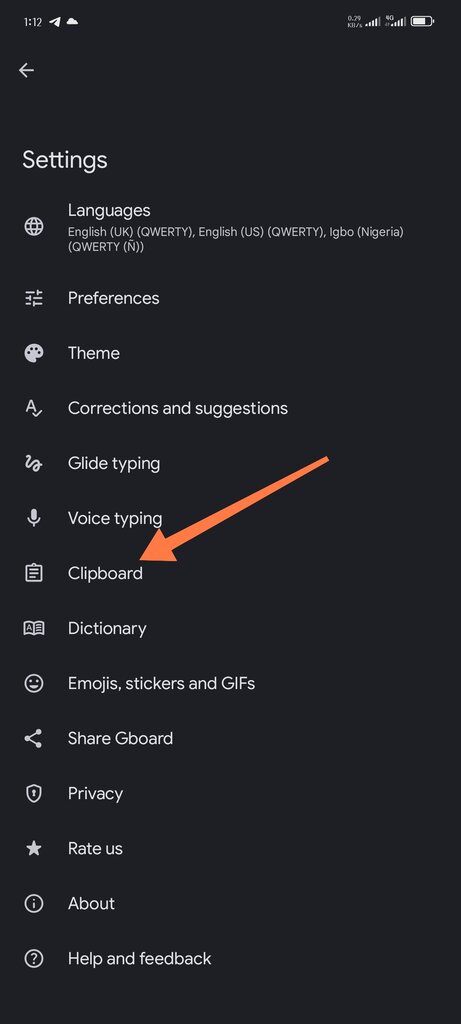
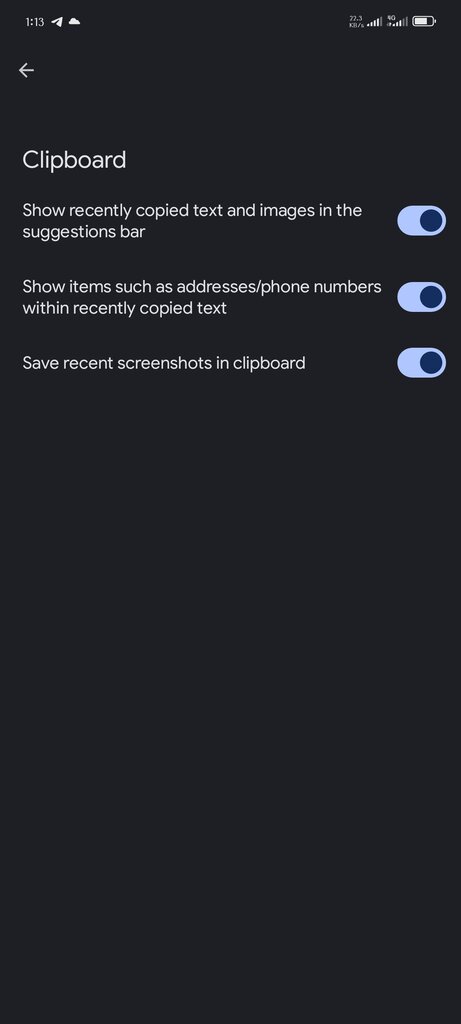
It’s quite straightforward: First, you’d have to get into the Gboard’s Settings menu and enable the clipboard features you want.
- Click on any text editing field to cause the Gboard to pop up.
- Tap on the boxed menu icon at the top left edge of the keyboard
- Get into the “Settings” menu
- Go to Clipboard
- Then enable the clipboard features you want to use: there are three options available.
Once enabled, simply go ahead to copy multiple items; they’ll all appear on the Gboard “paste” screen.
How to Pin Clipboard Items on Android
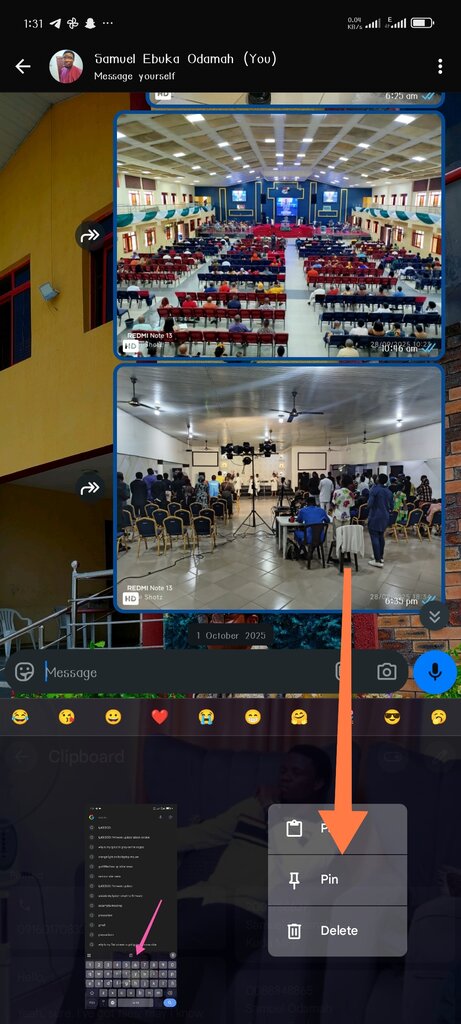
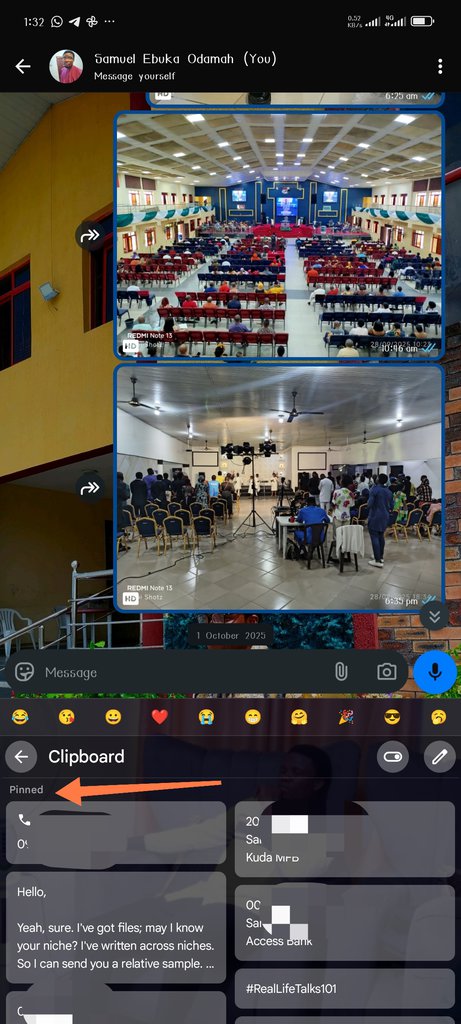
After you have enabled the clipboard feature, you might as well want to pin some frequent words, sentences, or details. For example, you can pin your business bank account details, so you can easily share it with customers once requested; if you’re a freelancer, you can pin your intro, bio, or any relevant image for your business. So, here’s how to do it.
- First, you have to copy the text or image you want to paste
- Then open the “Paste” dashboard, press and hold the clipboard item you want to pin, then select “Pin.”
- That’s it, the clipboard item will be pinned; you can have as many pinned clipboard items as you wish.
What More?
Personally, the Gboard clipboard is a handy feature for me, and I thought it would be handy for you too, or what do you think? The clipboard can save items across your devices where Gboard is the active keyboard app. Also, its ability to save images and screenshots makes it a perfect tool for everyone.
If you aren’t using Gboard yet but would like to enjoy its specific features, you’ll need to download it from the app store and make it your default keyboard application to start enjoying its features and functionalities.