
Yeah, a laptop is different from a Chromebook even though both may look very much alike, be the same size, and flaunt the same hardware features. Put simply, a Chromebook is a specific type of PC that runs on Google’s Chrome OS, while a traditional laptop is a PC that runs on Windows or macOS. Advanced users may load bespoke OSes such as Ubuntu, CentOS, or even macOS on a laptop.
On the surface, all three look the same, except for their operating system. The truth is – it’s actually more than the operating system alone. In fact, there are more than 10 key differences between a laptop and a Chromebook, which is what today’s post is all about. Read on to see how these computers, designed to serve two different categories of PC users, contrast with each other.
Laptop vs. Chromebook: Quick Highlights
Before we start expounding on the differences, here are quick highlights of how these two computers are different from each other.
| Factor | Chromebook | Traditional Laptop (Windows/macOS) | |
| 1 | Operating system | ChromeOS, browser-centered | Windows or macOS, full desktop OS |
| 2 | Software | Web apps, Android apps, Linux apps (device-dependent) | Full desktop software library. Can run or simulate any software app |
| 3 | Price | Typically from about $150 to $600+ | With decent specs, price is usually from $800k to $3k+ |
| 4 | Hardware | Average chips and RAM | Moderate chips, from entry-level to GPU-heavy powerhouses |
| 5 | Storage | Small local drives, cloud-first | Large local SSDs, local-first |
| 6 | Security | Sandboxing, Verified Boot, built-in security chip | Robust security tools available, plus CMD/Terminal. |
| 7 | Updates | Automatic, 10 years from platform release (with caveats) | Depends on OS version and hardware eligibility |
| 8 | Gaming | Android games and cloud streaming | Native PC games, dedicated GPUs on some models |
| 9 | Setup and management | Sign in with a Google account and go | Granular setup, more control |
| 10 | Developer flexibility | Linux container on supported models | Full dev environments, virtualization, any IDE |
The 10 Key Differences Between a Laptop and a Chromebook
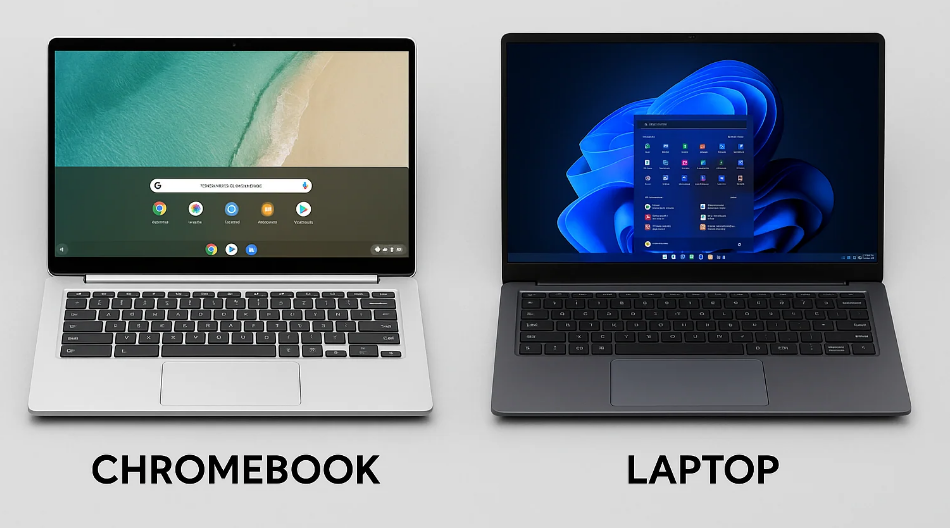
If you’re going to run professional software apps, connect multiple peripherals, try out advanced tweaks and all that, then a laptop is what you need, but if you need a PC to act as an extension of your mobile phone for faster browsing and easy syncing with Google Cloud, then a Chromebook is what you need.
1. Operating System: ChromeOS vs Windows or macOS
Starting with the operating systems: a Chromebook runs on ChromeOS, while a laptop can run Windows, Linux, or macOS. ChromeOS is built around the Chrome browser; made for speed, simplicity, and security under Google’s radar. What you can do with ChromeOS is limited, including the types of apps you can run and the hardware you can connect.
Windows and macOS are full desktop operating systems designed to install, manage, and run local software; handle a wide range of drivers and peripherals; and give you deep control over files and system settings. A laptop can connect to multiple device types, including VR devices, to serve more recreational purposes. Think of a Chromebook as a tidy kitchen counter with a great cloud pantry, while a Windows or macOS laptop is a fully stocked workshop.
2. Software and App Compatibility
Laptops, with native OSes like Windows or macOS, can run traditional software programs, while Chromebooks only run web apps, Android apps from Google Play, and, on supported models, Linux apps. Even so, not all Chromebook models support Android apps. However, on a laptop, whether powered by Windows or macOS, you can seamlessly run Linux apps and simulate Android apps.
Put simply, app compatibility on laptops is vast, but on Chromebooks, it’s quite limited. Also, many programs you can’t run on Chromebooks can run on a laptop, and any app you can run on a Chromebook can also run on a laptop. So, a laptop can give you the Chromebook feel with many more features and capabilities to go along with.
3. Price
Price is the Chromebook’s headline advantage; Chromebooks cost roughly $150 to slightly over $600 for higher-spec models. Laptops, on the other hand, can start around the same $150 range for low-end specs, but stretch much higher up to $1k or even above $2k for high-end models, mainly the gaming/workstation models packed with heavy GPUs.
The truth is, Chromebooks are cheaper because they’re targeted at students, teachers, children, and people who don’t need a PC for heavy multitasking or running professional software suites.
4. Hardware and Performance
Performance-wise, ChromeOS is lightweight and can be very fast, especially if you’re going for one with about 6 or 8GB of RAM paired with a recent Intel CPU chip. However, the speed of Chromebooks is because they run lightweight apps, mainly web apps that run through browsers.
Laptops, on the other hand, are not necessarily slow, but users most of the time tend to overload their laptops with heavy programs since they allow installations of various kinds. A $600 laptop having the same RAM and chipset as a comparable Chromebook would deliver better overall performance and hardware compatibility.
5. Storage and Offline Use
Chromebooks are cloud-first, meaning Google expects you to be saving your files and data on its Drive cloud storage platform. Also, this is why Chromebooks barely come with massive local storage compared to laptops; most Chromebooks come with around 256GB of local storage, while laptops can come with over 1TB of local storage.
Cloud storage on laptops comes as a secondary consideration; the primary storage is the local drive, which is either an HDD or SSD. Furthermore, Chromebooks largely need an active internet connection for you to use them properly because most of the features are apps run through the web and require internet access. Laptops can run full programs and even virtual machines without connecting to the internet.
6. Security
Chromebooks lean on built-in protections; every Chromebook includes a security chip to encrypt sensitive data, and ChromeOS sandboxes software so an infection in one part doesn’t spread to the rest. Verified Boot also runs a self-check every time the Chromebook starts, and if it detects tampering or corruption, it typically repairs itself back to its original state.
Windows and macOS laptops also have strong security tools, including built-in protection, but their open software model means more things can go wrong. You install more programs from various sources, so you carry more responsibility for keeping the system clean. Chromebooks are more secure by default, but you can always secure your laptop by enabling certain security features or using a third-party security software you trust.
7. Updates and Support Lifespan
According to Google, Chromebooks get automatic updates every four weeks. Also, in 2023, Google announced 10 years of automatic updates for all Chromebook platforms, counted from when the platform was released, not from the day you buy the device; so, a Chromebook built on an older platform may have fewer years left than the box implies.
Windows and macOS laptops follow vendor-specific policies tied to hardware eligibility, so the real lifespan varies by model and OS you’re running on the laptop. Notwithstanding, you can have a laptop for 10 years and counting; with proper maintenance, it’ll deliver what you need.
8. Gaming Strength
There’s no debate here; Chromebooks are not built for gaming. Even laptops have specific models that are built for gaming purposes. Also, ChromeOS doesn’t have any native games; most of the games you could play on a Chromebook are compatible Android games or streamable cloud-based games powered by services like NVIDIA GeForce NOW, Xbox Cloud Gaming, and Amazon Luna.
Windows OS has the biggest native PC game library, and gaming laptops add dedicated GPUs, high-refresh screens, and cooling systems for an ideal gaming experience. Also, you can pair a Windows-powered laptop with a PC VR system to enjoy an intriguing virtual reality gaming experience. Laptops are the best for PC gaming; however, laptops that run macOS or Linux are not particularly gaming-friendly.
9. Setup, User Management, and Day-to-Day Simplicity
Chromebooks are incredibly easy to master and use compared to a laptop. The simplicity of Chromebooks is their main selling point for people who do less with PCs and a major limitation for people who want more. Schools and small businesses may prefer Chromebooks as they also offer a central management tool to manage the PCs.
Laptops are not particularly difficult to use per se; they’re just a bit more complex than Chromebooks, with Windows OS laptops being the simplest to familiarize with, while Macs may require advanced knowledge and a steeper learning curve. Centralized user management is also possible with laptops but costs more, as you may require the Enterprise version of the operating system you choose to run on the laptop.
10. Developer Flexibility and Customization
Actually, Chromebooks are becoming more flexible than they used to, and even developer-friendly with the newer models. Chromebook Plus models can actually be good for learning to code, building basic websites, or coding with cloud-based editors. However, the flexibility hasn’t reached the level of laptops.
On the other hand, laptops can be customized in various ways, including how they appear, feel, and work. You can customize your desktop display in many ways, and install full-suite IDEs for full-stack development. A laptop gives you full control over your development environment and lets you customize it fully.
Wait, What About Googlebooks?
There is a new name making it into the markets; it’s “Googlebook.” These are not Chromebooks; they run a new Googlebook OS that combines Android and ChromeOS, with Gemini built in, and they come in premium metal designs from Acer, Asus, Dell, HP, and Lenovo, going for a price from $899 (Acer Googlebook 14) to $1,299 (Asus Googlebook 14).
It appears that Google is building a new plan to move on from Chromebooks into a more powerful system, Googlebooks, in the distant future.
Which Should You Choose?
Honestly, both Chromebooks and laptops can be an ideal PC; it all depends on what you’ll be doing with them:
Go with a Chromebook if:
- Most of your work happens in a browser and Google apps.
- You want a cheap, simple, low-maintenance PC for study, writing, streaming, or family use.
- You mainly play casual Android games or stream cloud games.
Go with a laptop if:
- You rely on desktop software apps like AutoCAD, Adobe Creative Cloud, full Microsoft Office, or specialized industry software apps.
- You want native PC gaming, video editing, or heavy local development.
- You need lots of local storage or dependable offline use.
Conclusion
So, which is better? Neither, really. It depends on what you do all day. A Chromebook is best for simplicity; something you can get your kid to use to introduce them to personal computers, while laptops are for people who want more power and control over their computer system. A laptop is simply an all-rounder, while a Chromebook is a good starting point for someone getting into computing.