
Your Mac says the disk is almost full; you go digging in System Settings, and Mail turns out to be holding a stack of gigabytes you don’t remember agreeing to. Fair enough. Nobody keeps ten years of invoices and party photos on purpose, but Mail will happily do it for you if you let it.
Luckily, this is one of the simpler storage jams to fix. Below you’ll find why it happens, a few free tricks that ship with macOS, and six tools for when clicking through it all by hand gets tiresome.
Why Mail eats so much space
It’s mostly attachments. One 5 MB PDF is nothing, but ten thousand of them is roughly 50 GB, and that’s before the photos. Even an email signature with a logo gets stored again with every message you send or receive. IMAP makes this worse. Gmail and iCloud both use it, so Mail keeps a full copy of the server on your disk, and a giant mailbox in the cloud turns into a giant one on your Mac. Deleted mail sits there until you empty the Trash. With POP accounts, copies can also stay on the server after you’ve deleted them locally.
To check yours, open System Settings > General > Storage and find Mail in the list.
Start with what Apple Mail already offers
Apple Mail has a couple of tricks of its own, so try those before you download anything. Say you’ve got an email with a 30 MB video stuck to it. Select it, go to Message > Remove Attachments, and the video disappears while the email itself stays. One thing to know first: on IMAP accounts, the files are also deleted from the server (Apple spells this out in its guide to Mail attachments), so save whatever you want to keep before you click.
Then there’s Mailbox > Erase Deleted Items, which gets rid of the deleted pile for good. If you’d rather stop attachments from piling up in the first place, open Mail > Settings > Accounts > Account Information and change Download Attachments to None. A third setting, “Remove unedited downloads” under Mail > Settings > General, controls how long Mail keeps the copies you’ve downloaded.
Trouble is, you’re doing all of this one message at a time.
The 6 Best Mail Cleaner Tools for Mac
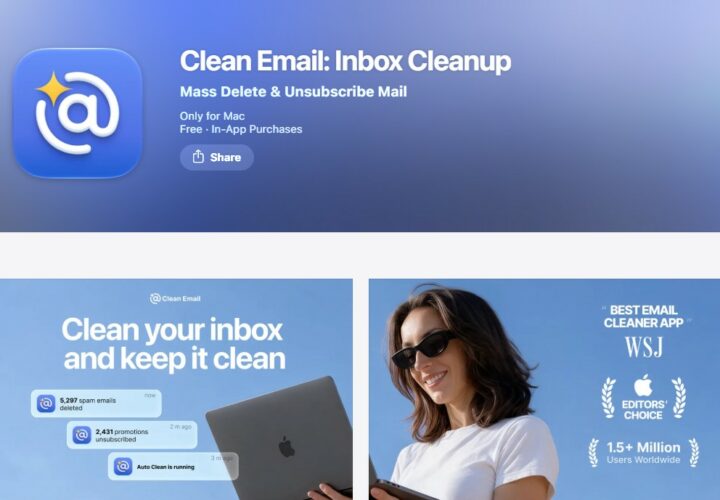
Here are the 6 best mail cleaner tools for MacBook, iMac, and other devices running on macOS in 2026 and beyond:
Clean Email
Clean Email goes after the mailbox itself. It sorts your mail into suggestions and Smart Folders, so clearing out thousands of old newsletters and notifications takes a few clicks, and Auto Clean rules will archive or delete new messages on a schedule. Gmail, Yahoo, Hotmail, AOL, and iCloud all work (iCloud needs an app-specific password), and there’s a Mac app along with web and mobile versions.
The drawbacks are real, though. You pay a subscription, and since everything happens on the server, Apple Mail has to resync before your disk shows any difference.
Mailstrom
Mailstrom is the one for people staring at a huge backlog. Sort by sender, subject, date, size, or mailing list, and it’s obvious when one sender is responsible for 4,000 messages. Delete the lot in one go if you like.
Rules for incoming mail are in there too. It runs in a browser instead of as a Mac app, which will bother some people and not others.
CleanMyMac
CleanMyMac, one of many free Mac cleaners you can try before paying, ignores your mailbox and cleans up the files Mail has already saved to your disk. In its Cleanup module, there’s a Mail Attachments category: run a scan, look through the list, sort it by size, and pick what goes. Smart Selection skips anything you’ve edited.
If you just want the gigabytes back and don’t feel like digging through folders, that’s a quick way to do it. It also clears system junk and leftover files from old apps, which you may or may not care about. The app is paid, with a free trial. One thing MacPaw’s documentation doesn’t say is what happens to the copy of an attachment that’s still on the server, so try it on one mailbox before you point it at everything.
SaneBox
SaneBox works on the problem from the other end and keeps the clutter from showing up in the first place. Incoming mail gets sorted into separate folders by importance. A BlackHole takes care of senders you’re done with, and a daily digest collects the low-priority stuff.
It supports iCloud, Gmail, Microsoft 365, Yahoo, and Fastmail, plus any IMAP server, so it works inside Apple Mail with no extra app. Mostly it prevents new mess. A 20 GB backlog isn’t going anywhere because of it.
DaisyDisk
DaisyDisk isn’t a mail tool. It draws your drive as a map of colored rings you can click into, so you can tell quickly if Mail is the problem or if something else is hogging the space. It’s $9.99 once, no subscription.
It doesn’t know anything about Mail’s folder structure, though, and deleting files by hand inside Mail’s library is a good way to break things. Use it to find out where the space went, then clean up in Mail or with a mail-aware tool.
Leave Me Alone
Half the mail in most inboxes comes from subscriptions you signed up for years ago and never thought about again. Leave Me Alone digs them up, shows how often each sender emails you against how often you actually open it, and lets you unsubscribe from several at once.
It runs in the browser, and unsubscribing is the only thing it does, so old attachments stay right where they are. The free allowance is small, and after that you’re on a paid plan.
A quick cleanup checklist
- Note your starting point: System Settings > General > Storage, Mail line.
- Sort by attachments and delete the big ones you’ll never open again (old scans, video clips, that sort of thing).
- Mailbox menu > Erase Deleted Items, then Erase Junk Mail.
- Read mostly on your phone? Then your Mac doesn’t need attachments downloaded, so switch that setting to None.
- Unsubscribe from newsletters you never open. Be honest here.
- Tomorrow, check Storage again, because the number can lag behind.
How to choose
The choice is easier than it looks, because it mostly depends on what’s actually broken. A full disk points to a mail-aware cleaner or a disk map, since those get space back quickest. A bloated mailbox (picture 60,000 unread messages) is a job for a server-side tool such as Clean Email or Mailstrom. If you keep ending up in the same mess every few months, SaneBox and Leave Me Alone go after the cause instead of the symptoms.
Plenty of people run two tools side by side, one to dig out the backlog and one to stop it coming back. Either way, do the free built-in steps first and only add a tool if the number in Storage still bugs you.