
Connecting a thin laptop, tablet, or phone to a monitor often looks as simple as attaching a cable, yet the small port on the device can hide several different capabilities. A usb type c hdmi converter bridges USB-C hardware and an HDMI display, but it can only carry video when the source device supports video output through that USB-C port. Knowing what the port, adapter, cable, and display can each do prevents the most common problems: a black screen, limited resolution, unstable playback, or a presentation that fails just before it begins.
USB-C Describes a Connector, Not Every Capability
USB-C refers primarily to the reversible physical connector. Two laptops can have ports that look identical while supporting different functions. One may handle charging and basic USB data only. Another may also support DisplayPort Alternate Mode, which lets the device send a native video signal through USB-C. A Thunderbolt or USB4 port may carry video as part of a broader high-bandwidth connection, but the specifications of the individual computer still matter.
This distinction explains why an adapter can work immediately on one machine and show nothing on another. The adapter is not creating a video signal from ordinary USB data. It is translating or routing a display signal already made available by the host. Before buying anything, users should consult the device manufacturer’s technical specifications and look for DisplayPort Alt Mode, Thunderbolt, USB4, or explicit external-display support. The same host check applies when considering Anker’s USB-C to HDMI adapters: the connector must provide a supported video signal before the adapter can send it to a screen.
Phones and tablets require the same check. Some USB-C mobile devices can mirror or extend their screens; others use USB-C only for charging and file transfer. An operating-system update cannot add missing display hardware. Compatibility begins with the source device, not the television.
How the Conversion Works
When a compatible host enters DisplayPort Alternate Mode, some of the high-speed lanes inside the USB-C connection carry video. The adapter converts that signal into HDMI signaling that a monitor, projector, television, or capture device can understand. The operating system then reads display-identification data, negotiates a resolution and refresh rate, and creates a mirrored or extended desktop according to the user’s settings.
Every link in this chain can impose a limit. The source GPU has a maximum external-display capability. The USB-C port exposes particular modes. The converter supports a stated HDMI version and resolution. The HDMI cable has a bandwidth rating, while the display accepts specific combinations of resolution, refresh rate, color depth, and high-dynamic-range formats. The final image can only use the highest mode supported by the entire path.
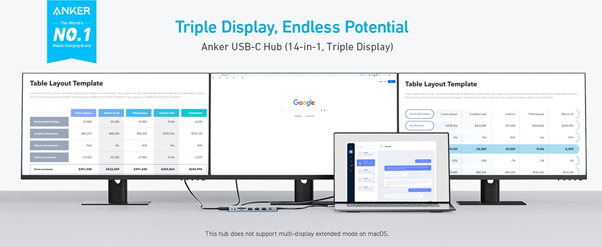
For a simple display connection, a dedicated adapter may be enough. A multiport hub can be useful when a desk also needs connections for peripherals and charging. For example, the Anker USB-C Hub (14-in-1, Triple Display) includes two HDMI ports alongside USB connections and a power input. Display capabilities depend on the laptop and operating system; Anker notes that this model does not support multi-display extended mode on macOS.
Resolution Is Only Half the Picture
“4K” is often printed prominently on adapter packaging, but resolution alone does not describe the experience. A 4K image at 30Hz can be acceptable for slides or static dashboards, yet cursor movement and scrolling feel much smoother at 60Hz. Gamers and video professionals may want higher refresh rates, but the source, converter, cable, and display must all support the desired combination.
Color format and bit depth also consume bandwidth. High dynamic range, deep color, and chroma settings can force a reduction elsewhere when the connection reaches its limit. A television may need an “enhanced HDMI” mode enabled for higher-bandwidth signals. A monitor may reserve its best refresh rate for one specific input. Users should therefore compare the complete requirement, such as 3840×2160 at 60Hz, rather than accepting a general “supports 4K” statement.
For office work, stability at the monitor’s native resolution is usually more important than chasing the highest theoretical number. For film playback, the target is commonly the content’s frame rate and correct audio behavior. For gaming, latency, refresh rate, variable-refresh support, and the GPU’s performance all matter. An adapter cannot make a source render more frames than its hardware can produce.
Mirror Mode and Extended Desktops
In mirror mode, the external display shows the same content as the built-in screen. This is convenient for classrooms, conference rooms, family photo viewing, and quick demonstrations. Differences in aspect ratio can create black bars or scaling, and the operating system may choose a shared resolution that both screens can display.
Extended mode adds the monitor as separate desktop space. It is often better for productivity because notes can remain on the laptop while slides appear on the projector, or a timeline can occupy one screen while preview footage fills another. Users must arrange the displays in system settings so pointer movement matches their physical positions.
Not every mobile operating system supports a traditional extended desktop. Some mirror the interface, while certain apps provide a special external-display view. Protected streaming services may restrict output or show a black image when copy-protection requirements are not satisfied across the full chain. These behaviors are not necessarily adapter defects.
Choosing Between an Adapter and a Hub
A compact adapter is ideal when the requirement is one USB-C source and one HDMI display. It has fewer components, takes little room in a travel pouch, and is quick to replace or troubleshoot. A short attached lead can reduce strain on the computer port compared with a rigid plug protruding from the side.
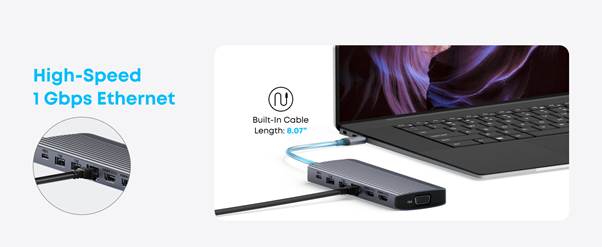
A hub becomes useful when the same USB-C connection must also handle a keyboard, mouse, storage device, memory card, Ethernet, or pass-through charging. The tradeoff is complexity. Bandwidth may be shared, charging input may be capped, and high-power pass-through still requires a suitable USB-C charger and cable. A hub that advertises many ports should be evaluated by how those ports behave together, not only by their count.
A full docking station belongs at a more permanent desk and may support several monitors, faster networking, more USB devices, and greater charging power. For a traveler who only needs to connect to a hotel television or meeting-room projector, that is unnecessary weight. The simplest device that covers the real need is usually the most dependable.
Compatibility Questions to Answer Before Buying
First, verify that the source port supports video. Second, identify the required HDMI resolution and refresh rate. Third, check the operating system and device model against the adapter’s compatibility notes. Fourth, decide whether audio must travel over HDMI. Most modern systems send audio with video, but users may need to select the television or monitor as the sound output.
Fifth, consider physical use. An adapter used in a classroom may be connected several times per day, making cable strain relief and a durable housing important. A home-theater adapter may remain stationary, so cable length and clean routing matter more. Creators connecting cameras or capture hardware should confirm whether the target is an ordinary display input or a video-capture workflow, because an HDMI output cannot be turned into an input by a passive cable.
Finally, read the exact product page rather than relying on a marketplace title. Within Anker’s connectivity products, dedicated HDMI adapters and multiport hubs can support different display modes and power arrangements. Product-specific documentation is the right place to confirm whether a model meets a particular laptop and monitor setup.
Setting Up the Connection Correctly
Begin with the display powered on and set to the correct HDMI input. Connect the adapter firmly to the source, then attach a known-good HDMI cable. Many systems detect the display within seconds. Open display settings to choose mirror or extend, set the orientation, and select a supported resolution and refresh rate.
If the image appears but looks soft, confirm that the display is operating at its native resolution. Televisions sometimes apply overscan, sharpening, motion smoothing, or picture processing designed for broadcast video. A PC, game, or “just scan” picture mode can produce more accurate text and edges. On a monitor, confirm that HDMI is not limited to a legacy compatibility mode.
Long HDMI runs are more sensitive to cable quality, especially at high bandwidth. Use a certified cable appropriate for the required mode and avoid unnecessary couplers. The USB-C side should also be kept secure. Repeated movement can interrupt the connection if a heavy adapter is hanging from the port.
Troubleshooting a Black Screen
Start with the most basic question: does the USB-C port support video output? If it does, verify the selected input on the display and reconnect each plug. Restarting the source with the display attached can refresh the connection handshake. Test a lower resolution or refresh rate to see whether the problem is bandwidth-related.
Next, isolate components. Try another HDMI cable, another display, and, if available, another compatible source device. This reveals whether the issue follows the adapter, cable, screen, or computer. Remove unnecessary hubs and extension cables during testing. If a hub is involved, connect its recommended power supply when pass-through power is required.
Update the operating system and relevant graphics drivers through the device manufacturer’s official channels. On managed school or work computers, security policies may control external displays or driver installation. If the picture cuts out intermittently, check for heat, loose connectors, cable strain, and an unsupported high-bandwidth mode.
Audio and Playback Problems
When video works but sound remains on the laptop, select the HDMI display as the audio-output device. Some monitors accept HDMI audio but have no speakers; they may offer a headphone output instead. Volume can be controlled at the source, display, application, or all three, so a muted layer is easy to overlook.
Streaming-video failures may involve digital copy protection. Every component must support the required protocol, and splitters or capture devices can interrupt it. Test ordinary local content to distinguish a general display problem from an app-specific protection issue. Corporate presentation software may also select a different display than the operating system, so check the application’s presenter settings.
Using Adapters in Shared Environments
Schools, libraries, offices, and community centers benefit from documenting their standard display setup. Labeling the correct HDMI input, keeping one verified cable with the projector, and recording the supported resolution prevents repeated troubleshooting. A spare adapter can be useful, but it should be a tested model rather than an unknown emergency purchase.
Shared spaces also serve many computers. Staff should know that USB-C does not guarantee video and keep alternative connections available for older hardware. Where presentations are critical, test the speaker’s exact laptop before the event. A five-minute rehearsal verifies display, audio, aspect ratio, and power far more effectively than reading specifications at the podium.
A Practical Buying Decision
A reliable display connection comes from matching capabilities across the whole signal path. Confirm video output at the USB-C source, choose an adapter that supports the required resolution and refresh rate, use an appropriate HDMI cable, and configure the operating system and display correctly. Decide whether a single-purpose converter or a hub better fits the job.
Once the requirements are clear, a USB-C to HDMI converter becomes a simple, valuable tool. It can turn a portable device into a presentation system, workstation, classroom display, or entertainment source without making the connection more complicated than it needs to be. The key is verifying the exact model rather than assuming that every adapter or hub behaves identically.