
We have all taken photos that looked great at first, only to notice a problem later. Maybe the picture is slightly blurry, someone walked into the background, the lighting isn’t right, or the image is simply too small to use where you need it.
Most of these problems can be fixed, but that often means using several different editing tools. One for removing backgrounds, another for improving image quality, and perhaps a third for cleaning up unwanted objects. Professional photo editors can do all of this, but learning your way around their many tools and settings isn’t always worth it for a quick photo fix.
This is where Airbrush becomes useful. Instead of focusing on just one type of edit, it brings together tools for improving image quality, removing unwanted elements, changing backgrounds, fixing lighting, and handling several other common photo problems.
1. Improve Photo Quality with Image Enhancer
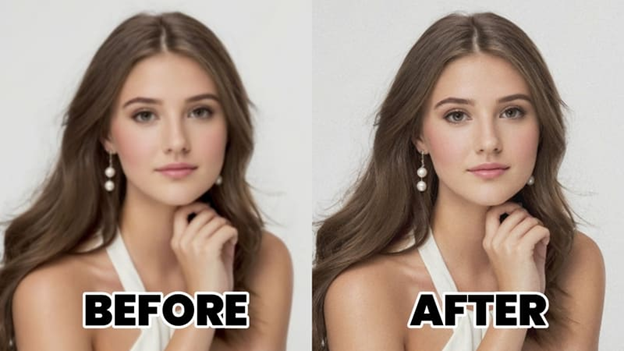
Blurry or unclear photos are probably one of the most common problems we run into. It can happen because the camera moved, the lighting was poor, the image was compressed, or the original photo simply wasn’t very sharp.
Basic sharpening can help a little, but too much of it can make a photo look unnatural.
Airbrush Image Enhancer offers a simpler option for photos that need better clarity and detail. It can be useful for phone pictures, older photos, downloaded images, and other shots that look good enough to keep but need some improvement before you use or share them.
2. Remove Unwanted Objects with Object Remover
You finally get a good travel photo, but someone is standing behind you. Or perhaps there’s a sign, trash bin, cable, or another distracting object in an otherwise clean shot.
Cropping is usually the first solution that comes to mind, but that doesn’t always work. You may end up cutting out an important part of the picture along with the unwanted object.
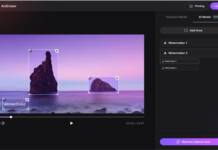
With Airbrush Object Remover, you can select the unwanted area and remove objects from photos without having to crop the whole image. This makes it useful for portraits, travel photos, product shots, and everyday pictures with distracting elements in the background.
3. Fix Bad Lighting with AI Image Relighter
Sometimes there is nothing wrong with the photo except the lighting. Indoor shots can look flat, faces may appear too dark, and evening photos don’t always capture the atmosphere you saw in person.
Increasing brightness can help, but it brightens the whole picture and doesn’t necessarily give you better lighting.
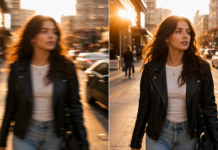
Airbrush AI Image Relighter gives you another way to approach the problem. It lets you apply different lighting styles to an existing photo, so you can improve poor lighting or try a different look without taking the picture again.
4. Enlarge Small Photos with Image Upscaler
Small images become a problem when you need to use them at a larger size. Stretching the picture may technically make it bigger, but it usually leaves you with blurry edges and visible pixels.
Airbrush Image Upscaler is designed for this type of problem. It increases image resolution while improving the appearance of details, making smaller photos more suitable for websites, presentations, social media posts, and other places where you need a larger image.
Airbrush also has an Unpixelate Image tool for pictures where visible pixelation is already the main issue.
5. Remove or Change a Photo Background
You can have a perfectly good subject and still end up with a background you don’t want. This happens often with profile photos, product images, marketplace listings, and pictures taken in busy places.
Manually cutting around a person or object can take quite a bit of time, especially around hair and smaller edges.
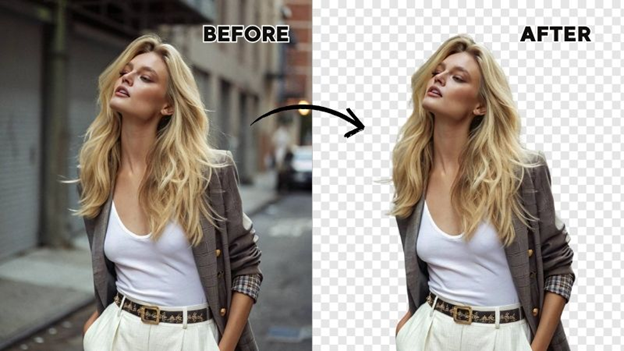
Airbrush Background Remover separates the subject from the existing background automatically. You can keep the background transparent or use the subject with another background depending on what you’re creating.
6. Remove Unwanted Text from Photos
Old timestamps, captions, labels, and other text can easily get in the way when you want to reuse a photo.
Cropping might work when the text is near the edge, but it isn’t much help when the writing appears over an important part of the image.
Airbrush Remove Text lets you select unwanted writing and remove it while cleaning up the area behind it. It can come in handy for old photos, scanned pictures, screenshots, and other images with text you no longer need.
7. Remove Glare and Reflections
Glare is one of those problems you often don’t notice until after taking the picture. Light reflecting from glasses, windows, framed photos, or shiny surfaces can cover details that would otherwise be clearly visible.
It can also be surprisingly difficult to correct with basic photo adjustments.
Airbrush Remove Glare is made specifically for reducing these unwanted reflections. It gives you another chance to clean up photos taken around glass or reflective surfaces when retaking the original shot isn’t an option.
One Place for Different Photo Fixes
The interesting thing about these problems is that they all need different solutions. Making a photo sharper won’t remove someone from the background, and increasing brightness won’t fix a pixelated image.
That’s one of the practical advantages of Airbrush. Rather than using a separate website every time you run into a different photo problem, you have multiple editing tools available in one place.
You can enhance a blurry picture, remove an unwanted object, improve the lighting, upscale a small image, change the background, clear unwanted text, or reduce glare depending on what the photo actually needs.
For most everyday edits, that’s a lot easier than opening a professional photo editor every time something in a picture doesn’t come out quite right.