
Are you searching for the best data recovery software for Mac but not sure which one to trust? We understand this is a difficult choice. The Internet provides a seemingly endless list of Mac data recovery tools, and many of them promise impressive recovery rates and effortless file restoration.
We spent hours testing the most popular Mac data recovery solutions in a range of real-world recovery scenarios to find out which applications are actually worth your time and money. And now, we’ll share the results and help you pick the best Mac data recovery software for your specific situation.
How We Tested and Ranked Mac Data Recovery Software
Before we get to the rankings, it’s important to understand how we tested the tools and how those results influenced their final positions on this list.
Our goal was to create a testing process that was as fair as possible. That’s easier said than done because not all data recovery applications offer the same features, target the same audience, or support the same recovery scenarios. Some focus on simplicity, while others prioritize advanced functionality. Rather than judging every tool against a single standard, we evaluated each one based on how well it performed within its intended use case.
To measure recovery performance, we created several common data loss scenarios and tested how successfully each application handled them. These included: recovering recently deleted files, restoring data from emptied Trash folders, recovering files from formatted drives, scanning external hard drives and SSDs, and recovering photos and videos from memory cards.
We also paid close attention to the recovery process itself, including scan speed, file organization, preview capabilities, and how easy it was to locate and restore the desired files. That said, recovery performance was not the only factor we considered.
We also evaluated:
- Ease of use and interface design
- Supported file systems and storage devices
- Preview and file filtering capabilities
- Additional features such as disk imaging and drive monitoring
- Pricing and free recovery limits
- Company reputation and track record
- User feedback and long-term customer satisfaction
- Quality of documentation and customer support
Each category received a score from 0 to 10. Recovery-related categories received a higher weighting than secondary factors such as pricing or interface design. We then combined the individual scores using a weighted formula to calculate a final overall rating for each product. This approach allowed us to balance objective testing results with the overall user experience and provide rankings that reflect how these tools perform in real-world situations.
The Top 5 Best Data Recovery Software for Mac
To create this ranking, we tested 10 of the most frequently recommended Mac data recovery tools found in expert guides, tech publications, forums, and user discussions. After completing our evaluation, we narrowed the list down to the five applications that can help you recover lost files on Mac and deliver the best overall combination of recovery performance, usability, features, and value.
The tools that didn’t make the final list weren’t necessarily bad products. Some were designed for very specific use cases, while others didn’t perform as well as our finalists in key areas. The five tools below stood out as the strongest options and showed the best data recovery performance on Mac.
1. Disk Drill
Final Score: 9.4/10
Best For: Most Mac users
Supported File Systems: APFS, HFS+, FAT32, exFAT, NTFS, EXT2/3/4, and more
Free Version: File preview and scan results
Starting Price: $89/year or $149 lifetime
Supported Devices: Internal drives, external HDDs and SSDs, USB drives, SD cards, CF cards, RAID arrays, and NAS devices
Standout Feature: Excellent recovery performance combined with a beginner-friendly interface
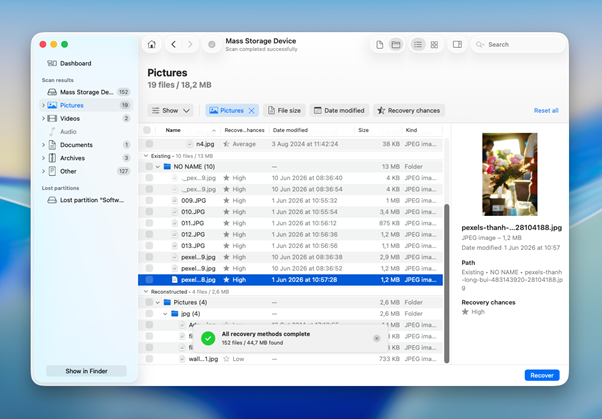
Disk Drill earned the highest score in our testing and proved to be the most well-rounded Mac data recovery tool we evaluated. While no single tool is perfect for every situation, Disk Drill delivered the strongest combination of recovery performance, ease of use, device support, and overall value.
One of the biggest advantages of Disk Drill is its ability to handle both simple and advanced recovery scenarios. During our tests, it successfully recovered deleted files, restored data from formatted volumes, and identified recoverable photos and videos from memory cards. It also preserved file organization better than many competing tools, which made the recovery process faster and less frustrating.
Beyond recovery itself, Disk Drill includes several useful extras, including byte-to-byte disk backups, S.M.A.R.T. monitoring, RAID support, and Advanced Camera Recovery for complex video recovery scenarios. These features won’t matter to everyone, but they add great value for users who need more than basic file recovery.
What we liked:
- Excellent recovery performance across multiple test scenarios
- Simple interface suitable for beginners
- Strong support for APFS and other file systems
- High-quality file preview capabilities
- Useful bonus tools, including disk imaging and drive monitoring
- One license works on both Mac and Windows
What could be better:
- Certain specialist tools offer deeper RAID functionality
- No free recovery option
If you’re looking for a single recommendation, Disk Drill is the tool we would choose. It achieved the highest overall score in our testing because it consistently delivered strong recovery results while remaining accessible to everyday Mac users.
2. UFS Explorer
Final Score: 8.8/10
Best For: Power users
Supported File Systems: APFS, HFS+, NTFS, FAT, exFAT, ReFS, EXT2/3/4, Btrfs, XFS, ZFS, and more
Free Version: Trial available with file size recovery limitations (<256 KB)
Starting Price: $64.95 lifetime
Supported Devices: Internal drives, external HDDs and SSDs, USB drives, memory cards, RAID arrays, NAS devices, and virtual machines
Standout Feature: Exceptional support for RAID arrays, encrypted volumes, and uncommon file systems
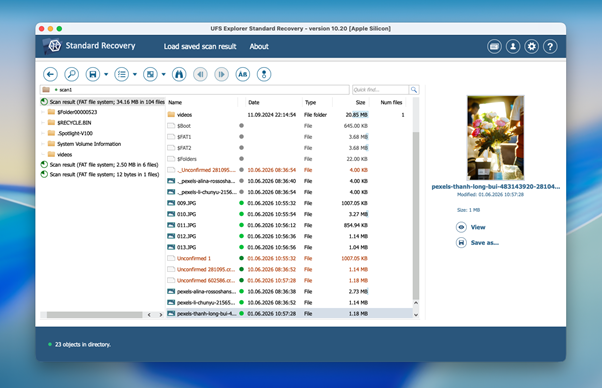
In second place, we have UFS Explorer Standard Recovery. It earned its spot thanks to strong recovery performance, broad file system support, and several features that may appeal to more technical users.
It recovered most of our test data successfully and handled formatted and corrupted drives particularly well. Compared to Disk Drill, recovery results were slightly less consistent in some scenarios, and the overall recovery process felt less smooth.
One area where UFS Explorer stands out is flexibility. It supports an impressive range of file systems, encrypted volumes, virtual machines, and RAID configurations. Most Mac users won’t need these capabilities, but they’re a nice bonus if you occasionally work with more specialized storage setups.
What we liked:
- Excellent recovery performance on formatted and corrupted drives
- Outstanding RAID and complex volume support
- Broad file system compatibility
- Support for encrypted volumes, virtual machines, and disk images
- Competitive lifetime pricing for the Standard edition
- Powerful customization options for advanced users
What could be better:
- Steep learning curve for beginners
- Very limited free trial
- Scan results can be difficult to navigate
- Some advanced functions lack beginner-friendly guidance
For users who value flexibility and broad storage support, UFS Explorer remains an excellent choice.
3. Remo Recover Mac
Final Score: 8.5/10
Best For: Users who want a simple recovery process and a lifetime license option
Supported File Systems: APFS, HFS+, exFAT, and FAT32
Free Version: Up to 1 GB of free recovery
Starting Price: $69.97
Supported Devices: Internal drives, external HDDs and SSDs, USB drives, and memory cards
Standout Feature: Fast scans and easy recovery workflow
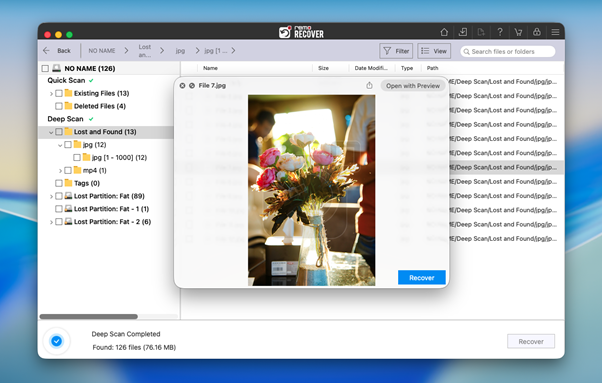
Taking third place in our rankings is Remo Recover Mac. It delivered good recovery results in our testing and offers a relatively simple recovery experience with support for modern Mac systems, including Apple Silicon devices.
Remo Recover performed well in common recovery scenarios such as deleted files and formatted drives, while scan speeds were among the fastest we tested. Compared to iBoysoft, we found the recovery process slightly more polished and easier to navigate. However, it couldn’t match the consistency of Disk Drill or UFS Explorer in more challenging recovery situations involving heavily corrupted storage devices.
The biggest factor that kept Remo Recover out of the top two spots was value. Its pricing is relatively high considering the limited set of additional features, and it lacks tools such as RAID recovery, disk imaging, and drive health monitoring that are available in some competing solutions.
What we liked:
- Up to 1 GB of free recovery
- Fast scan speeds
- Compatible with Apple Silicon Macs
- Simple recovery workflow
- Supports the most common Mac file systems
What could be better:
- Limited advanced features
- Mixed results on corrupted drives
- No RAID support
- No disk imaging or S.M.A.R.T. monitoring
Remo Recover Mac is a capable recovery tool that handles everyday data loss scenarios well. It earned a place in our top five thanks to its good recovery performance and user-friendly workflow, but the smaller feature set prevented it from ranking higher.
4. iBoysoft Data Recovery
Final Score: 8.1/10
Best For: Mac users who want a simple recovery tool with strong APFS support
Supported File Systems: APFS, HFS+, HFSX, FAT32, and exFAT
Free Version: Up to 1 GB of free recovery
Starting Price: $89.95
Supported Devices: Internal drives, external HDDs and SSDs, USB drives, and memory cards
Standout Feature: Excellent support for modern Macs and APFS volumes
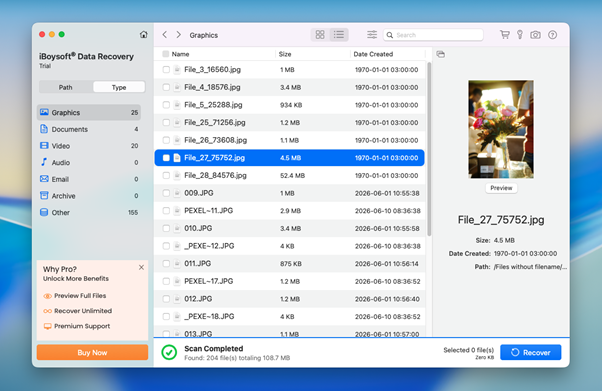
Coming in at number four, iBoysoft Data Recovery offers a good balance between ease of use and recovery performance. It delivered solid recovery results in our testing and offers one of the simplest recovery experiences on this list. The software works well with modern Macs, including Apple Silicon and T2-equipped devices, and handled common recovery scenarios without issues.
Its biggest strength is APFS support. iBoysoft performed particularly well when recovering files from APFS-formatted volumes and preserved file organization better than many competing tools.
However, it fell behind the higher-ranked tools in terms of overall value and feature set. Recovery results were generally good, but not quite as consistent as Disk Drill or UFS Explorer in more challenging scenarios. The software also lacks some of the advanced features found in other finalists, such as RAID recovery, disk imaging, and drive health monitoring.
What we liked:
- Up to 1 GB of free recovery
- Strong APFS support
- Compatible with Apple Silicon and T2 Macs
- Simple and beginner-friendly interface
- Fast scans and easy file previews
What could be better:
- No RAID support
- Limited advanced recovery tools
- Fewer bonus features than higher-ranked alternatives
iBoysoft Data Recovery is a solid choice for Mac users who want strong APFS support and an easy recovery experience.
5. PhotoRec
Final Score: 7.6/10
Best For: Users who need a completely free recovery tool
Supported File Systems: APFS, HFS+, FAT, exFAT, NTFS, EXT, and many others
Free Version: Completely free with no recovery limits
Starting Price: Free
Supported Devices: Internal drives, external drives, USB flash drives, memory cards, and more
Standout Feature: Unlimited free recovery
In fifth place, we have PhotoRec. Despite finishing last on our list, it’s still an impressive Mac data recovery tool and easily one of the best free options available.
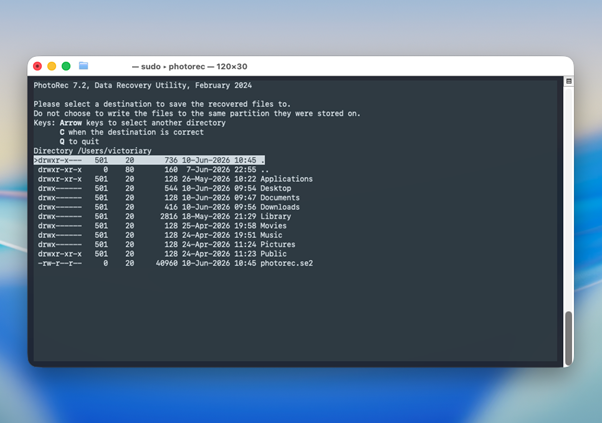
The main reason for its lower ranking isn’t recovery performance. In fact, PhotoRec recovered a large percentage of our test files and performed surprisingly well in several challenging recovery scenarios. The bigger issue is usability. Compared to every other tool on this list, the recovery process is much less convenient and requires considerably more effort from the user.
PhotoRec relies primarily on signature-based recovery, which means recovered files often lose their original names and folder structure. The interface is also far less approachable than modern recovery applications, making it difficult for less experienced users to use.
What we liked:
- Completely free with no recovery limits
- Strong recovery performance
- Supports many file systems and storage devices
- Available for macOS, Windows, and Linux
- Open-source and actively maintained
What could be better:
- Dated interface
- Recovery process can be confusing for beginners
- Doesn’t preserve file names or folder structure
- Lacks many convenience features found in commercial tools
PhotoRec proves that free software can still deliver excellent recovery results. However, the less polished interface and more cumbersome recovery process kept it behind the other finalists.
Our Verdict
After testing 10 of the most recommended Mac data recovery tools we could find across expert reviews, technology publications, forums, and user discussions, these five applications emerged as our clear finalists.
Software | Final Score | Best For | Free Recovery | Starting Price |
| Disk Drill | 9.4/10 | Most Mac users | Preview and scan results | $89 |
| UFS Explorer | 8.8/10 | Users who need RAID support | Trial with file size limitations | $64.95 |
| Remo Recover Mac | 8.5/10 | Fast scans and simple recovery | 1 GB | $69.97 |
| iBoysoft Data Recovery | 8.1/10 | APFS recovery and modern Macs | 1 GB | $89.95 |
| PhotoRec | 7.6/10 | Completely free recovery | Unlimited | Free |
If we had to choose a single data recovery recommendation for Mac, it would be Disk Drill. It delivered the strongest combination of recovery performance, ease of use, file system support, and additional features during our testing.
That said, every tool on this list has a place. UFS Explorer offers flexibility for specialized storage setups, Remo Recover and iBoysoft provide solid alternatives with user-friendly recovery workflows, and PhotoRec remains one of the most capable free recovery tools available today.
Ultimately, the best Mac recovery software depends on your budget, technical experience, and the type of data loss you’re trying to recover from. Fortunately, all five tools on this list proved capable enough to earn a place in our final rankings.
FAQs
Disk Drill took the top spot in our testing due to strong recovery performance, an intuitive interface, broad file system support, and useful extras like file preview and byte-to-byte backups.
It performed well in all the recovery scenarios we tested and was easy for both novices and experienced users to use. That doesn’t mean it’s the only good choice, though. The other tools on our list have their own strengths too, and some might be a better fit depending on your budget, technical experience, or specific recovery needs.
Yes, permanently deleted files can often be recovered on a Mac, especially if they were removed recently and the storage device hasn’t seen much use since then.
Data recovery software can often restore files that were deleted from the Trash or removed using keyboard shortcuts. However, modern Macs use SSDs with TRIM technology, which can permanently erase deleted data and reduce recovery chances. The sooner you stop using the drive and start recovery, the better your odds of success.
Yes. Most current Mac data recovery tools support APFS, which is the default file system on current versions of macOS. They can often recover deleted files, data from formatted APFS volumes, and files lost due to certain types of file system corruption.
However, recovery results vary depending on the cause of data loss and how much the drive has been used since the files disappeared. In general, recovery software has the best chance of success when used as soon as possible after data loss occurs.
Data recovery software works well for most cases of accidental deletion, formatting, and file system corruption. However, if your drive is physically damaged, makes unusual noises, disconnects repeatedly, or isn’t detected by your Mac at all, a professional recovery service is usually the safer option.
Professional help is also worth considering when the lost data is especially valuable, and you can’t afford to risk further damage through DIY recovery attempts. In these situations, stop using the device immediately and avoid running recovery scans until an expert has evaluated it.