
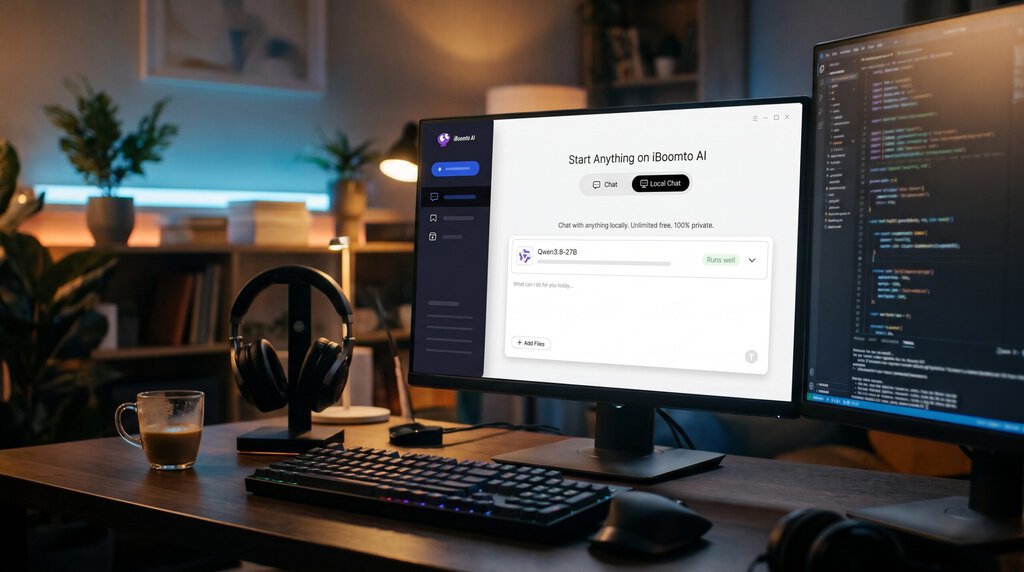
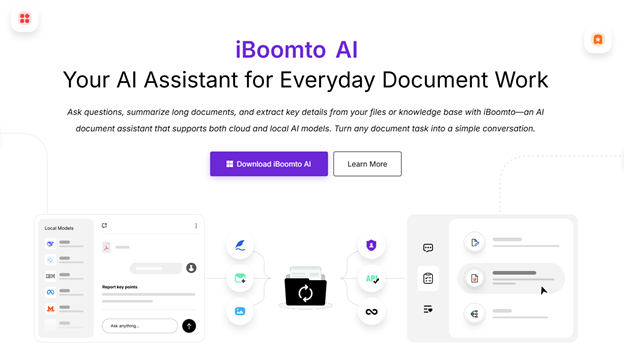
Daily document work on Windows often turns into a juggling act. One browser tab handles PDF summaries, another unlocks or edits files, a note app holds research, and a web chatbot makes you think twice before uploading private files. Rather than leaving those steps scattered across browser tools, iBoomto AI packages document Q&A, RAG knowledge bases, local AI models, and everyday utilities into a native app for 64-bit Windows 10 and 11.
Today, we’re putting its local LLM picker, OCR extraction, and PDF editing tools through real-world tasks to see where it shines and where it falls short. Below is a look at how that hybrid setup works in practice and whether it fits your routine.
Why a Native Windows Document Workspace Matters
Web-based AI tools work fine for quick prompts, yet they struggle when you are managing multi-version drafts, large file sets, or confidential records. Sending internal PDFs to external servers creates privacy friction, and re-attaching reference materials in every new session eats up time.
Running natively on Windows lets iBoomto AI combine cloud speed with local execution inside one interface. You can rely on online models for rapid responses or switch to open-weight local models when keeping data on your machine matters more. Recent updates have also introduced dedicated Knowledge Base features, broadened local model support, and refreshed both Chat and Local Chat views for smoother navigation.
Core Capabilities That Define iBoomto AI
Four main areas shape how iBoomto AI handles everyday document and research tasks:
1. Chat PDF & Multi-Source Document Q&A
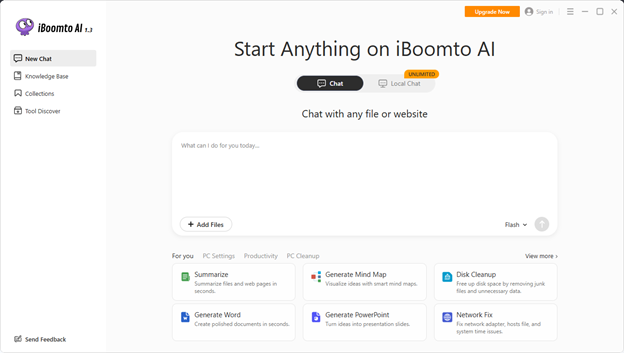
Inside the primary New Chat view, you can attach files or paste links and ask direct questions instead of reading long reports, proposals, or papers word for word.
It helps condense dense text into clear takeaways, extract specific numbers, and compare multiple sources or drafts side by side, with updated conversation layouts in both Chat and Local Chat to keep follow-ups easy to track.
2. Organized RAG Knowledge Bases
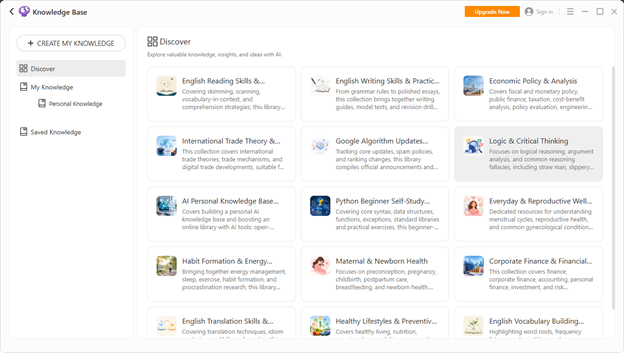
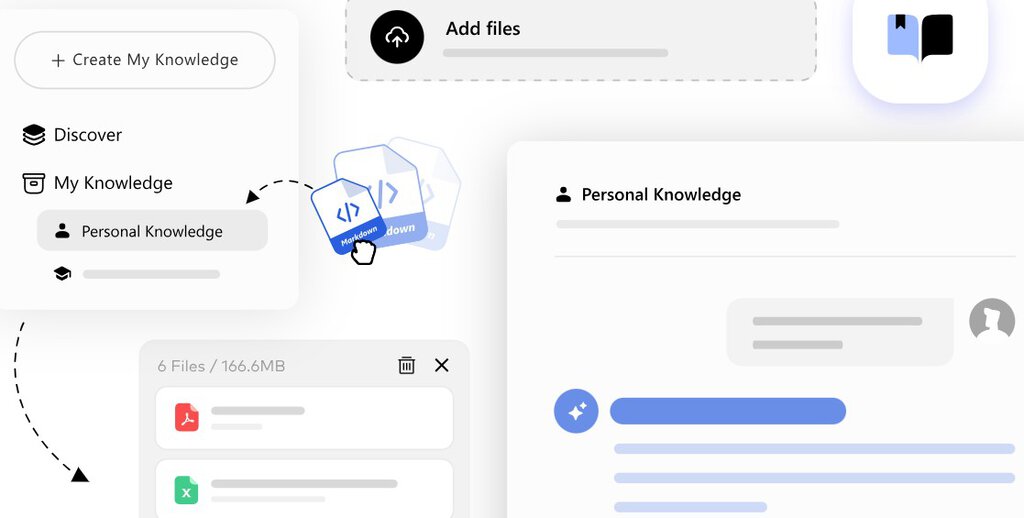
Repeatedly uploading the same textbooks, client briefs, or policy files slows down longer projects. The Knowledge Base hub lets you organize reference materials around specific topics, courses, or ongoing work for retrieval-augmented (RAG) Q&A.
You can create custom libraries under My Knowledge, save collections under Saved Knowledge, or browse pre-built sets in Discover covering subjects like English writing, economic analysis, international trade, Google algorithms, critical thinking, AI knowledge bases, and Python.
3. Local AI Models with Built-In Hardware Checks
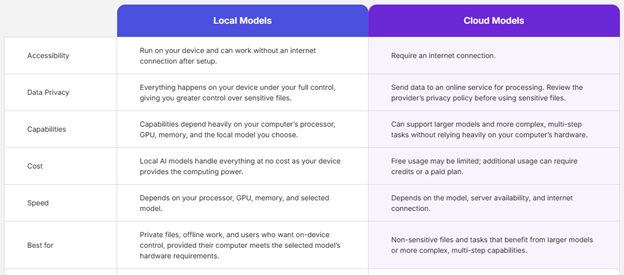
For users who want processing to stay close to home, Settings ==> Local Models lets you download and run open-weight models directly on Windows, including Gemma 4, Qwen 3.5, Llama-3.1-8B, DeepSeek-R1-Distill-Qwen-7B, and Ministral-3-8B.
Because inference uses your own PC hardware, larger capacities in system RAM and dedicated GPU VRAM allow stronger models and quicker generation. Before you download multi-gigabyte packages (typically 1 GB to 26 GB per model), an automatic compatibility check inspects your RAM, GPU, VRAM, and free storage to indicate whether a model will run smoothly or slowly.
Pairing a local knowledge base with a local model keeps indexing, retrieval, and generation on-device with zero cloud uploads or telemetry.
4. Free Built-In Office, PDF, and Windows Utilities (Tool Discover)
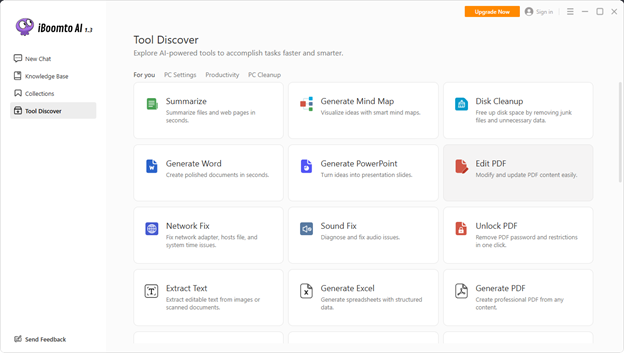
Beyond chat, Tool Discover groups everyday tasks into one place so you need fewer standalone tools. From this hub, you can generate Word, Excel, PowerPoint, PDF, and Mind Map files from notes or source documents, edit or unlock PDFs, summarize pages and files, extract editable text from scans or images (OCR), and run built-in Windows fixes like Disk Cleanup, Network Fix, and Sound Fix.
Setting Up Your First RAG Knowledge Base
Creating a project or study library in iBoomto AI takes only a few steps:
- Open Knowledge Base: Launch iBoomto AI on Windows and select Knowledge Base in the left sidebar.
- Create a Library: Click + CREATE MY KNOWLEDGE in the top-left corner, then enter a title and description under My Knowledge.
- Upload Reference Files: Add the PDFs, notes, or source documents you want indexed.
- Choose a Model Mode: Pick an online model for fast cloud replies, or switch to Local Chat with a downloaded local model to keep indexing and Q&A strictly on your PC.
- Start Querying: Open your library and ask questions in the Knowledge Base chat view, while verifying key numbers and citations against your sources.
System Requirements and Practical Limitations
Hardware needs vary depending on whether you lean on cloud features or local models:
- Basic Desktop Usage: Requires a 64-bit Windows 10 or Windows 11 system with a compatible 64-bit processor, at least 4 GB RAM, and 4 GB of free disk space. No extra browser extensions, plugins, or third-party office suites are required, though a stable internet connection is needed for online AI chat, content generation, and other cloud features.
- Local Model Usage: Local execution depends directly on your hardware. Smooth performance generally calls for 8 GB+ RAM (16 GB to 32 GB+ for larger models), an NVIDIA GeForce RTX 20 Series or newer GPU with at least 6 GB VRAM (8 GB to 12 GB+ for heavier models), and extra storage space for model downloads. Once downloaded, inference runs locally on your PC, though older laptops or integrated GPUs will respond more slowly.
- Platform and Privacy Boundaries: iBoomto AI is built solely for 64-bit Windows desktops, with no macOS or Linux version. Also, strict zero-upload privacy applies specifically when pairing a local knowledge base with a local model—online models and online libraries still rely on cloud processing.
Is iBoomto AI Worth Using in 2026?
As mentioned earlier, iBoomto AI runs local AI models on your PC to summarize, convert, and query sensitive files without cloud uploads. So, for Windows users looking to cut down on tab clutter without giving up control over their files, iBoomto AI offers a practical middle ground.
Bringing Chat PDF, persistent RAG libraries, everyday Office and PDF utilities, and local open-weight models into one Windows app makes it a solid option for professionals, researchers, and students on 64-bit Windows 10 or 11—especially those whose hardware can handle local models comfortably.