

MKV is one of the best video formats to store a high-quality media file; it bridges the gap between AVI and MP4, providing decent compression like MP4s and high-fidelity like AVI. However, not all Windows and macOS media players support this format. So, if you’ve got an MKV file to watch on your PC, here’s how to play MKV files without needing to convert them to the popular MP4 format.
What is an MKV File?
Matroska video file, written as MKV, is a container file format that packages one or more video streams, audio streams, subtitles, chapter markers, and metadata into a single file, but it does not define how the video or audio is compressed; instead, it simply holds the streams. By design, MKV is a lot flexible; it can contain H.264, H.265/HEVC, VP9, AV1 video, and many audio formats and video codecs.
To play an MKV file, your media player must support the Matroska container format and the specific codecs used inside the particular MKV file. If either is missing, playback will fail or appear broken. This is why a lot of media players do not play MKV files, because while they may support the Matroska container format, they may be missing some of the video codecs integrated into the file.
How To Play MKV Files On Windows And Mac
First, we’re going to start with Windows, and then macOS systems. Actually, there are multiple ways to play MKV files on systems running either of these OSes, but it all falls into two categories.
On Windows PC
1. Use VLC Media Player
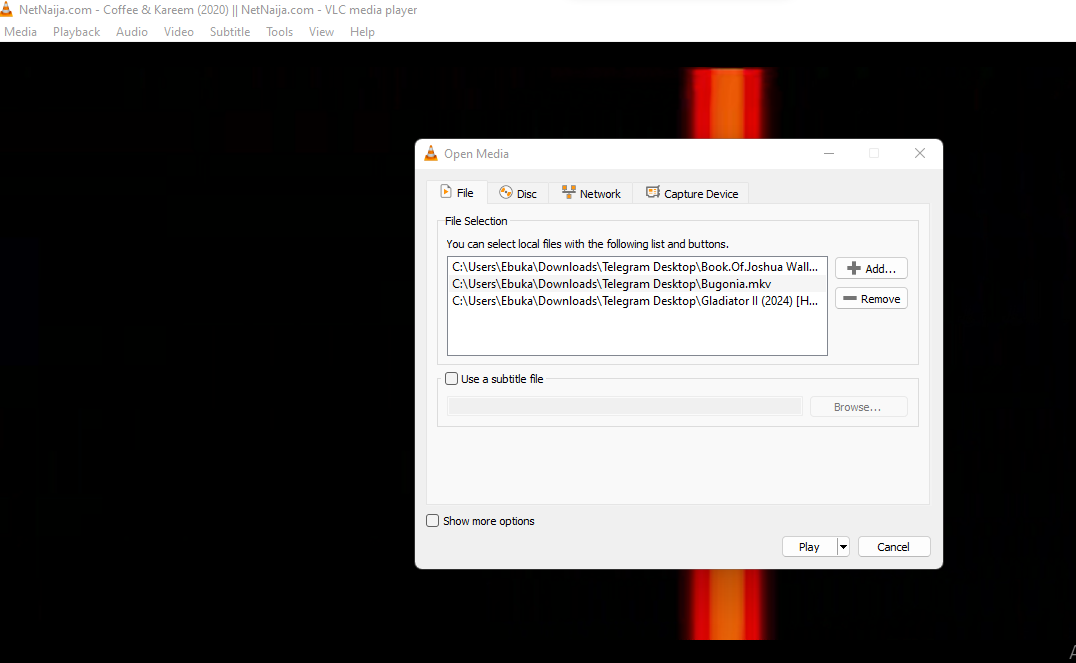
Well, everyone already knows it; the VLC media player can playback literally any video and audio format, and it has wide support for MKV codecs, all for free, supporting all known Windows OS versions and editions.
If you were trying to play back an MKV file using Windows’ default video player and it’s not working, install VLC and try the file again. VLC player is completely free to download from the official VideoLan developer website.
2. Convert to MP4
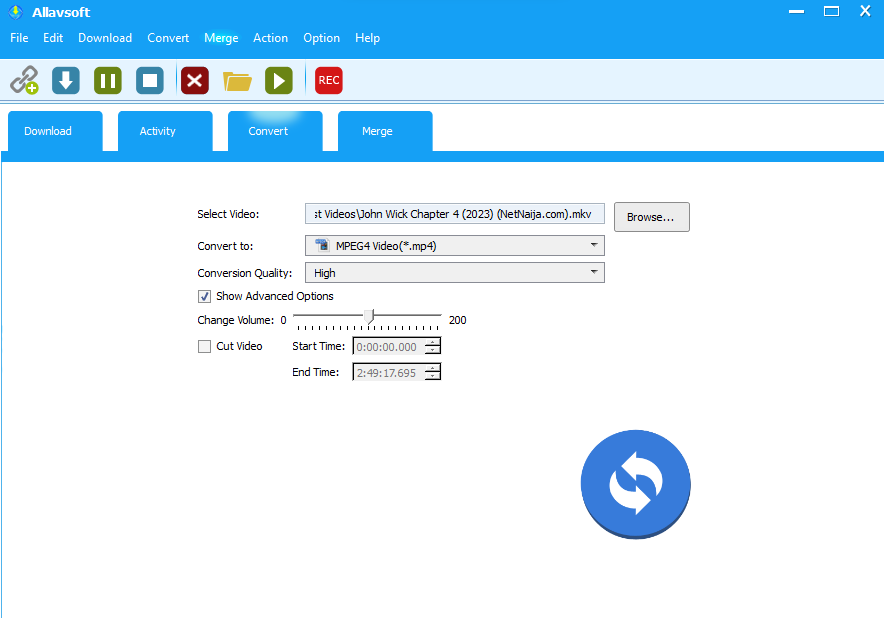
For sure, there are other media players to use and play back an MKV file aside from VLC. However, if you’re not interested in downloading all those media players, and VLC looks boring to you, you can also convert the MKV file to a more generally compatible video format, MP4, and use the default Windows Media Player to watch your video or movie.
To convert your MKV video to MP4, you need a video converter software, and one of them to use is Allavsoft. The Allavsoft video converter works perfectly for converting movies and videos between formats without losing much quality. Other suggestions include CapCut, Filmora, Handbrake, and many others.
On MacBook Systems
1. Use VLC Player
Trust me, there can’t be a better zero-ad-supported media player you can use to watch MKV videos than the VLC player. VLC remains the only cross-platform, feature-rich media player that’s available for free, 100%, without any in-app purchase feature or tool.
This open-source software is available for Macintosh systems, in various variants for the different macOS versions (Intel-based Macs and Apple Silicon-based Macs). The interface is super easy to understand and navigate.
2. Convert to MOV or M4A
For macOS PC users, you can convert your MKV file to an Apple video format such as MOV (QuickTime), MP4 (general format), or M4A. There are plenty of software tools that support these macOS video formats and allow for conversion from MKV or many other known video formats.
The Best MKV Video Converters for Mac and Windows PCs
If your media players or TV won’t playback your MKV file, you might want to try any of these software programs to convert the video into a format supported by your playback device or TV.
1. Handbrake (macOS, Windows, and Linux)
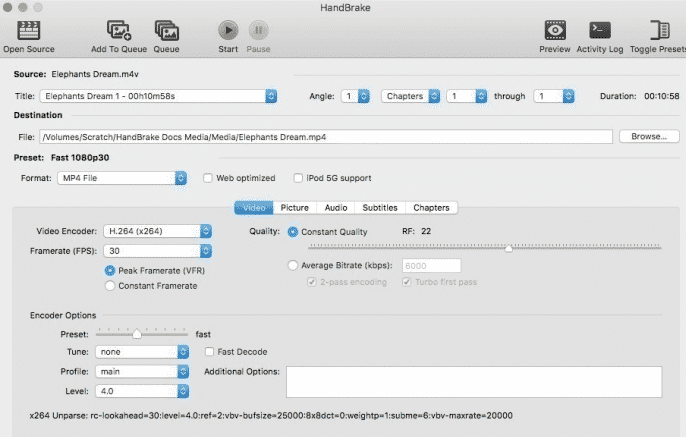
Just as VLC is open-source and free to use across platforms, Handbrake offers the same flexibility. The Handbrake software allows you to convert a video file from nearly any known video format to another format. The software supports hundreds of video formats and codecs, including device-based preset formats.
Using the Handbrake software, you can turn your MKV video into an MP4 video file, AVI, or any device-specific format you wish to convert to. The software also supports audio codecs and pass-through. Well, the interface might not be the best or easiest-to-understand you’ve seen, but it gets the job done neatly, and for free.
2. MacX Video Converter (macOS)
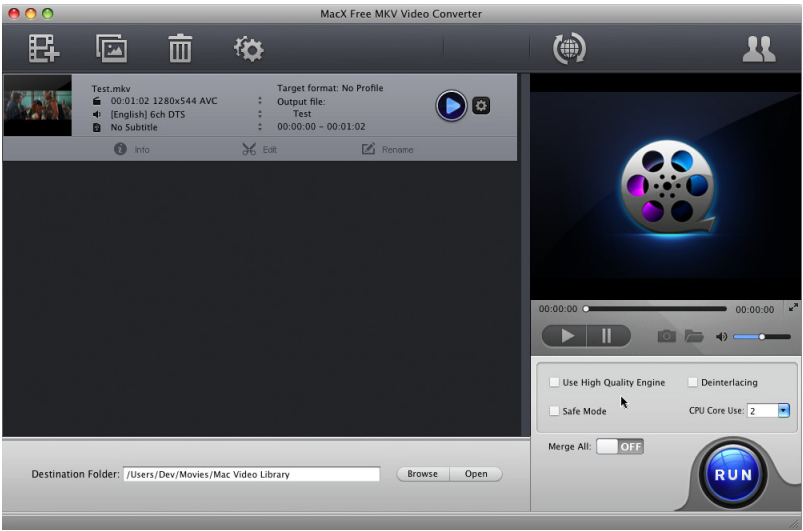
Here’s a freemium alternative for macOS users; the MacX Video Converter allows you to convert video files between formats, including converting from MKV to AVI, MP4, MOV, and many other formats.
The software is, however, a freemium utility; it starts out by offering you free trial access with limited features, and then you decide whether to upgrade to any of the paid versions and get full access to the features. The interface is intuitive, by the way.
3. Movavi (Windows and macOS)
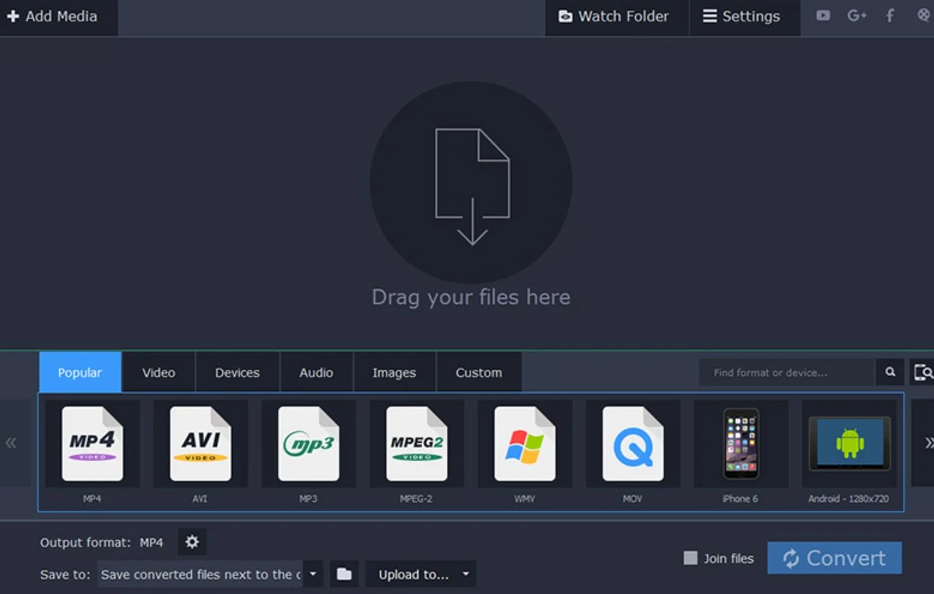
If you truly want lossless conversion between video formats, Movavi can guarantee that to a great extent, but definitely not without a price.
This software program can convert your movies from MKV to over 100 other formats without dropping the resolution quality or tampering with the metadata. The software is available for both Windows PC users and MacBook users as a freemium utility.
What More?
This article explains how you can playback MKV files on both Windows PCs and MacBooks; put simply, you can either get a media player that supports the MKV format and its codecs, or convert the said video to a more generally compatible format for TV playback or mobile device playback.











I’ve had trouble playing MKV files on Windows before, especially when the default media player wouldn’t recognize the format properly. This guide was helpful for finding a simple way around it. I’ve also had some video files become inaccessible in the past, and Stellar Data Recovery Professional helped me recover them.