
Got a new PC or MacBook and curious to test the webcam feature to see if it works? Or you got an external webcam and need to test its performance? Well, there are a couple of ways to try out your webcam on a Windows PC or a MacBook freely, and this article addresses the best of them.
How to Test Webcam On MacBook and Windows PCs
Webcam testing is important, especially if you’re going to be joining an online meeting or making a video tutorial. Interestingly, you can quickly test your webcam on any computer by visiting a webcam checking website. However, you have to be very careful which website you allow to have such access on your system. So, yeah, here are the options to consider.
1. Use WebCamMicTest (Online)
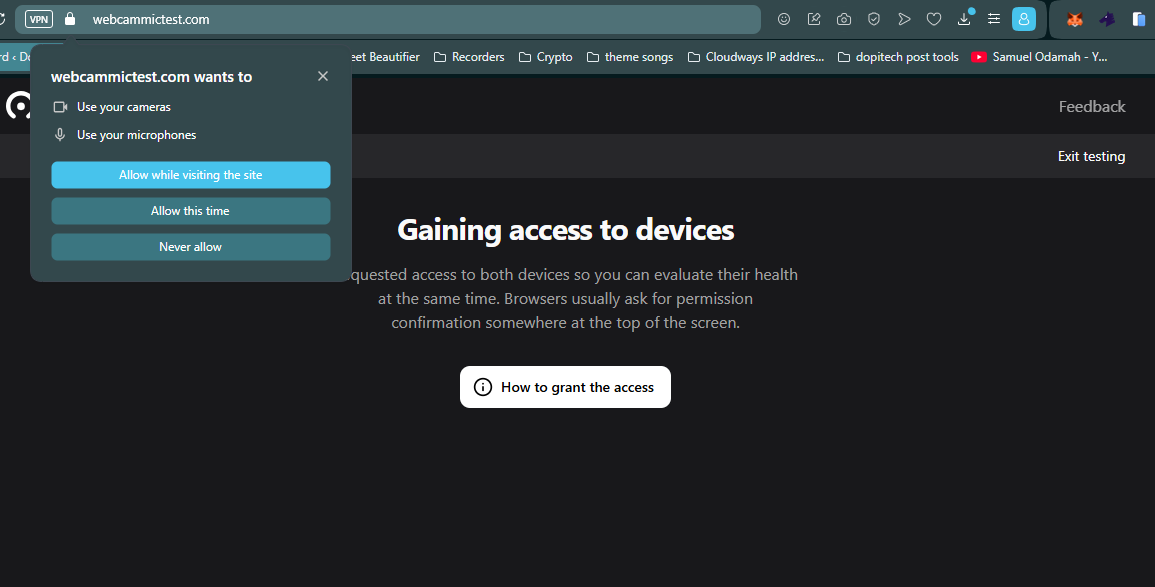
Webcam Test is a reliable website for testing webcams and mics (even headphones) via a web browser. The app is available via web browsers, and it runs efficiently on any web browser you have installed, whether it is Chrome, Edge, Opera, Safari, or Firefox. To use this web tool, here are the steps:
- Open a web browser on your Windows PC or MacBook and open the URL: https://webcammictest.com
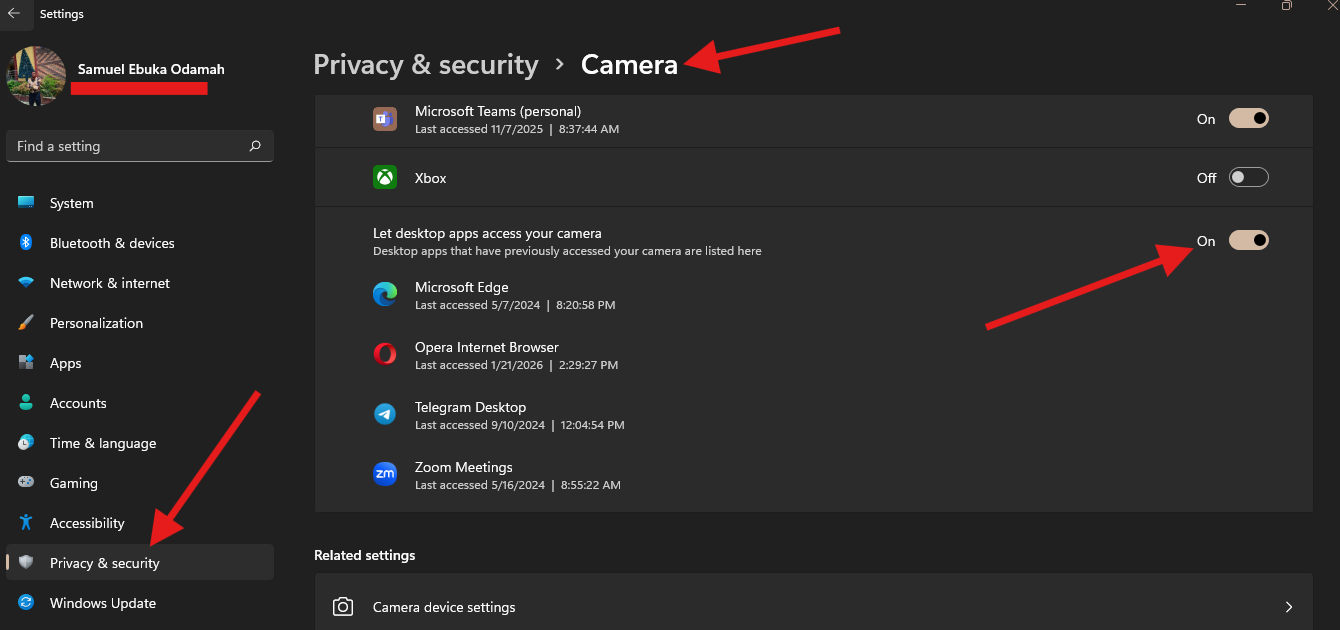
- Click on the “Start Test” button and allow camera access. If, after allowing camera access, the tool doesn’t start your webcam, go to your Windows PC Settings ==> Security & Privacy ==> Camera ==> Let apps access your Camera, ==> Look for your browser app, and allow it access to your webcam.
This tool will have you check your internal or externally-connected webcam, as well as the mics.
2. Use the Default App
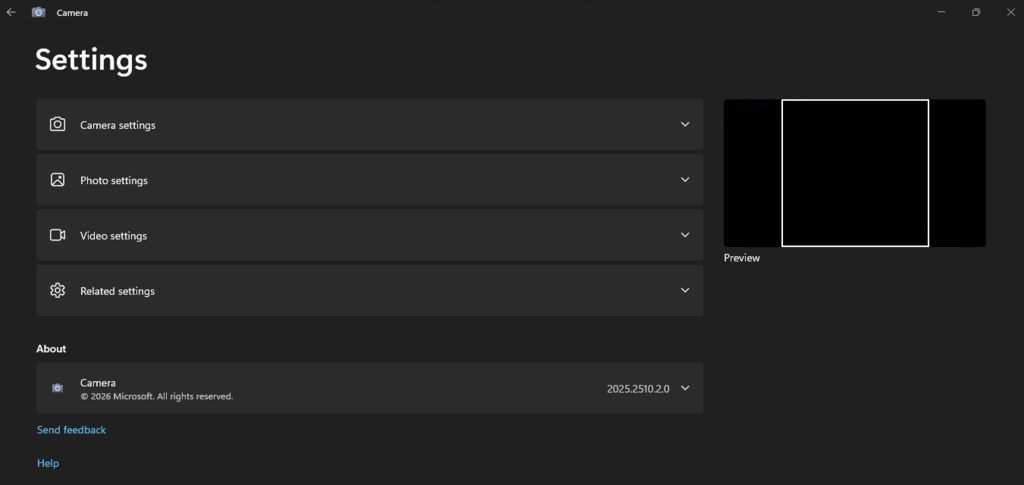
Actually, both Windows PCs and MacBooks come with a built-in Camera app. For Windows, it is simply called “Camera,” but on MacBooks, it’s called “Photo Booth.”
So, open the app drawer for your OS and search for Camera or Photo Booth, double-click on the app when you find it, and there, your webcam should launch automatically.
3. Use a Live Video Software
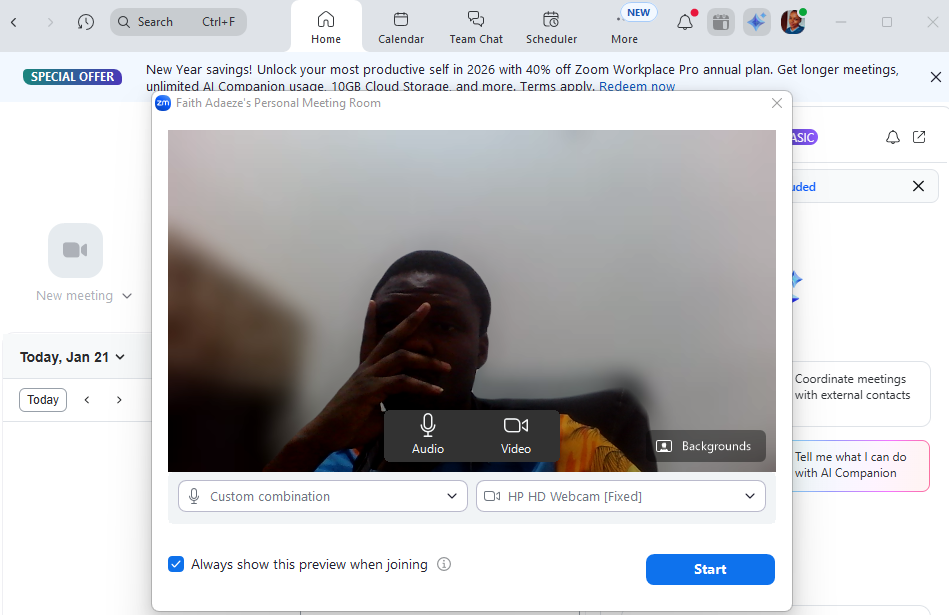
You can use a video-recording software or a remote meetings app like Zoom and MS Teams to test your webcam. In this case, you have to install an app that supports live video or video recording, launch the app, and then see how your webcam performs. Zoom and MS Teams are perfect, safe options to use for this purpose.
Troubleshooting Webcam Errors
If these methods do not activate and launch your webcam, then you should check your system’s security settings and also the webcam driver; maybe you’d need to reinstall a camera driver or update the existing one you have installed.
In the case where your webcam drivers are up to date, and the camera is not blocked physically, yet it won’t launch, then you need a new webcam.
What More?
Every new PC and MacBook comes with a built-in Camera or Photo Booth app, which, when double-clicked, should launch the internal webcam on the PC, and if there’s no internally-built webcam, it should launch the externally-connected webcam. However, some third-party apps and websites can allow you to launch and test your webcam and mics.
If your webcam won’t launch, check your PC’s privacy settings. Probably, the app you’re trying to use to launch the camera is blocked for privacy reasons; you have to manually allow the app’s access. Notwithstanding, sometimes, the culprit might be the webcam’s driver; you need to install it or update it to the latest version available. Hope this article helps your course.